That also sounds very good to me if there’s space for it

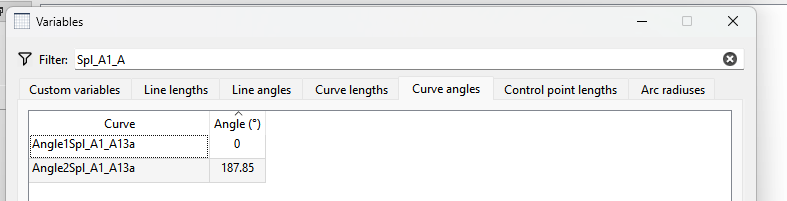
This also looks great to me. We just mustn’t make it too complex for beginners to use. Some people don’t have experience in how graphics work. So KISS must most certainly apply. 
Hmmmm… You’ve got me thinking again… About the spline property editor…
I’ll get back to you. Gotta go to work now.
This will simplify it by putting the Control Handle data in 1 table. It’s confusing even to me bouncing back and forth between the “Curve Angles” and “Control Point Lengths”, and trying to find a curve’s 2 controls. I had problems sorting out the controls awhile back when @DavidDeb had a related issue / question.
While we’re at it, what about combining the Line tabs as well?
Line Name… Length(units)… Angle Name… Angle( °)
They got stuck as single numerals in the middle instead. It kinda makes sense in an ADHD sort of way.
Am I understanding correctly that the idea is for the new tab-list (with my line rec) to be:
Custom variables | Lines | Curve lengths | Control handles | Arc radiuses
I want to combine the Curve tabs, but six columns might be a bit much on smaller monitors.

I like it. 
Again there’s plenty of room in the table, and you would be able to see both Line_ and AngleLine_ with the respective length and angle. Less clicking back and forth between tabs.
Still bugs me though that it’s AngleLine instead LineAngle. 
That would make sense… But if we did that I might then label the Tab “Curves & Control Handles” which would then give us:
Custom Variables | Lines | Curves & Control Handles | Arc Radiuses
I see that my thread has sparked some discussion, which is nice :))))
-
there is another definition of what I am looking for: tangent on the last point in the spline.
-
while you are doing all those changes, I will just add my perpetual wish, can we get the ability to dock the “variables” to the right side? I have so much empty space there, and floating windows are so distracting.
Yes, we’ve discussed this at various times since 2017 - at least a tangent to the curve of a spline (I don’t think on a point, since it already has a point). There’s various problems to this because of the possible multiple hills and valleys on a spline. If I can fugure out how to do this manually, then @Douglas will figure out how to program it
So if you’d like to start a new topic on it where you show us how you do it and others can add their suggestions, that would be brilliant.
 Another one of my wishes that has also been discussed. If I recall correctly, it needs a whole widget to be programmed and incorporated into an already very complicated software, and, at the moment, @Douglas is trying to work on some very important new features (like the buttons, etc. in piece mode) and in trouble-shooting the bugs and glitches, so it’ll be a while before this gets any attention.
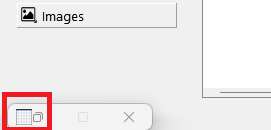
In the meantime, you can minimize it to the bottom left of your screen where you can maximise it again when you need it without needing to go via the menu:
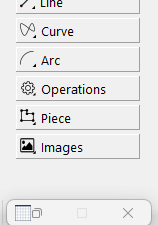
I hope this helps you.
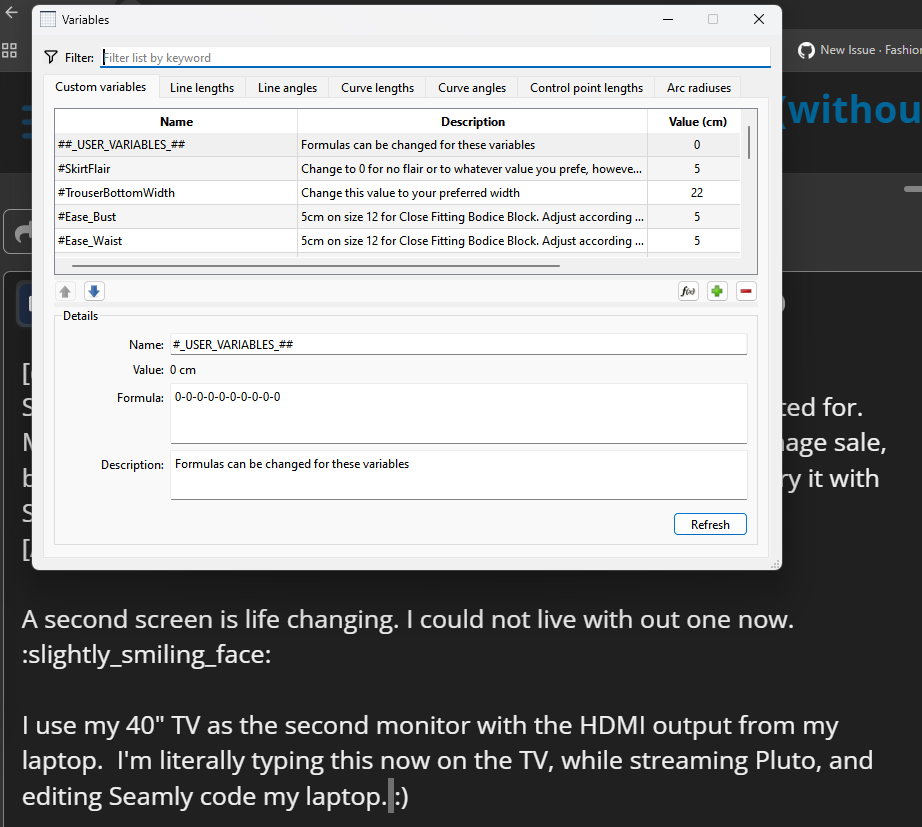
Which has reminded me there’s more to just changing the Tab names in the Variables Table… there’s also the fx Editor:
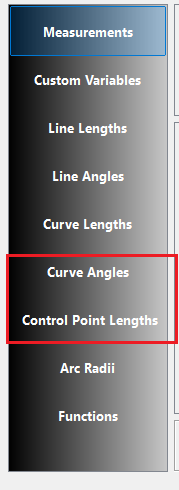
Adding variables is more than just adding a definition to the Variables table. Variables are calculated, given a type & name, and stored in the data container when a tool is created. The Variables Table dialog - other than the Custom Variables - is simply a way for the user to view what’s stored in the data container.
The Variables Table (like the HIstory) is a Non Modal Dialog not Dock so it’s not dockable. You can minimize it when you want it out of the way.
And Open it when you want to use it again:
Not to mention there’s no way to fit all the data of the Variables table in a dock withot the dock taking up most of the workspace.
I know it’s not dockable at the moment :))))
I also don’t expect that you, the people who work on the program will jump on every whim of us.
But it is a suggestion, I am working for 35 years with CAD and there are certain things that I like in my working space hence I am suggesting that.
Btw I do not want it minimized, I would like to have all the time available so I can have it at a glance. I don’t like clicking, I like typing things or using shortcuts.
Another thing, Variables opens with ctrl+t but don’t cloese with the same shortcut. They don’t minimize and reopen with a shortcut etc.
And, if I open them, move to the side, make them longer, according to the size of my scree, than close them, they will reopen in the centre and not in the old position and half of them are off the screen.
Sounds like something the second screen feature was implemented for. Maybe that would help? (I recently got an extra screen at a rummage sale, but haven’t yet figured out how to fit it on my desk so that I can try it with Seamly.)


@nejcek74 There are several requests for new features/functionality in this thread, which is great!
If you don’t mind, would you search the issues on Github for these features? Create new issues if you can’t find them, and add comments to existing issues if they don’t clearly describe what you need.
Thanks! You may need to create a Github account if you don’t already have one.
I have 30 inch monitor, I don’t need a second monitor, but I need an UI that can use the space I have. Not that all the things popping in and out in the centre of screen while 80% of the screen is unused 
thanks, I will make an account and see if I will check issues.
Jetzt gebe ich auch noch mal meinen Senf dazu.
In der Praxis arbeite ich überhaupt nicht mit den Variablen. Diese Tabelle benutze ich zum Schluss, wenn ich eine Maßtabelle für den jeweiligen Schnitt anlege. Dafür brauche ich in der Regel Linienlängen und Kurvenlängen.
Um mit den Kurvenwinkeln und den Kontrollpunktlängen zu arbeiten, gehe ich immer im Entwurf auf die entsprechenden Kurven Linienlängen an, da ich auch die Formel brauche um sie einzufügen.
Wenn, dann würde es für mich Sinn machen, dass auch die Formeln, die zu den Längen hinterlegt wären und man sie für den weiteren Gebrauch kopieren kann. So mache ich es nämlich, wenn ich die Eigenschaften der Kurven und Längen offen habe.
Dafür wäre es auch schön, wenn man die gleiche Möglichkeiten bei den Arbeitsabläufen wie Drehung und Bewegung hat.
Wie verwendet ihr denn in der Praxis die Kontrollpunktlängen und Bogenradien?
The variables do not have a “formula”. They only have a value. The formula belongs with a tool, where the tool evaluates the formula and stores the value in the variable by name. Only the “Custom Variables” have a formula. In other words the Variables Table - other than the Custom Variables - is simply an overall look into the data container of the variables by name & value. Nothing more nothing less.
If you want to copy variable name in the table… select the variable you want and copy it with Ctrl-C. You can now paste it where ever.
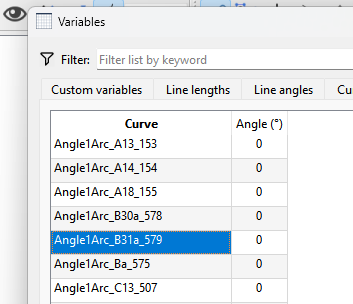
Cut & pasted from the table:
Angle1Arc_B31a_579
BTW - You can also click on a draft object and copy it’s length or angle name:
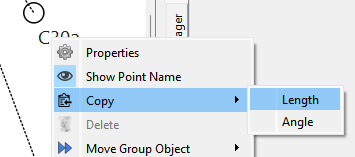
C30a… AngleLine_C30_C30a