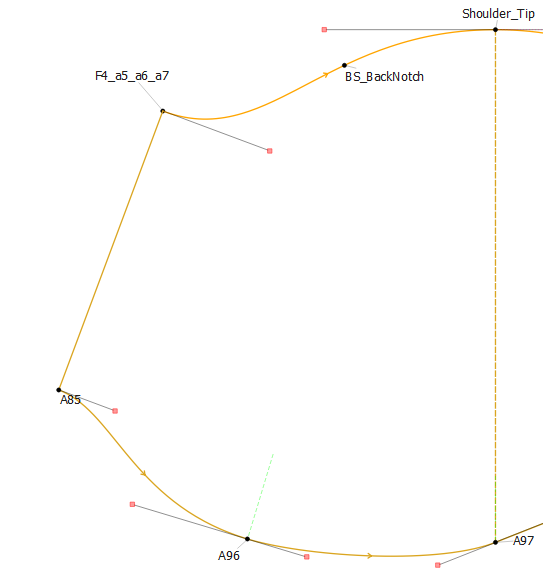
Hi @gigigrelis
I normally place everything into different groups, so that I can hide the parts that aren’t necessary to the exercise. Later, you can delete the groups and place everything into one group, if you wish.
And then, I work from the centre outwards, first on one half and then on the other.
You won’t be able to select the lines between 2 points - you can only select nodes and curves, so you’ll need to add lines for guidance between each rotation.
With these in mind, once you’ve picked up your tool, hold down the Ctrl key as you select the nodes and curves you wish to rotate and, once you’ve selected them all, hit the Enter key. Select the node at the point of rotation, 2 green lines will appear at the 0° and slightly above of below it - just hit Enter again.
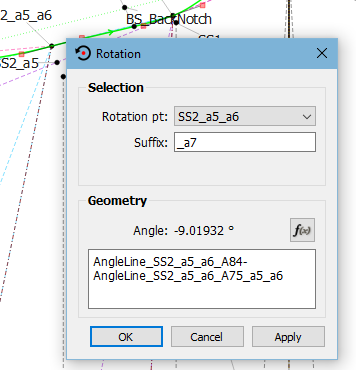
Open the Properties for the rotation and add a formula to determine the amount of degrees that you need the rotation to be:
See below, I added a node at each section that I rotated with a line from the rotation point that is a certain distance from the other point to use for the formula:
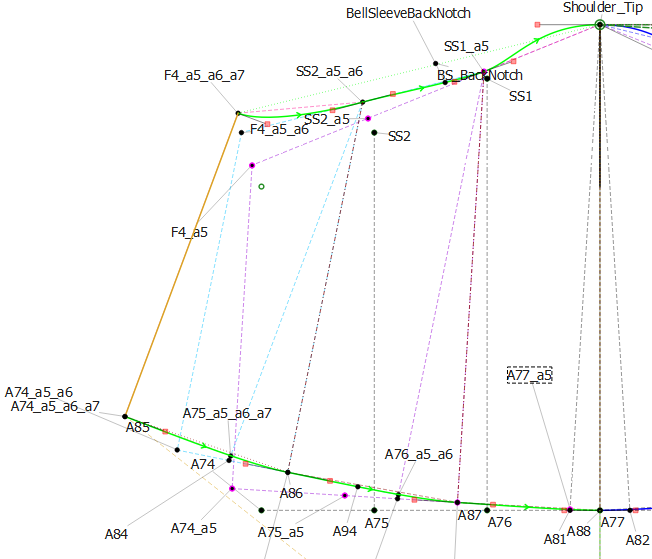
Once you’ve done your rotations, you can lengthen or shorten some of the lines and draw in new curves according to your design.
My final group of the basic pattern piece group so that all of the workings don’t confuse me when I get to using the Add New Pattern Piece tool