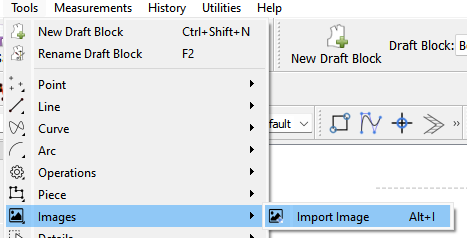
I’ve just downloaded the latest update 2020.04.15.250 … can’t see an import option… I was expecting it to be under files menu… I’m using a mac sonnoma 14.4.1
brilliant I Just traced a simple pattern, works well… the lock image feature is really helpful !
It took a bit of calculation to size the image correctly … ( originally it was a pdf, I don’t have software to convert to png, as yet.
So a screen shot had to suffice so taking a simple measurement check from two known point, was the only way i could think of and then checking from the original pattern to the screen, seems to have worked well … the proof will be tomorrow when i project the images and compare them!
Note that this is just the first release of the feature. It will be improved, specifically with saving the images & attributes in the pattern file. Also eventually there will be some way to scale the image to what it should measure.
For what it’s worth, I’ve been testing the pattern & found that if I saved a screenshot of the properties, I could close the pattern and, when I open the pattern I can just copy the dimensions and positions into the properties to have the image placed exactly where it was before I closed the pattern. Here’s a short video clip… No sound:
This is just the initial release of the tool… there will be some way to scale an image to correct size in subsequent improvements.
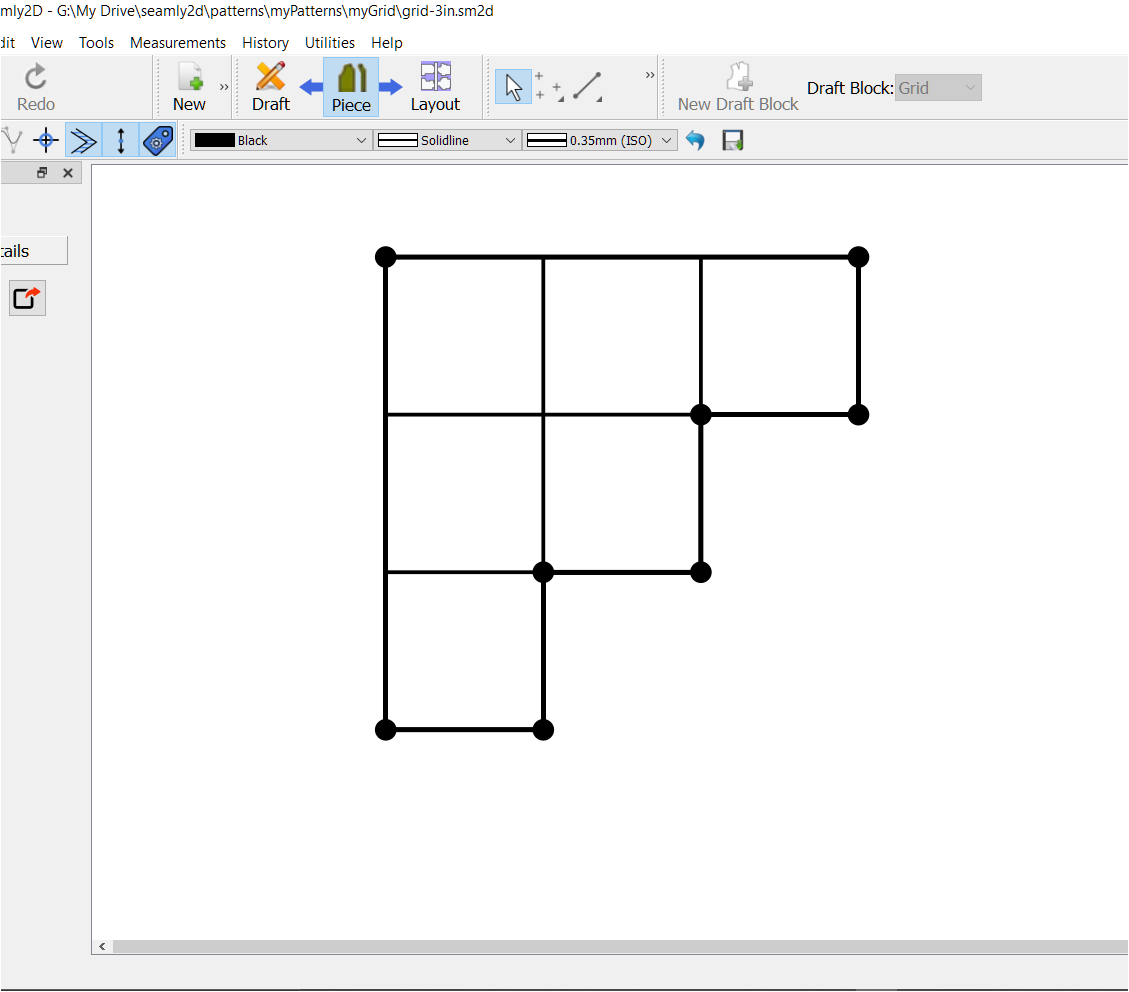
What I would do for now…assuming you’re tracing an existing pattern - draw a square of known size (3" x 3" ?) on the piece, snap a photo, import the photo. Draft a square in Seamly of the same known size, and then resize the image so the squares match up.
Try starting your patterns by opening one of these grids, then saving to a new file name & creating your patterns in one or more additional draft blocks.