There are dotted lines surrounding each object that you select. If you miss one, you can add it to the group individually by right-clicking on it and selecting Add. If you put an object into the wrong group, you can move it by clicking on Move. It gets easier with practice.
2 Likes
That works for the “visibilty” groups, but not when selecting a group of objects for operational tools like mirroring. If you miss an object you have to delete and start over. 
As a note… that’s why I generally click on the point name, rather than trying to select a point itself - the name is a MUCH bigger target for the mouse. 
2 Likes
Would be great if you add some points after the initial rotation/movement. I forgot one or two points, too and to add thos is rather annoying…
3 Likes
thank you. i’m still learning when i should be including points in things…
3 Likes
I’m not sure if this is already on the list of Github issues, but please feel free to add if not.
That being said… adding objects to a operations tool is pretty straight forward. Deleting is another story, as now we’re into that whole dependency thing. From the op tool selection standpoint it’s usually a case of missing an object, rather than including an unwanted object… so even if we were only able to add objects it would be a plus.
3 Likes
Das würde auch ausreichen nachträglich Punkte hinzu zu fügen. Das Löschen ist nicht unbedingt nötig, da man solche Aktionen dann gut in Gruppen sammeln kann.
3 Likes
You’re right. There ist already an issue: Feature: Adding / Deleting / Editing Points or Curves Used in Operations Tools · Issue #424 · FashionFreedom/Seamly2D
2 Likes
OMG for some reasons I completely forgot the existence of the right-click menu in Draft mode (a shame since I programmed one for the images lol).
I just discovered the “Copy” menu:
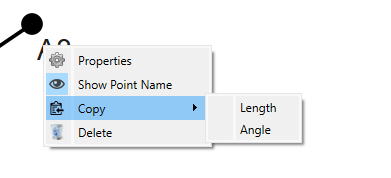
Is it new ? I’ve never noticed it…
Btw (@Douglas  ), I notice that the copy “Length” option does not work for points, it copies the name of the point…
2 Likes
Right. Because in formulas the Name of a tool / object IS the length. If you copy a line it will copy something like Line_A1_A2… copy its angle and it’s LineAngle_A1_A2. BTW… if it were me - to be clearer - the fx prefixes would LineLength and LineAngle. I suppose we could improve the menu by adapting to checking the tool type and for a point just provide a “Name” item. The copy menu was a quick fix to satisfy a user who didn’t want to be bothered with using the fx Editor. 
2 Likes
Hmmm… We need to talk about this tool. It only copies the point label in some of the tools.
2 Likes
It’s not a tool. It’s simply a menu item that copies a tool’s variable names so you can copy&paste them in formulas.
2 Likes
Sorry, I’m busy working on other things, so had the wrong wording.
In some tools, this option only copies the label name, ie. A43. It doesn’t add the Line_A42_A43.
I think it used to work correctly on all the lines and angles, but lately, this is what I’ve noticed.
2 Likes
I took a look and played a bit with the Copy menus… I think I will want to rework the menus. For one rename it to “Copy fx” so as clarify WHAT is being copied. Secondly for the submenus to display the actual variable names to select from. Some tools will actually create 3 line length and 3 angles - such as the Intersect Line and Perpendicular. Other tools like the ElArc will produce several curve lengths, several curve angles, and several arc radii… so a single Length and Angle is not enough.
Also to make up a chart of what variables each tool makes I discovered that if you leave open the Variables Table, and delete a tool (or undo) the tool variables do not refresh, and there is no refresh button to refresh the table, so you have to close the table to refresh any deletions. I created an issue on Github.
4 Likes
Wow… I took a break and watched some YT channels and I came back looking at the tools->Copy menu, after I came up with a MUCH easy way to handle it.
Currently the Copy menu & submenus are constructed through a switch statement based on the tooltype - and there’s a lot of tool types to handle. Then the variable string is constructed through another switch based on the submenu selection and tooltype. Don’t need any of that. The tooltype is irrelevant only the tool’s name is. I can construct the submenu items based on calling the data container functions to get a Qmap (and then a stringlist) of the line lengths, line angles, curve lengths, curve angles, and arc radii. Then taking each string list just need to filter the items that contain a match to the selected object name and add them as a submenu item. Pretty much like the Variables or FX dialogs adds the variable names to a table, but instead adding them to a menu. Then just need to copy to clipboard the selected submenu item string. 
Only tricky part is being able to filter exact point names so that if looking for “A1” it doesn’t include points like A10… A19… A100…A199…
5 Likes