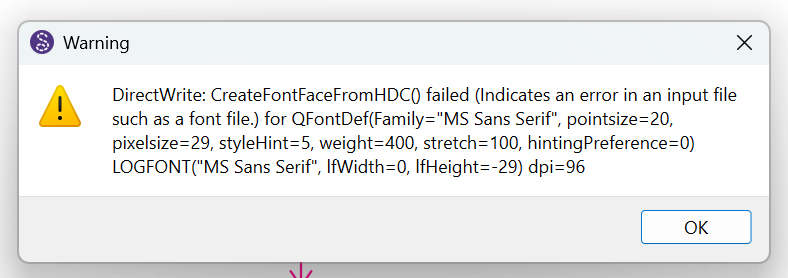
Hi, I’m having repeated crashes and font‑related warnings when using Seamly2D on Windows 11. The issue happens every time I start the program and again when I open any pattern file.
I also cannot change the UI font in Application Preferences. When I try to change the font, Seamly2D shows a warning dialog and then closes immediately.
Environment
Windows 11
Seamly2D versions tested:
– 2025.11.17.210 (Qt 6.5.3)
– 2025‑01‑11 build
– several older builds
The problem happens in all of them.
Start Seamly2D → DirectWrite font error appears immediately.
Open any .val or .vit file → the same error appears again.
Open Application Preferences → Interface → try to change the UI font → Seamly2D shows a warning and closes.
Additional notes
Other applications on my system do not show any font issues.
System fonts seem to be installed and working normally.
Because the issue appears across multiple Seamly2D versions, it may be related to how Seamly2D (or Qt) initializes fonts on Windows 11, especially when MS Sans Serif is requested.
Question
Has anyone else experienced this?
Is there a known workaround, or a way to force Seamly2D to use a modern UI font (e.g., Segoe UI) during startup so it doesn’t crash?
Firstly, you do need to update your Seamly2D software, and keeping old versions is fine but one normally only keep them if there is a risk of opening a very old pattern that hasn’t seen the light of day for many years. You may need to open it in various versions of Seamly to update it to the current version, but mostly, they open just fine.
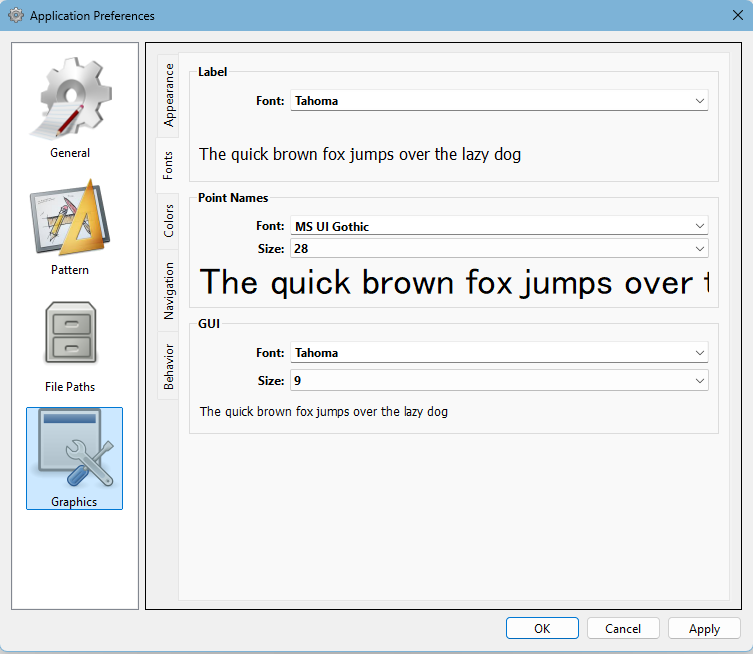
I know that there was a problem a few months back with the fonts, but I think @Douglas fixed it. I never fiddle with the fonts because I have a few hundred loaded including some that I made myself that don’t work on Seamly and do any font editing in Inkscape, so the best I can do for you is to show you the original font settings in Seamly so that you can try to reset yours to them:
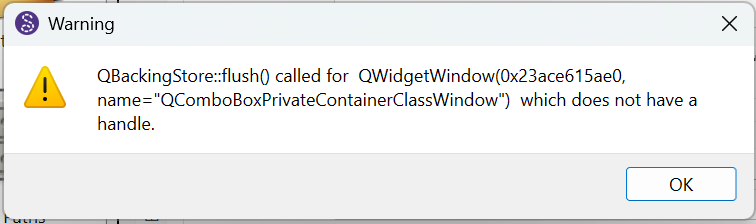
The problem is because MS Sans Serif is probably a '*.fon" bitmap font which the Qt apps can not use. That’s why it’s also throwing the QComboBpx error.
Like @Grace stated I thought I fixed the issue way back last June. What I would do is 1st check your font directory for any “*.fon” files… make a copy of them, then remove them, and see if that fixes the issue. If there are no *.fon files, then there’s is something else invalid with the font that is MS Sans Serif… which you would have to identify, copy, remove, and see if that fixes the issue.
I am already using the newest Seamly2D version (2025.11.17.210), and this is the version where the issue appears.
I also tested several older versions, including the January 2025 build and some 2024 builds, and the same DirectWrite error happens in all of them.
I cannot change the UI font in Application Preferences, because the moment I try to change it, Seamly2D shows a warning dialog and then closes immediately. So unfortunately I cannot reset the fonts from inside the program.
Regarding the *.fon files:
I checked my Windows 11 system, and there are no MS Sans Serif *.fon files present. Other applications on my system display fonts normally, and no other software shows any font‑related errors.
Because the issue appears across multiple Seamly2D versions, and because it happens even when opening a completely fresh installation, it seems that Seamly2D (or the Qt version it uses) is requesting MS Sans Serif during startup, and Qt’s DirectWrite backend fails to load it on Windows 11.
If you have any suggestions on how to force Seamly2D to use a modern UI font (like Segoe UI) during initialization, I would be happy to try it.
Thank you for the suggestions! I checked my system in more detail and wanted to clarify a few important points.
The issue started suddenly while I was working on a pattern. Seamly2D closed itself in the middle of normal use, and when I restarted the program, the DirectWrite/MS Sans Serif error began appearing immediately. I did not install anything, update Windows, change fonts, or modify my system in any way before this happened.
I checked my C:\Windows\Fonts directory as suggested. MS Sans Serif is present there, but only as a Raster (.fon) system font, which is the default on Windows 11. There is no TrueType version available, and Windows does not provide one. Since this is a built‑in system font, it cannot be removed.
Because of this, and because the issue appears across multiple Seamly2D versions (including fresh installations), it seems that Seamly2D/Qt is requesting the MS Sans Serif bitmap font during startup. Qt’s DirectWrite backend cannot load bitmap fonts, which triggers the DirectWrite error and then the QBackingStore error.
I also cannot change the UI font in Application Preferences, because the moment I try to change it, Seamly2D shows a warning dialog and closes. So I’m unable to reset the fonts from inside the program.
Since the problem started suddenly during normal use, it may be related to a corrupted Seamly2D settings file or a Qt fallback‑font issue rather than anything in the Windows font directory.
If there is a way to force Seamly2D to use a modern TrueType font (like Segoe UI or Tahoma) during startup, or to reset the UI font outside the application, I would be very grateful for guidance.
Right. Because the error is happening in the QComboBox drop down that is trying to display the list of fonts.
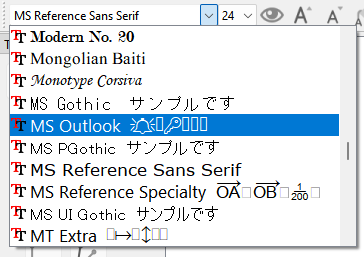
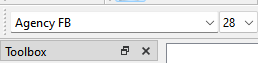
When the app starts it’s trying to load the font list in the Point name tool bar combobox:
There is something wrong with the font that is MS Sans Serif and the box can not display the font. the font file may not be named MS Sans Serif … that’s just the internal font family name.
Just to add one important correction: I actually am using the newest Seamly2D version (2026.3.2.214). I accidentally wrote the version number incorrectly in my earlier message — sorry about that. The issue is happening in the latest version as well.
I checked the Windows font directory again. MS Sans Serif is present on my system, but only as a built‑in Raster (.fon) system font, which is the default on Windows 11. It cannot be removed, because Windows does not allow uninstalling system bitmap fonts.
Also, the issue started suddenly while I was working on a pattern. Seamly2D closed itself during normal use, and after restarting the program the DirectWrite/MS Sans Serif error began appearing immediately. I did not install anything, update Windows, or change any fonts before this happened.
Because of this, and because the problem appears in multiple Seamly2D versions (even fresh installs), it seems that Seamly2D/Qt is trying to load the MS Sans Serif bitmap font during startup, and Qt’s DirectWrite backend cannot handle bitmap fonts. That would explain both the DirectWrite error and the QBackingStore error.
Since I cannot change the UI font inside the program without it closing, is there a way to reset Seamly2D’s font settings from outside the application (for example by deleting or editing a configuration file)?
Has nothing to do wth the UI font. It’s the fon file & the font style combobox(es). You can edit the qt6_seamly2d.ini file in C:\Users[user name]\AppData\Roaming\Seamly2DTeam, but it should have no effect. Chances are the fonts are already set to Segoe UI for the Windows ver, unless you have already changed them.
What makes this situation a bit unusual is that the issue started suddenly while I was working on a pattern. Seamly2D closed itself during normal use, and after restarting the program the DirectWrite/MS Sans Serif error appeared immediately. I didn’t install anything, update Windows, or change any fonts before this happened.
I haven’t changed a thing. I only tried older versions and now that same problem is there as well. And yes, I have doen the reboot.
I can still work, but now I just get the error messages and the font is a bit pixelated.
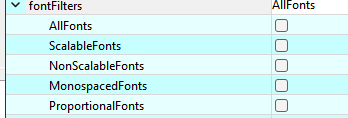
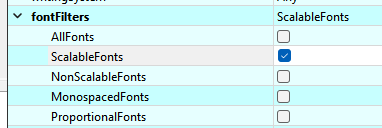
Ok… I did some more checking. While I did fix the font drop down in the Pointname toolbar to only use “scalaable fonts” i.e. no bitmap fon files, I did not set the font filters in the Preferences QFontComboBoxes to scalable fonts:
This should fix the issue with the Preferences. I will make the changes and make a PR sometime today, and hopefully it makes it into next week’s build.
Try and do this… open the qt6_seamly2d.ini file in the C:\Users[user name]\AppData\Roaming\Seamly2DTeam folder in an editor and and delete these lines if they exist:
This should force the apps to use the Seqoe UI font.
I edited the qt6_seamly2d.ini file as you suggested and removed the font‑related lines. After restarting Seamly2D, the program launched normally again without the DirectWrite error, and everything is working as expected.
It seems the settings file had indeed stored a problematic font value, and resetting those entries fixed the startup crash.
Really appreciate your help and the detailed explanation!
PR has been submitted that removes the bitmap fonts (which really have no use in a modern UI) from the Pref combo boxes. Once reviewed and approved it can be merged.
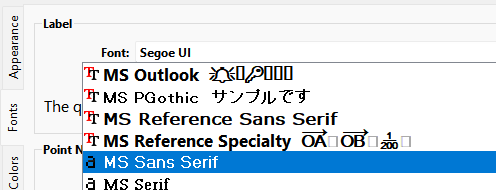
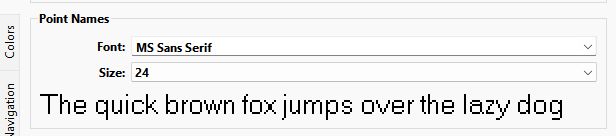
That being said… there must be more to the issue for some machines. I have no problem on my machine with Windows 11, viewing and selecting the MS Sans Serif font… as witnessed by the snapshots I posted above. Also you can see here I selected the MS Sans Serif font and you can see the jaggies from the bitmap:
The issue that does exist though is I can select & save MS San Serif, but when the Point Name Toolbar updates, it can’t find MS Sans Serif so it defaults to the 1st font in the list:
Well I submitted a PR to prevent the selection and saving of a bitmap font in the future. You should be OK for now… just don’t change the font prefs until the new release is out and you update.
Thank you for pointing out the bug. I know I fixed the toolbar combo box, but failed to fix the boxes in the prefs.
 and do any font editing in Inkscape, so the best I can do for you is to show you the original font settings in Seamly so that you can try to reset yours to them: