I’m a hobby tailor from Germany and have been using Seamly2D to draft a Japanese-style cross-back apron (bib with contoured bodice, crossed straps attached to side wings, skirt panels with a slit, facings, notches and individual seam/hem allowances). The draft is based on the Hofenbitzer bodice block.
To get a close fit around the bust, I used a lot of contouring – several darts were closed and rotated around the bust point, so the pattern contains many rotation operations (point names go up to _a30) and quite a lot of dependent objects. The program had become somewhat sluggish over time, but it was still quite usable.
In the middle of the work I updated from version 2026.5.11.215 to 2026.10.12.200 (Windows, AMD Ryzen 7 5825U) and saved my files in the new format. Since then, response times have gone up dramatically – almost every action now takes close to a minute, which makes the patterns practically unusable. Unfortunately I no longer have copies of the files in the old format.
Things I have already looked at: hiding curve control points, checking that piece paths run clockwise, and reducing label sizes – so far without a noticeable improvement.
My questions:
Is there a known performance issue in the new version, especially with many rotations or many seam allowance/notch calculations?
Is there anything I can do to speed up the existing files, or a way to clean them up?
Would someone be willing to take a look at my pattern file (.sm2d) and the measurement file to see whether it can be rescued? I’d be happy to upload them here or send them privately.
Thank you very much in advance for any help – and thanks to the whole team for this great software!
I seem to recall a similar problem a year or 2 ago, but I just can’t put my finger on it right now.
I’ve downloaded your pattern file so that I can have a look at it, but I’ll need your measurements file to make sense of it. So if you’ll upload it either here or to me privately, I’ll try my best
I found it… it was 2 points switched around in the pattern piece.
It may not be the same problem with your pattern, though.
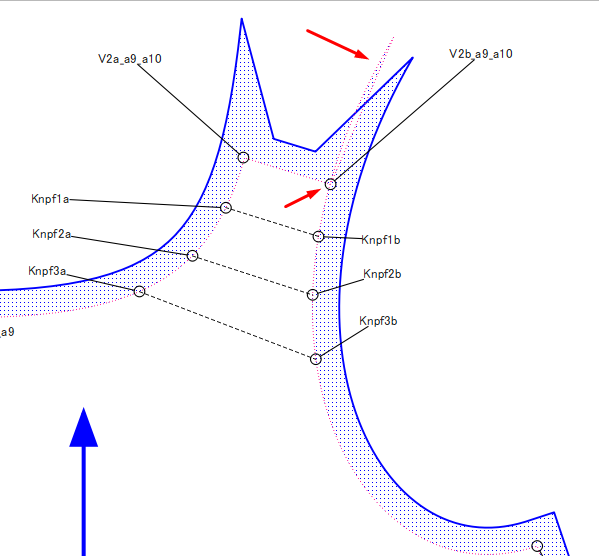
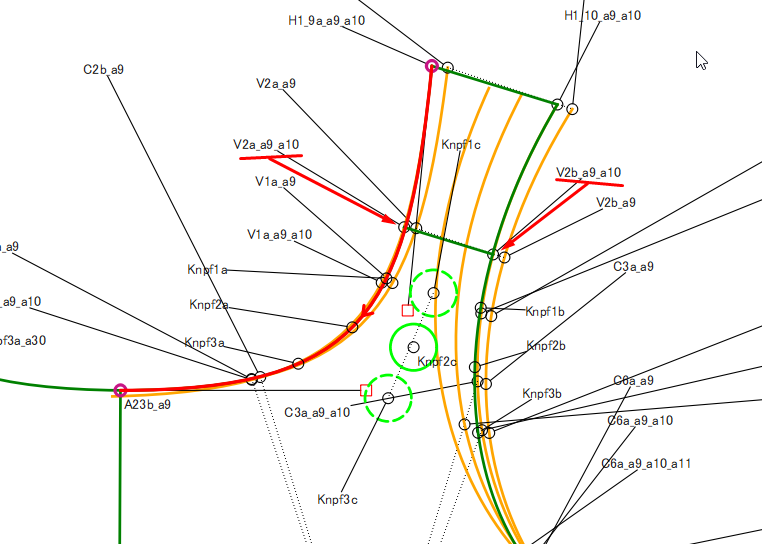
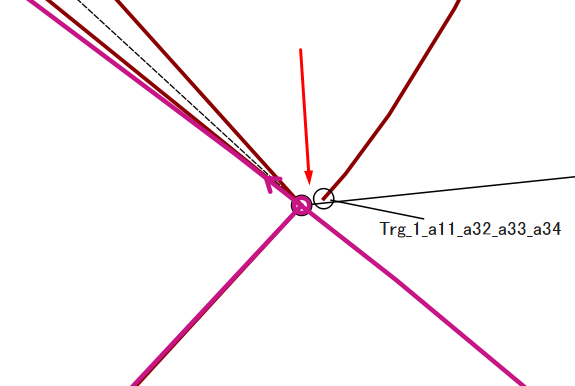
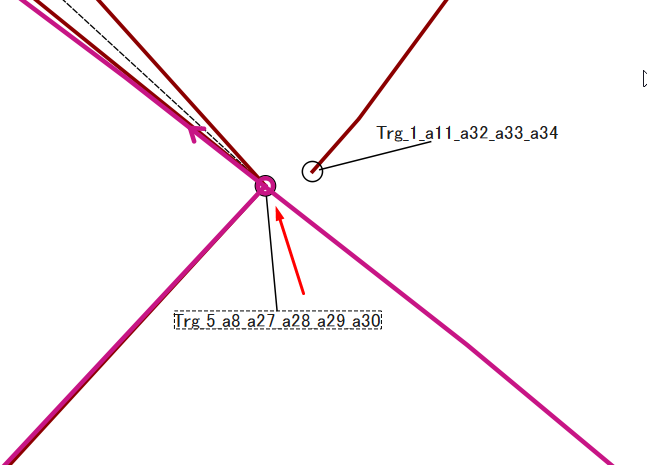
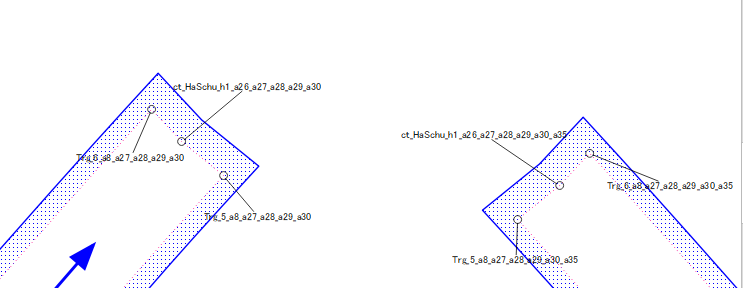
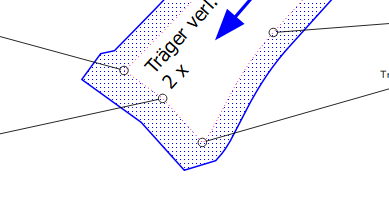
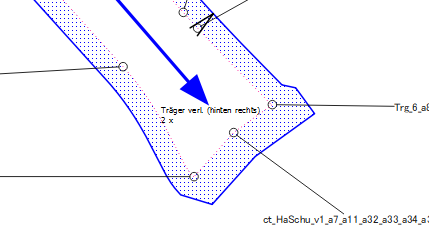
Points V2a_a9_a10 & V2b_a9_a10 aren’t attached to the curves for the neck and the armhole. There are multiple curves and arcs on top of each other, so the incorrect ones have been chosen for those points OR you need to make 2 new points on the curves used. You can use the History to put them in just after the operation that created those 2.
I suggest that you have a “Steps” group where you can hide all of the intermittent steps so that they don’t confuse when you’re creating the pattern piece.
It looks like the pattern pieces were the problem, together with the rather complicated curve construction of the bodice. In the meantime I’ve deleted all the pieces – which took an awfully long time – but now Seamly2D is running at normal speed again.
I’ll clean up the draft first before creating the pattern pieces again, and this time I’ll keep a close eye on the node order.
Thank you so much for your great support at such short notice – have a nice evening!
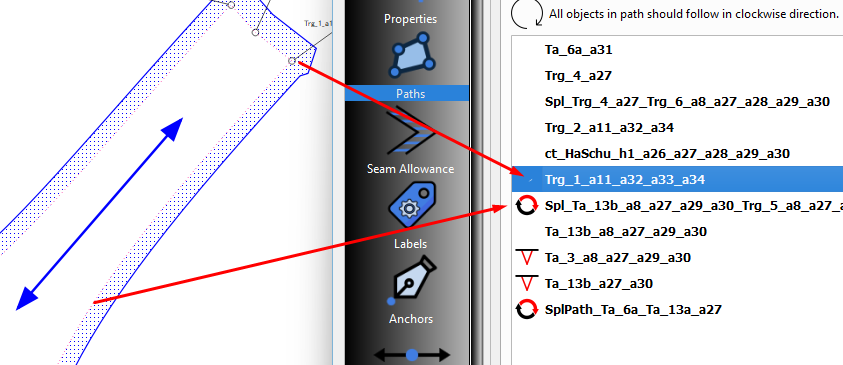
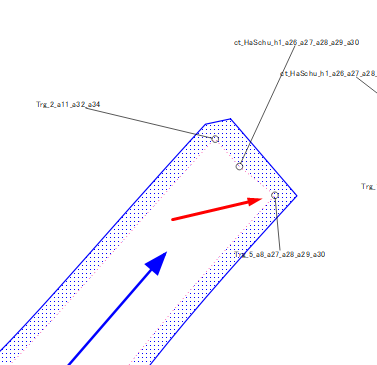
It isn’t the node order, but rather that the nodes don’t connect firmly to the curve used in the pattern piece. So the curve goes past the nodes causing those spikes and Seamly spends a lot of time trying to find the connections.
I’ve repaired those shoulders but there is still something slowing it down. I’m just looking for it now.
Ok, I don’t see anything else and since I’ve deleted the original nodes and replaced them with new ones, it seems to be working a lot faster
It’s probably some sort of recursion loop when painting the Seam Allowance if there is something wrong in the main path.
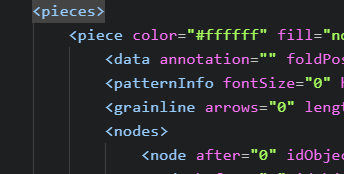
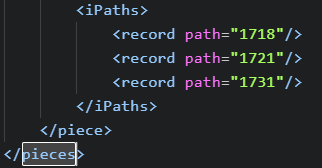
That said… when you say " I’ve deleted all the pieces – which took an awfully long time " you can just edit the xml text file and delete the <pieces> for a draft block.
thank you for taking the time to analyze my files – I really appreciate it.
As mentioned earlier, after cleaning up the patterns the software was back to its normal performance. In the meantime I’ve redrafted the apron from scratch and tried to avoid any unnecessary complexity or ambiguities. To be on the safe side, this time I saved all relevant intermediate steps in separate files, so I can fall back to the previous step if necessary.
This time the performance was fine throughout – until the very last step, when I added the facing for the bib. Since then it has slowed down again considerably.
I’m running Seamly2D on a laptop (CPU: AMD Ryzen 7 5825U with Radeon Graphics, 2.00 GHz; RAM: 16 GB, 15.4 GB usable). Could it be that I’ve reached the limits of my hardware? Or do you have any idea what might be going wrong? I’d be happy to upload the current pattern and measurement files if that helps.
I normally make groups of the pattern piece outlines in the draft, before I actually make the pattern pieces, so that everything else is hidden and I can check that I have only all of the correct points and curves visible before making my pattern piece. All of the other inbetween workings go into an ‘Extras’ or ‘Workings’ group, which also gets hidden (and normally stays that way). I also try to keep the label names quite close to the point so that I don’t get confused later or need to hunt for things. However, that is how I work, you will develop your own methods that work for you.
first of all, thank you for all the time you have already invested in my problem – and Grace, special thanks for working your way through my design and cleaning up all the errors. The layout is now perfect, and I will take your helpful advice into account in my next project.
Unfortunately, I’m sorry to say that the performance problem is unchanged with the revised pattern as well.
Here is what I have tried so far:
I uninstalled Seamly2D and downloaded the current version (2026.10.26.146) from the official website.
I checked the available disk space, which is fine.
I watched the Windows Task Manager while Seamly2D was unresponsive: overall CPU load is around 10–17 and memory around 55 , so nothing unusual at first glance. However, Seamly2D itself shows a constant CPU load of about 6 % while doing nothing. On my 8-core / 16-thread CPU (AMD Ryzen 7 5825U, 16 GB RAM), that corresponds to roughly one thread running at full load – so it looks as if Seamly2D is stuck in a continuous calculation or repaint loop on a single core.
When I delete the bib facing piece (“Besatz (Latz)”) from the revised version, performance immediately returns to normal.
I know I’m taking up far too much of your time, but do you have any idea what is so special about this bib facing piece, and why this one additional small piece breaks the performance?
I’ve attached two files:
the revised version with all pieces, which is very slow on my laptop, and
version V1 with the bib facing deleted, which runs fine on my system.
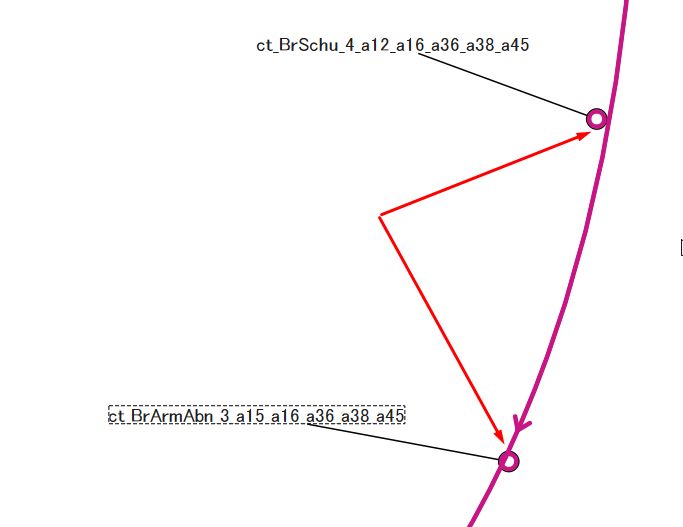
Here you can clearly see that the curve doesn’t pass through those 2 points. To fix this, you need to use the Intersect Curve & Axis tool to place a point on the curve and then replace the points used in the pattern piece with the new points.
Once again, I’ve fixed those 4 points, however, only 2 were used in the pattern piece.
Yes, this is what happens when you tell the pattern to use a curve but don’t attach it to any points. It runs up & down the curve searching for where it’s attached, doesn’t find it and keep searching long after it has given you something to work with. Do this with multiple curves that don’t have starts and ends, and you have a really slow computer.
Just for FYI… You don’t need to draft 2 identical patterns for size 38 and size 40, you only need to load in the measurement file to change the size.
In parallel to your analysis, I went through the curves used for the bib facing once more. Many of them had been moved and rotated several times during the contouring, and I noticed that some curve names did not reference the relevant (latest) points – a move operation suffix _aXY was missing. So the facing piece mixed curves and points from different construction stages. I went back to the step where all curves were still correctly defined and redrafted the bib facing from there – and now everything runs smoothly.
Grace, your finding explains the mechanism perfectly: the curves in the piece path were not actually attached to the points I used, because those points did not lie exactly on the curves. Seamly2D kept running up and down the curves looking for the attachment points – and with several such curves, no wonder my laptop got so slow. Thank you for fixing those points and for the tip to use the Intersect Curve & Axis tool to place points exactly on a curve. I’ll use that from now on.
My lesson learned: after every step, verify that Seamly2D has actually used exactly the points and curves I intended – especially after move or rotation operations – and make sure that every point used in a pattern piece really lies on the curve it belongs to.
And thanks for the hint about the sizes! I hadn’t fully realised that I only need to load a different measurement file instead of drafting a second pattern. I’ve already started moving my custom values into the measurement files, so this fits perfectly.
Once again, a big and heartfelt thank you to both of you for your patience, your time and your expert support.
Thank you very much for the donation. It’s greatly appreciated to help releave some of the expenses in keep the tool & community alive.
You need to practise using the groups. When I’m doing complex rotations and moves, I put only the items that I want to rotate or move into a group. Everything else is hidden in other groups so that I can put off the eye and only see what I need to see. Then I can drag across everything and only hold down the Ctrl key to deselect 1 or 2 points that I need for the centre point, etc..
It also makes the workspace a lot neater so that you don’t get lost in all the noise.
And then… Something else…
You can use 1 draft (pattern) to create multiple pattern pieces, you don’t need to create a draft for every pattern piece. So you can draft half of the main piece, then add the facing lines to it and then use the same main piece for the lining. Then you can mirror the half piece with all of the addition lines and curves for the different pieces and you’ll have the whole piece for all 3 separate pattern pieces.
When you create your pattern pieces, you can use the points and curves over and over again for different pattern pieces and know that they all match perfectly. In Piece Mode, you can move the different pieces around to different areas so that they are separate.
These are only tips. As I said before, we all eventually develop our own methods. Most of all, pattern making needs to be a happy place.
This is the whole purpose of using formulas for everything in Seamly. It means that a single pattern can adjust to changes in custom variables or measurements.
The measurements can be done in one of 2 ways… multiple Individual Measurement files or a single Multisize Measurement file. Individual files are generally used for custom or made to measure patterns, where as the Multisize is generally used to create a range of “off the shelf” patterns.
The same pattern can use either type of measurement file. Depends on what your needs are.