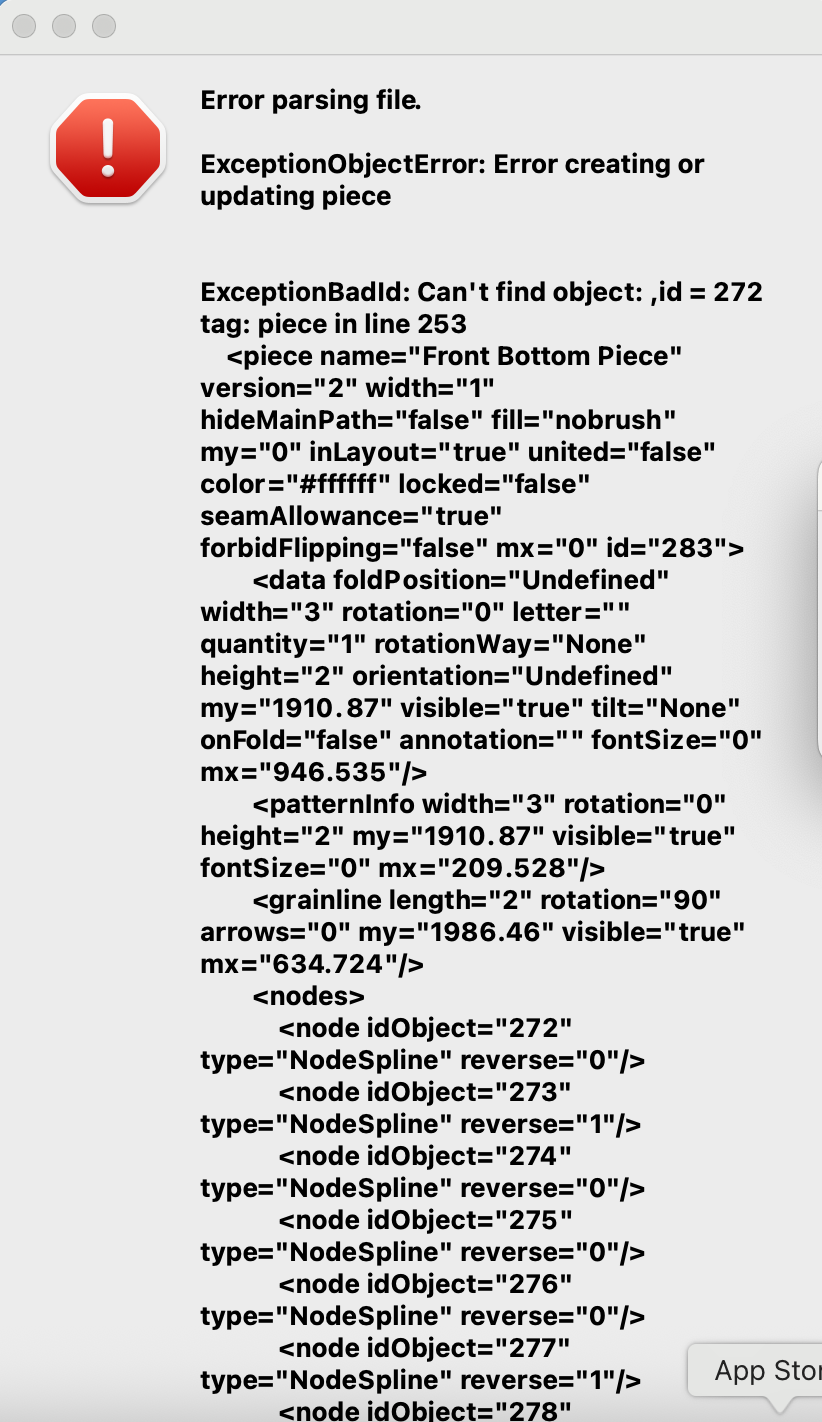
Hello. I just started using Seamly2D earlier this week, and I had been working on a file all day, periodically saving it, and then the whole thing crashed. It gave me an error message of “Error Parsing File; ExceptionBadId: Can’t find object: ,id=272 tag: piece in line 253…”. I see other people have also posted about a similar issue, but unfortunately I can’t seem to understand how they were able to resolve it. I’m a newbie with Seamly2D. I can’t find any autosaved files on my computer, although autosave is on.
Is my file totally lost, or can you please help me figure out how to retrieve it?
Thanks in advance!
Some more information in case it helps:
Before the application crashed, I had two draft blocks, and multiple pattern pieces, including some with mistakes (I wasn’t sure how to delete the mistake pieces, so I moved them into a pile on the side). I tried to make another pattern piece from the first draft block, and somehow this piece ended up shaded in the middle, rather than its seam allowance shaded, and I also couldn’t move this pattern piece around like I could with the others. Also, when I immediately returned to my draft block, I noticed some of the points had little red boxes around them. I couldn’t figure out where these boxes came from or how to make them go away. I tried to hit the undo and redo buttons, but that didn’t fix anything. I tried to recreate the same pattern piece by clicking on the curves in order. That’s when the whole application crashed.
Now I have an error message and everything in my file is grayed out and unclickable. I’m not sure how to fix the issue with my file if I can’t open it. I can only see the first draft block, but not the second, and not my pattern pieces. Also, in the first draft block, it looks like one of my curves for the most recent pattern piece I was trying to make is somehow not there anymore.
I just took a pre-existing actors smis (which are pretty comprehesive) and imported @Leo1’s measurements, and took an educated guess at the added ones. I was a bit off somewhere, but it was enough to get the pattern loaded.
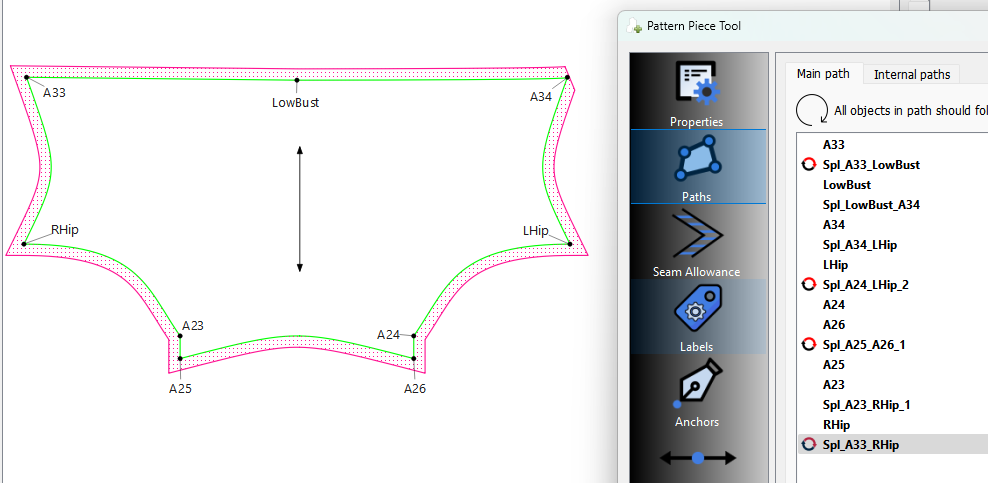
I took a closer look at your pattern and noticed several things. One is the spline from A23 to RHip which I assume was deleted and was causing the crash, not ll node points where included between the curves, and that you were inlcuding curves as straight lines between 2 points.
Generally it’s best to include ay node points between curves. There are some cases where the app doesn’t like to create a correct seam allowance between two curves. Also the app will automatically craw a line between 2 node poins in the piece.
I put the missing spline back in, added some nodes, deleted the unnecessary curves, and deleted the messed up pieces.
Thank you so much, Douglas, for your time and help! I truly appreciate it.
Yes, I was having trouble figuring out how to attach the measurements file, but it’s all up and running now much better.
Could you, or someone else, please explain what this means? Does this mean we should make a curve by connecting many points, more than the number I had?
First let me explain “nodes” in connection with pattern pieces. There are two types of nodes. Points and Curves.
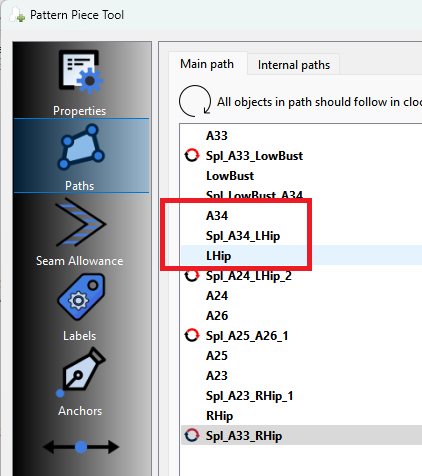
When you create a new pattern piece as you are selecting nodes you want to include the endpoints of any curves you want to add. So for ex: Given your pattern where you want to include the curve Spl_A34_LHip you would select the point A34, then the curve Spl_A34_LHip, and then the point LHip.
If you have any points on a curve… such as a notch, you need to select the curve, select the notch point, then select the curve again.
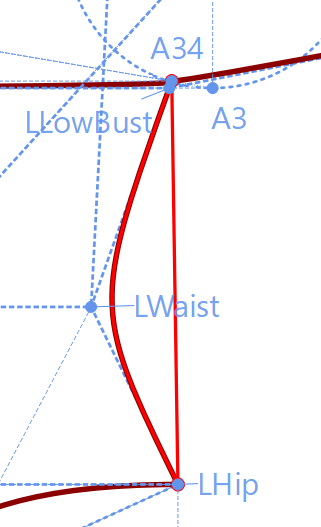
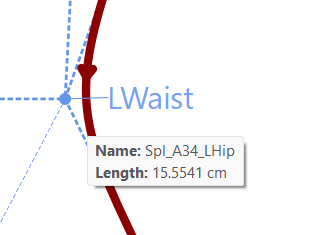
Note: You have to select nodes in a clockwise direction, and all curves must go in a clockwise direction. If a curve was created in a counter clockwise direction it needs to be reversed. Usually the app will do this automatically when you create a piece - otherwise you can hold the shift key when selecting and it will reverse. You can also manually reverse a curve by editing the curve node in the pattern piece properties → paths. In this case the Spl_A34_LHip it is going clockwise so it doesn’t need reversing as indicated by no reverse icon in the path list. You can see the direction of a curve in draft mode by looking at the direction of the arrow when selected:
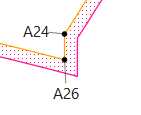
Also to note… creating a pattern piece is like connecting the dots as per the main path in a clockwise direction. We don’t need a line in draft mode between 2 points, as a line is automatically drawn between any 2 point point nodes in piece mode. For example you had (straight) curves that were between A24 - A26, and A23 - A25… not neccessary: