Hi, I'm lucia. I hit an error message quickly!

Hi,

I’m new here. I just downloaded seamly on my mac and I’m just trying to click around to see where all the bells and whistles are. (I like to do this first when I download software.)

Some things are new, and I’m just trying to get past error messages.

I clicked on “Measurements”. Got to open seamlyMe, and clicked across to see what I could even open. I see I can enter measurements from scratch (and I probably will.) But I also saw “Open Template”, and thought, “What the heck! Maybe I don’t need to enter a ton of measurements from scratch?” I tried to open “aldrich_women_template.smis” and that threw an error message. I’m worried this bodes badly. This is the message.

”File Error.

Exception: Can’t open pattern file /Users/luciaold/seamly2d/templates” aldrich_women_template.smis Read-only file system.”

What’s the best place for a tutorial for an absolute newbie? And are there any settings I need to do to do things like open templates? (Because, wow! that seems handy.)

2 Me gusta

Welcome Lucia,

I tried to open the aldrich template on Windows and it gave me a similar permissions error… not sure why it won’t open from the app director? I copied it to another folder and it opens fine. Give this a try:

aldrich_women_template.smis (2.2 KB)

One suggestion I can make are the Minimalist Machinist YT videos.

2 Me gusta

It’s due to the security permissions that Windows enforces on programs installed into the “Program Files” directories.

Any program that tries to open a file for writing to (or even just to create a temporary lock file for it, as Seamly does) will need to be running elevated access (i.e. as Administrator), and if the program is not written to be aware of this then it’ll be denied access without triggering the UAC access prompt, resulting in a program error.

It might be a good idea to have the installer copy the sample pattern & measurement files into the default Seamly user directory — maybe also marking them as read only by default, depending on whether you want to force any changes to them to be then saved out as new files so that they don’t get overwritten by the user if they aren’t sure what they’re doing yet.

2 Me gusta

I’ve already thought of doing that… and the issue of whether to keep over writing the samples (and default label templates) everytime a user updates. Theoretically one should not be editing and saving a template back to the same file.

3 Me gusta

Thanks,

I’m on a Mac, so it’s doesn’t have anything to do with Windows. Which directory is “the default Seamly user directory”? I put the Seamly app files in my “App” file, and the actual files to be opened (aldrich_women_template.smis) is in “/Users/luciaold/seamly2d/templates”. I would think seamly2d is the default directory?

I”m going to fiddle with the back slash?

Should the file be read only? After getting the error, I changed to read/write assuming lack of write permission was the problem.

2 Me gusta

Thanks! I think the files it copied are… not right. It was only 94b. The one that you gave me is 2.2Kb– much bigger. I just overwrote and it’s opens just fine!! Thanks. I’ll hunt for all correct files and overwrite.

2 Me gusta

Given the success overwriting, I guess I now what to find where I can get

  • gost_man_ru (Which would be a multi-size sheet)

  • all_measurements_template.smis (Which is a template?)

    Are they somewhere at GitHub?

    I want to be sure I really have everything I need in my “seamly2d” directory.

2 Me gusta

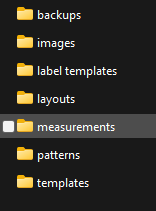
I’m not a mac user, but the default directory should be your user’s home directory located at /Users/yourusername/seamly2d. In that folder you find these folders.

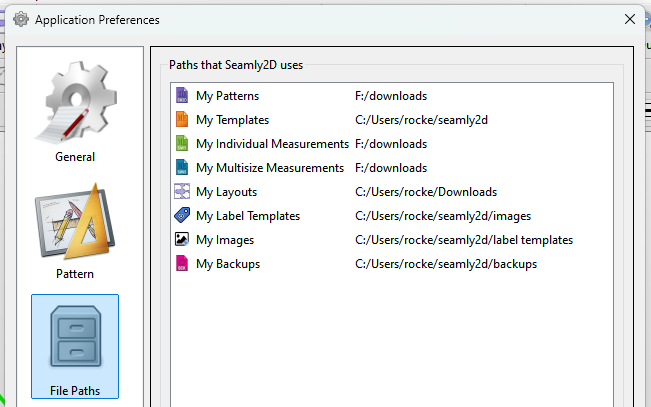
You can however change the App preferences->file paths to use other paths.

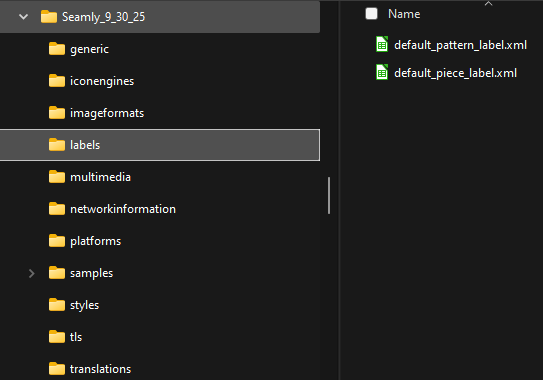
The app comes with a samples folder with these subfolders:

image

gost_man_ru.smms is in the measurements->multisize folder.

all_measurements_template.smis is in the measurements->templates folder

There is also a “labels” folder in the seamly2d app folder. Thiscontains 2 default label templates.

Best thing to do is copy the files from the app-> labels & samples folders to the appropriate user folders.

2 Me gusta

Yes. If the samples folder isn’t where you can find it, you can find them on the GitHub. The GOST file is :HERE: The all measurements can be found in the templates folder, which is the next one down on the sidebar in GitHub.

:unicorn:

Yeah, I suppose for the tiny benefit of having the handful of samples be copied into the user directory, it’s just not worth the (albeit probably tiny) code overhead, and/or hassle of coding it in in the first place, given the priority/number of things already on the todo list.

1 me gusta

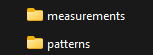
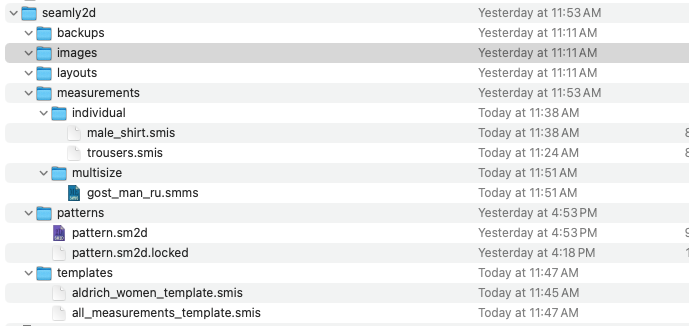
Thanks. I’m a bit confused. When I downloaded and ran the installation program, these folders and some of these files were created. (I tend to use mac terms– do folders=directories). I downloaded and over wrote some files– because for example, “gost_man_ru.smms“ and others in templates were sort of tiny empty files. I couldn’t load templates and multi-sizes but I now can. This is a screenshot from my Mac.

Are you saying additional folders (i.e. sub directories) should be present in my seamly2D folder (directory)? For example, I have nothing called “samples” or “platforms” etc? I can download and add those but I want to be sure I’m adding the right things to the correct folders (directories.)

I do have a two app files in my apps folder/directory. The two files ending in .app are the app files. (The folder is just the download dmg files. I could pitch them.)

image

Thanks for all the help so far!

2 Me gusta

Same difference.

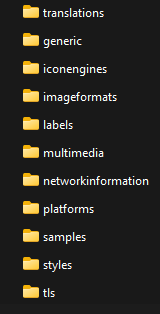
You’re going to have 2 directories (actually 4). The application directory where the apps were installed should contain the apps, a bunch dll’s and these directories:

In the samples directory is where the sample measurements & templates are.

When the applcation (first) starts it creates the “seamly2d” directory in the homepath i.e. the users directory. The path varies depending on OS. The directories should be empty until you save something there. These are the default paths as no preferences have been set yet. You can change the paths for the apps to look elsewhere if you prefer. Note: I’m working on a fix for the default paths. Currently if you change your path prefs and delete the empty seamly2d paths, the app will create them again next time it runs. The fix will look to see if the paths have been changed in the settings and if so it will use them, otherwise it will fall back to the default paths. This way of a user changes the paths they can delete the defaults and they won’t get created again everytime the app is run.

The other 2 directories are a Seamly2D, and a Seamly2DTeam. The Seamly2D directory stores the log file and on Windows the path is at C:\Users\rocke\AppData\Local\Seamly2D while the Seamly2DTeam stores the settings files… on Windows the path is C:\Users\rocke\AppData\Roaming. Excatly where these paths are on the Mac I don’t know. For the most part you won’t need to deal woth these.

1 me gusta

Ok. I’m going to assume all those other files are present? They definitely don’t show as visible subdirections in my application directory. On macs, it not conventional to have anything other than the app with the .app extention in the application directory.

I guess I could make a “seamly2D” subdirectory in the app directory?

Whats rocke in “Windows the path is at C:\Users\rocke\AppData\Local\Seamly2D”? Is that your user name?

On my mac the path to the seamly2D folder is /Users/luciaold/seamly2d luciaold is my username. That directory contains the files I showed before. None have the names you indicated.

The path to the the two applications files are

  • /Applications/Seamly2D.app
  • /Applications/seamlyme.app

As I said: there are no other seamly associated files in there as far as I can tell.

I guess I should try to follow a tutorial and see if I get errors. Maybe things are different on the mac?

1 me gusta

Sort of… it should be rocketweb, but Windows chops it off after the 1st “e”. :roll_eyes:

You’ll have to pardon my ignorance… I’m not a Mac user so I have no idea how or where apps are installed. If the only files in the installed app directory are the 2 apps, I have no idea if the samples are even packaged in the Mac release?

Hey @csett86… do you have any idea where the /translations, /labels and /samples folders are installed with the Mac release… if they are at all?

2 Me gusta

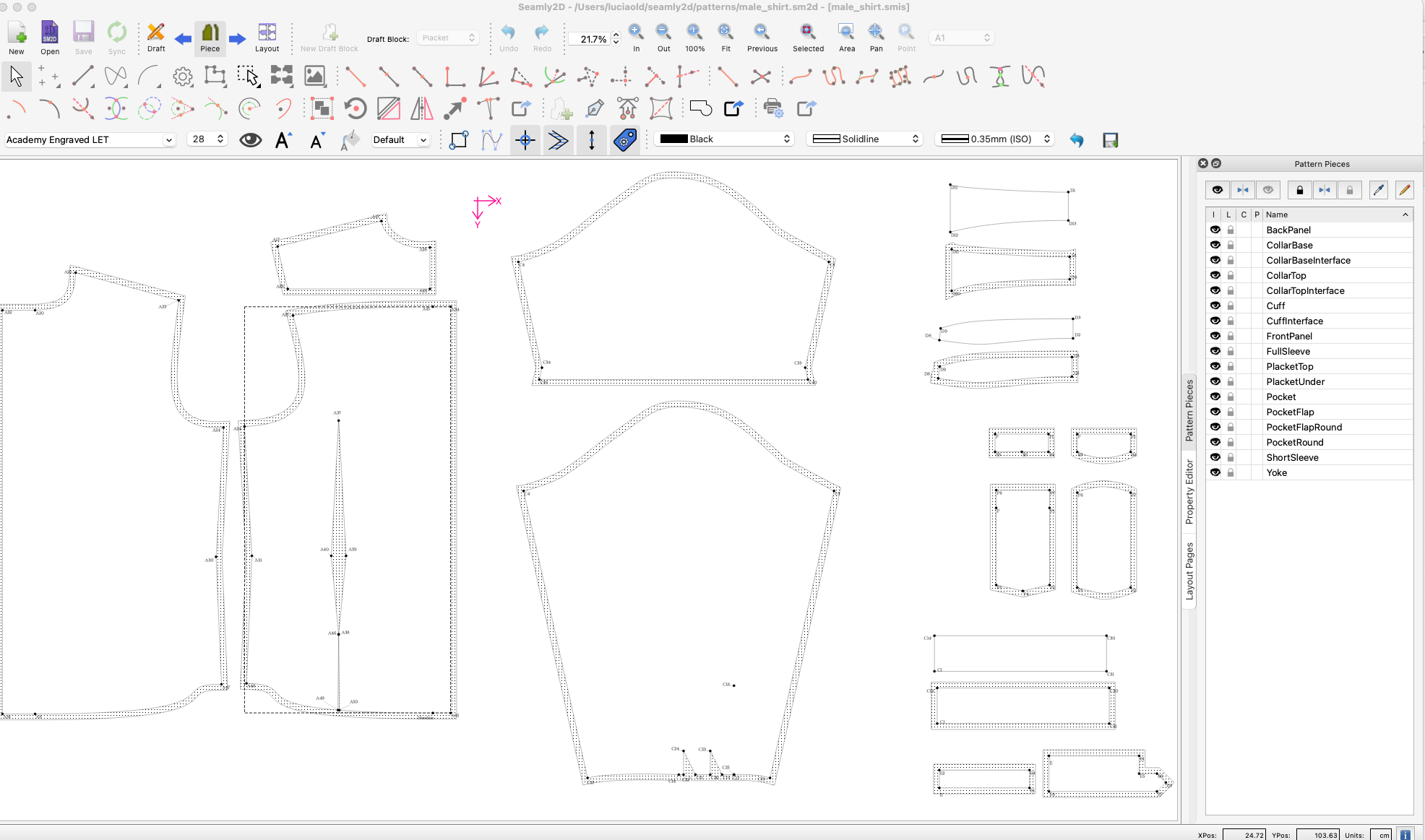
I did add the “patterns” to my “patterns” subdirectory. I can open it and see something like what’s shown below. It looks like a pattern, but the pieces aren’t labeled and there are no grain lines. Might this mean I need to add the labels directory somewhere? (I can experiment and try different places. But I need to know whether this is evidence they are missing.)

2 Me gusta

You don’t neccessarily need the labels directory to add labels to pattern pieces… it’s just a bit easier as the labels directory has a couple label templates to start with. There’s 2 templates to start with.There’s one for the pattern label and one for the piece label. Here they in case you can’t find them

default_pattern_label.xml (586 Bytes)

default_piece_label.xml (423 Bytes)

OK… lets take the east part first… adding the grainlines. I’m going to skip using the anchor points for now for the GL’s and Labels… once you’ve figured out how to add them you can ask how to anchor them.

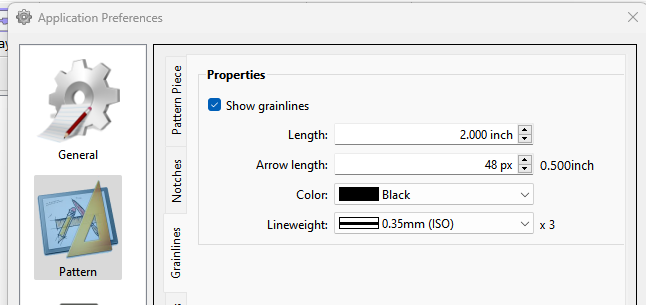
First you may want to set some GL prefs, although it won’t have any effect on an existing pattern:

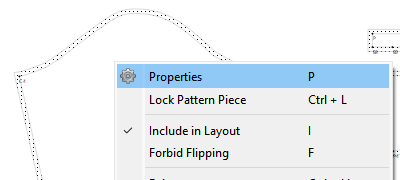
With the right mouse button open the context menu and select Properties:

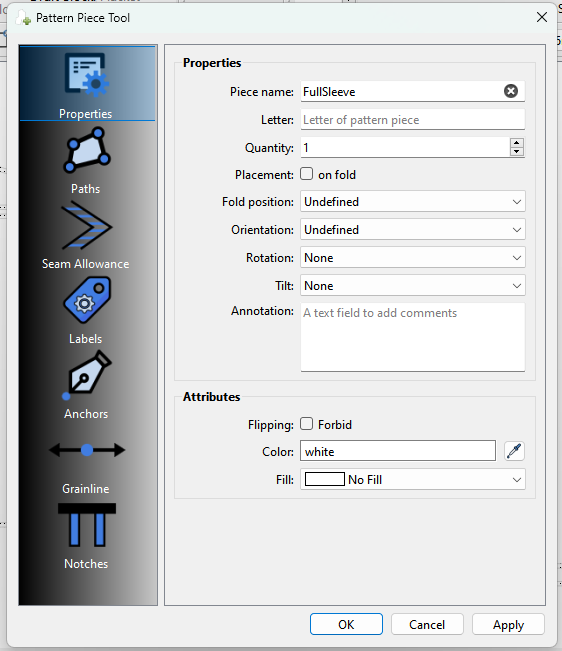
You can now edit any of the pattern pieces properties.

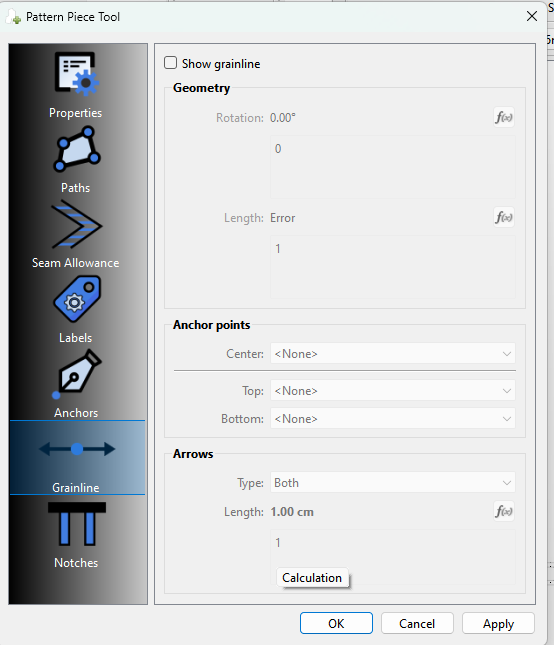
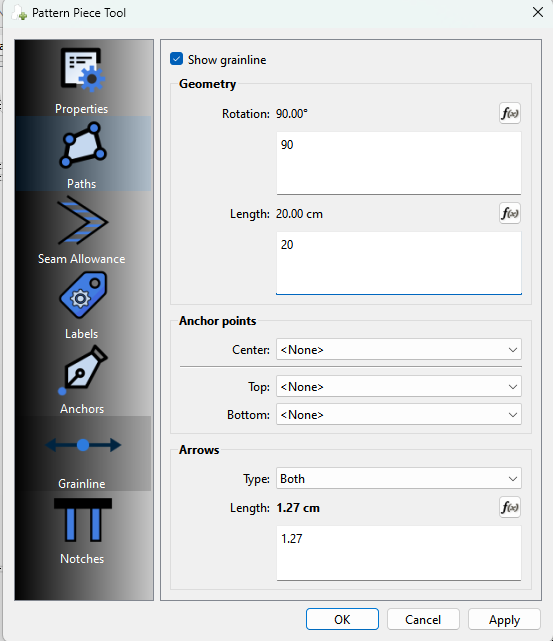
Select Grainlines in the sidetab:

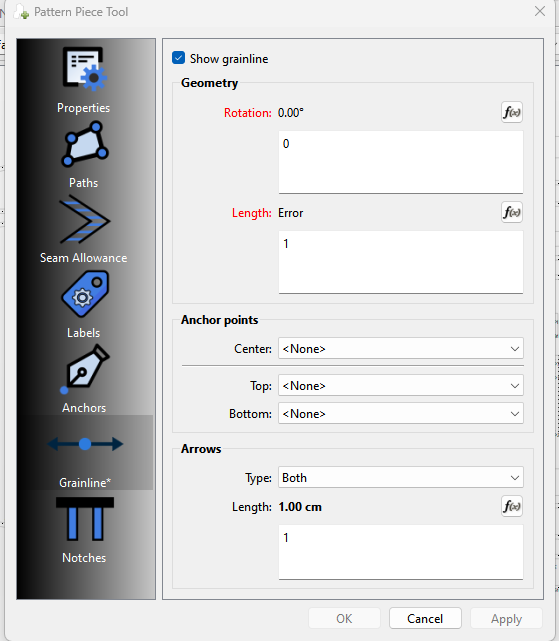
Click Show grainline… this pattern is going to show an error as it needs to be updated to a more current App ver (which I just realized) :

Change the Arrow length to something like 1.27cm (1/2in)

and say 20cm for the GL length: Note the GL length has to be at twice as long as the arrow length or you get an error, and 90 for the rotation:

Click OK.

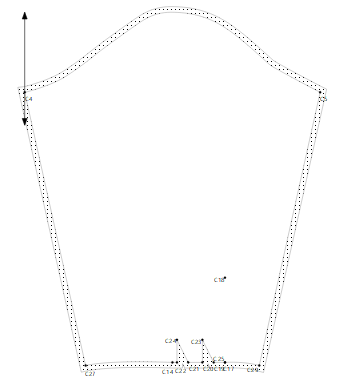
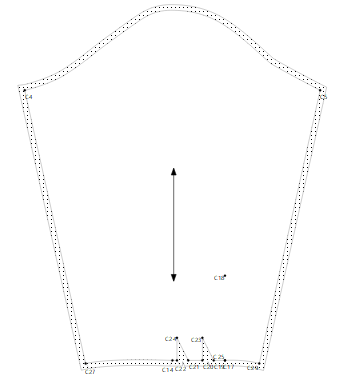
The GL is now visible, but not on the pattern piece(because it’s not anchored to any anchor points)… you can drag it to where you want it.

Repeat for all the other pieces… you can tailor the size of the GL & Arrows to fit the size of piece. This was a recent addition.

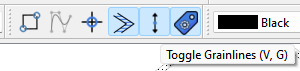
Another note: You can globally hide all the GL’s by toggling off the Grainline toolbutton in the toolbar:

image

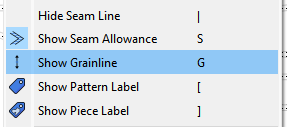
Or hide an individual GL by toggling the Context menu item for a piece:

2 Me gusta

Pattern Piece Labels:

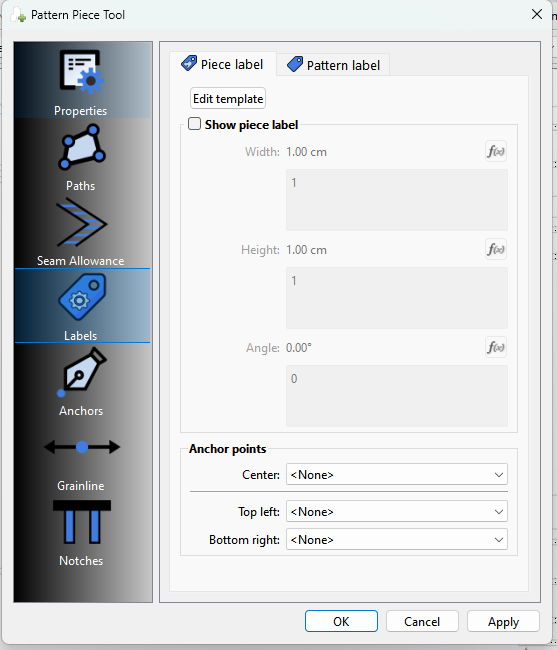
Open the Properties ans select Labels:

Im just going to add the Piece label… the Pattern label is the same other than the tmeplate used. Click Show piecelabel and click Edit Template:

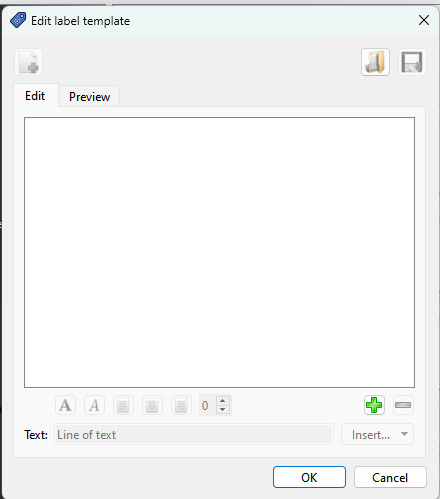
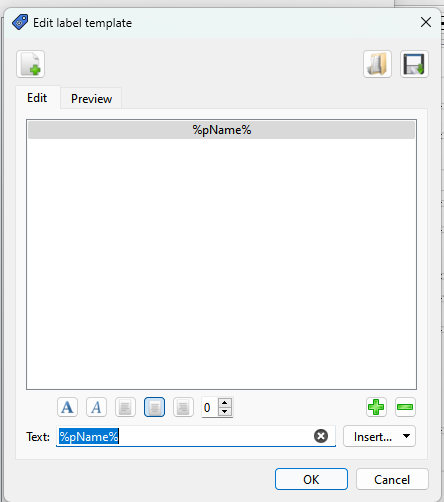
This is the label editor:

You can either create a template from scratch or load the default_piece_label.xml.

Let’s just create one… click the green plus button:

image

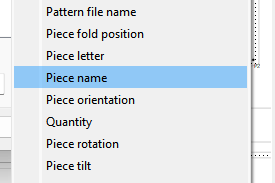
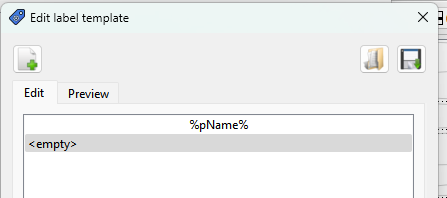
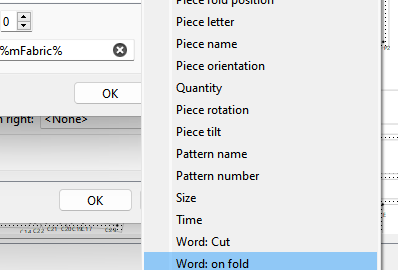
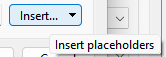
It adds an < empty > text. The text field is any text plus any placeholder which will be filled in with the piece or pattern data. Lets add the piece name… select the insert drop down, and from there select Piece name:
image

Yiu shoudl now see this:

image

delete the < empty> text leaving just the %pName%… anything between the %'s will be replace by the piece data.

Yiu can set the alignment… I prefer centered - you can see the label template in the window above:

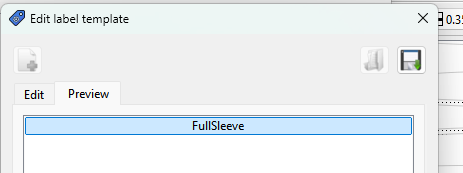
Clicking preview will preview how your label looks:

Click plus again to add another line:

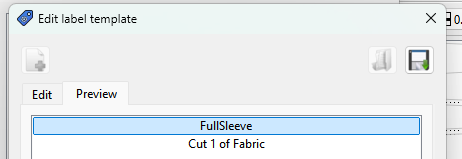
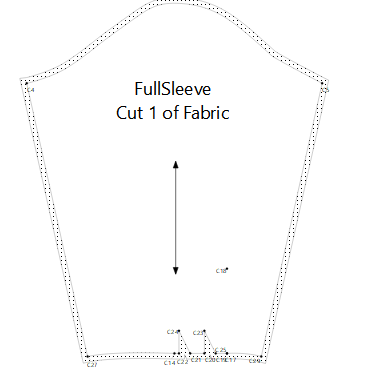
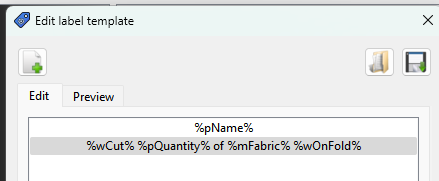
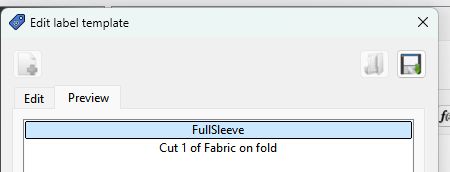
This time I’m going to make the label show Cut 1 of Fabric: Insert Word cut, Insert Quantity, add text ’ of ', insert Material:Fabric, Center… preview, and you have:

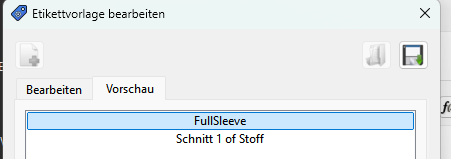
Note… the reason for the wCut is because wCut is a variable that gets translated…text you type is not. For exmaple here’s the label in german:

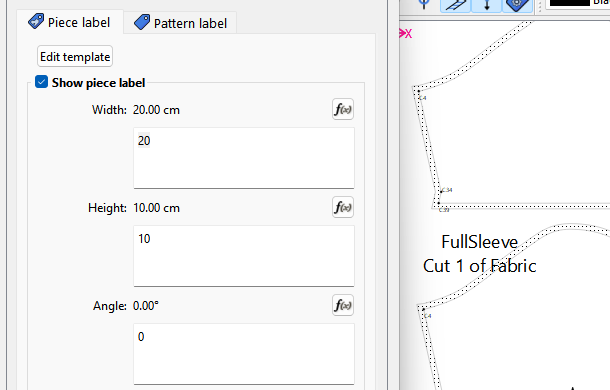
So now you may want to adjust the size of the label…

Click OK and move the label.

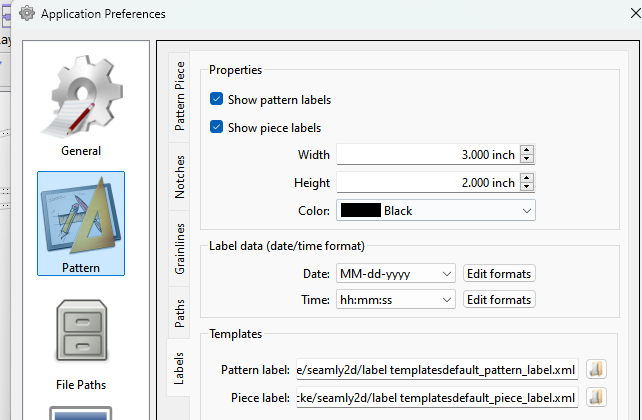
You can set the label prefs that will apply to new pattern pieces.Note that you can set the default label templates for each label.

The piece placeholders get the data from the piece’s properties:

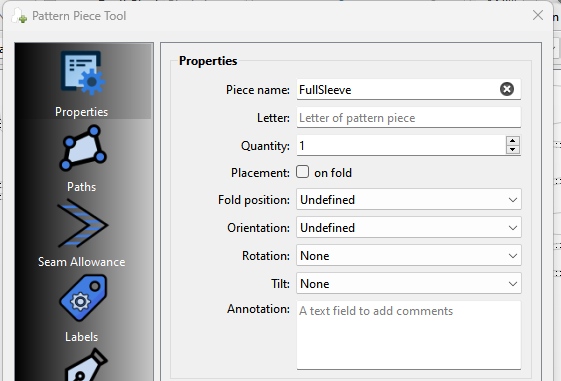
If you wantto use the wOnFold placeholder you need to check the on Fold box:

image

otherwise you get this:

Last… you can load and save label templates to use in other patterns. Most likely you would create a pattern and piece template that suits your needs and set those as your defaults in the prefs so they are automatically loaded when you create a new pattern piece.

If a label is free floating you can resize it or rotate it interactivey.

If a label is anchored to a center point, you can only rotate it.

If a label is anchored at the top and bottom corners you can’t change it.

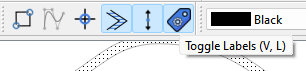
You can golbally hide all labels by toggling the toolbotton off:
image

Other than actualy setting anchor points that’s about it for labels.
2 Me gusta

Thanks! I’m getting the hang of how to find where the files from Github go! When I load, I can read the default path where I need to look for things. I put the ‘default_piece_label.xml’ you supplied here:
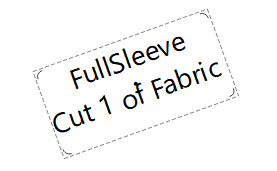
/Users/luciaold/seamly2d/images/default_piece_label.xml

And now I can load it. I suspect I’ll be able to figure out where to put things now.
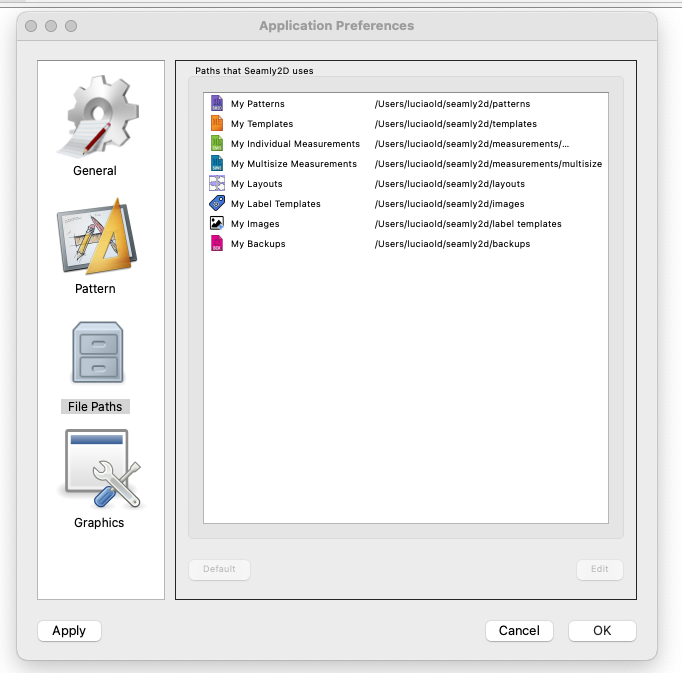
These were the defaults where Seamly2d looks for stuff on the mac. Some of the naming is counter intuitive, but that’s where it’s looking

2 Me gusta

You can put them anywhere you want, but you may want to switch these two.

It’s partly due to trying to deal with 3 different OS file systems with one codebase. Also like I said I’m not a Mac user so I have no clue where files normally get stored, and I didn’t write the original app code.

2 Me gusta

The files that are in the Samples folder on a Windows install are probably inside the App on a Mac install. (They’re inside the AppImage on a Linux AppImage install, & buried somewhere in the root directories on a Linux make install :penguin: .) Can you still ctrl/right click the App to open it as a folder? It’s been a long several years since I used MacOS :red_apple: .

:unicorn:

1 me gusta