By default, a “seamly2d” folder is created in my hard drive > user folder (MacOS). I would like to move it to my Documents folder to stay tidy. I tried moving it, but it auto-generated another new folder in the original location and the files I moved won’t open. Is there a way to move + update the file paths? thanks!
3 Likes
Are you referring to the folder for the applications or the patterns & measurements folders? I just recently purchased a MacBook so I’m not sure yet where everything is on the Mac or how to move folders / files around.
I do know that you can set the file path prefs in Seamly… here’s my Windows
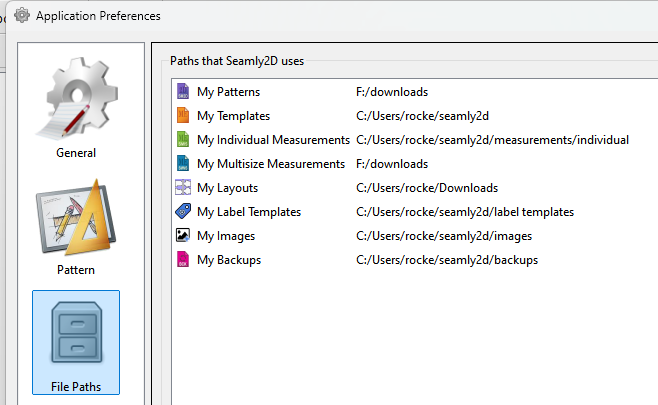
Like on the Mac, the default folders are in the “users” directory. I’ll try and figure out how to move the Seamly folders to the Documents on the mac.
3 Likes
I would think @Douglas has suggested the better solution.
Another option would be to put the folders in Documents as you wish, then create a symlink in the user folder and name that symlink seamly2d
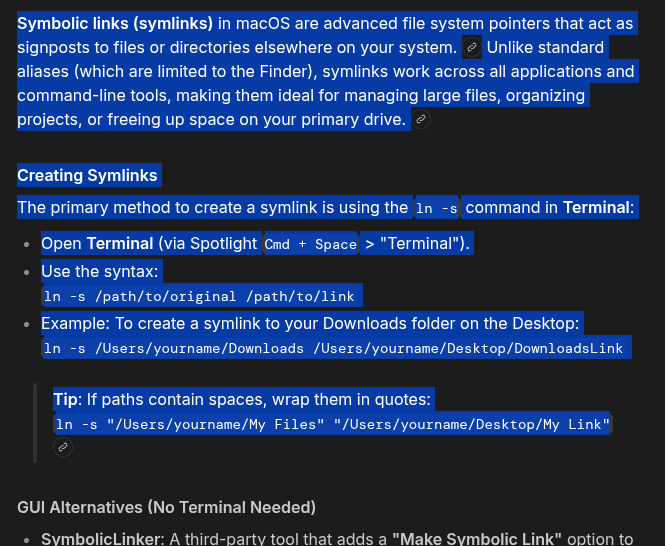
That is a portion of the return from a search in Brave browser, I think it is AI genetrated.
I frequently do this type of symbolic linking, even with directories on separate partitions of a HDD.
2 Likes
This would defintely make sense if you want to put the data on an external or secondary drive. Since for the most part I’m only ever working on other user’s patterns I have my patterns path on an external F: drive where my downloads directory is.
So symlinks are like shortcuts on Windows… where it’s just a pointer to a folder or file, not the folder or file itself.
2 Likes
Essentially, but in linux symlinks are actually files. I would guess it to be the same in MacOS since, like Linux, it is derived from Unix. The link doesn’t require it’s name to be the same as the file/folder to which it is linked. In the situation to which @Cranfillec is asking about using the same name would let Seamly see the link as the folder it was looking for but be pointed to seaml2d in his Documents. I do a similar thing with my Music folder, this way media players look on another partition. I mostly keep .config files in my home directory and all else on a separate partition. I prefer this for ease of backups and restores.
2 Likes
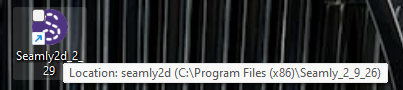
Neither do shortcuts in Windows.


2 Likes
Unless it was fixed when I wasn’t paying attention, Seamly will produce a seamly2d folder in your Home directory, even when you have it set to look elsewhere for your files. So, at least at this point, making a symlink/alias would leave less rag-tag lying about, (by having that otherwise extraneous folder actually pointing to the real folder.)

1 Like
We dicussed this issue awhile back, and I looked at it. Here’s the problem. When a new user installs the apps, there are no setting files yet, so there has to be default file paths - which are created when the app first runs… which on all 3 OS’s are basically in the seamly2d folder in the home or “user’s” directory. I should be able to make it so in the Welcome dialogs the user has a choice where to put the “seamly2d” folder… as new users should see the Welcome dialogs when the apps are run for the 1st time.
Of course this doesn’t help move the seamly2d & subfolders somewhere else. On Windows it’s easy. I would assume there has got to be a way to do this on the Mac and Linux.
2 Likes
So, basically, if there is a settings file, then read settings file, otherwise create seamly2d directory in Home/user directory, yes?
1 Like
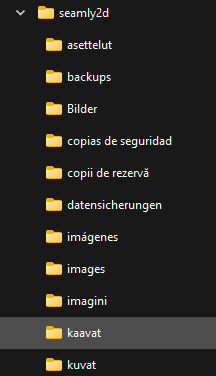
Yes. If there is an option for where the seamly2d folder goes in the Welcome dialogs it can write to the setting files before the folders are created. The default for the settings is home / user directory. Of course there is always the chance a user does not check the do not show next time, so the Welcome screen opens the next time the app is run, and they could select a different dir for the seamly2d folder and the app creates a new set of folders. Also another behavior that happens is if you switch language, all the folders are created again translated in the new language. And if you’re like me who is constantly testing and changing the lanuage… you end up with this:
2 Likes
This is my order of events that are reproducible:
- I moved the folder into Documents. (easy on Mac, just drag and drop)
- I tried opening a working file from the Documents location and got an error message of “File error. Exception: File has unknown format.”
- I launched Seamly2D via the app icon and it auto-generated another Seamly2D in my user folder.
- I proceeded to update the File Paths pointing to the Seamly2D folder in my Documents folder in app preferences.
- I deleted the auto-generated folder from my user location.
- I opened a working file from my Documents folder. It opens now, but there is a continuous beep.
3 Likes
@douglas Ideally, if someone changes the File Paths in the Welcome screen, the app would put the folders where the person asked and the app wouldn’t auto-generate more folders elsewhere. If the Welcome screen continues to show because they didn’t check “Don’t show next time”, the file paths should continue to stay as they were set by the person before. If the person choose a different file path, ideally you would move the existing folder from the first welcome screen to the new location (and not auto-generate more folders elsewhere). Does this make sense?
3 Likes
And also not beep. I’m assuming the beep is from a mismatch of having two sets of folders.
1 Like
Yes.
Yes.
Yes. Except progamming wise that’s easier said than done.
2 Likes
Touché—I guess you can tell my day job is a software designer and not software engineer! Happy to help however I can to define a good user experience as a target.
2 Likes