Welcome @Cranfillec
Note: This example is using the current version of the app. A new release will have an updated History that will render some steps moot.
The first thing you have to understand about inserting tools into the History is you can only insert tools after the point tool you will be using. Use the insert with care.
For example I want to add a point from A75:
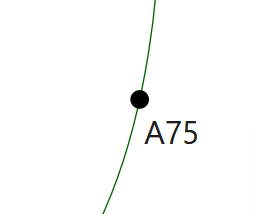
-
Open the History Dialog.
-
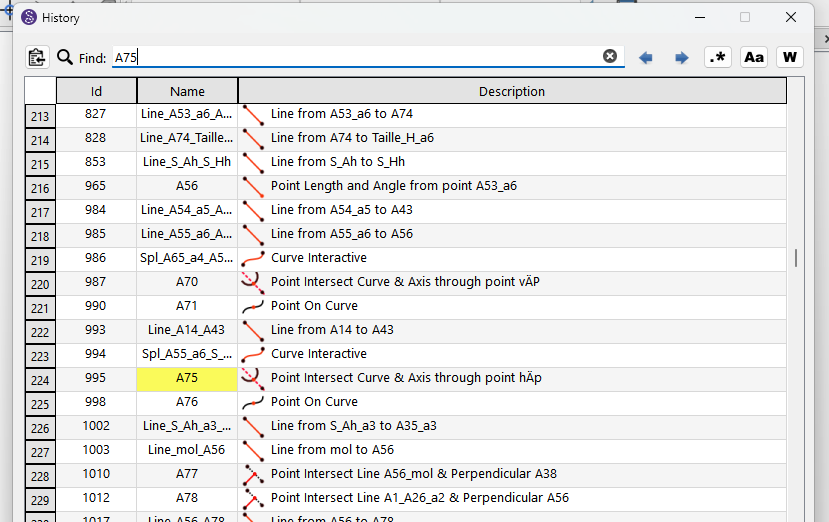
Find point A75 in the History. You can search with the Find box:
A new tool can be added anywhere after row 224.
-
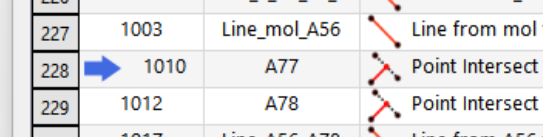
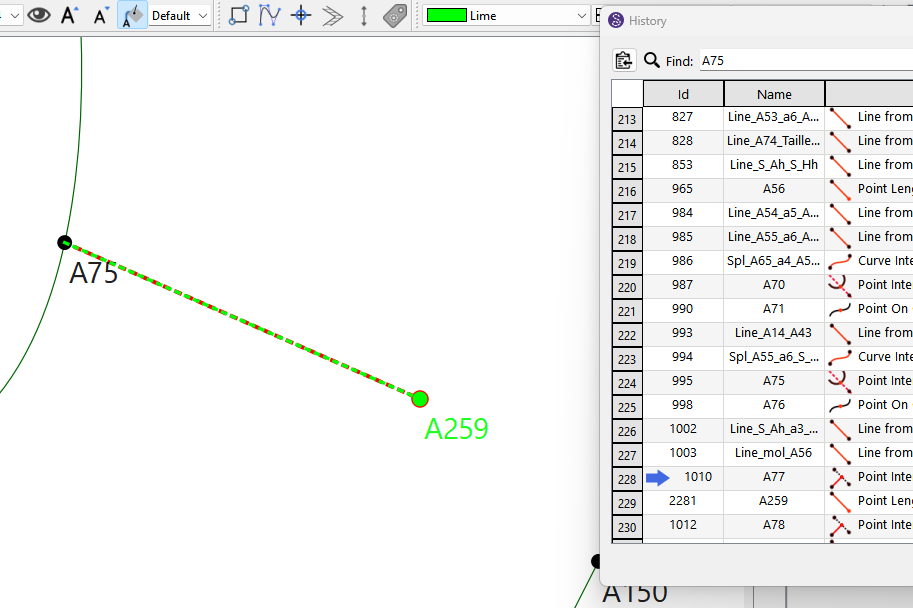
In the 1st column click the row at which you want to insert the new tool after. Here I clicked row 228. New tool will be inserted on line 229.
-
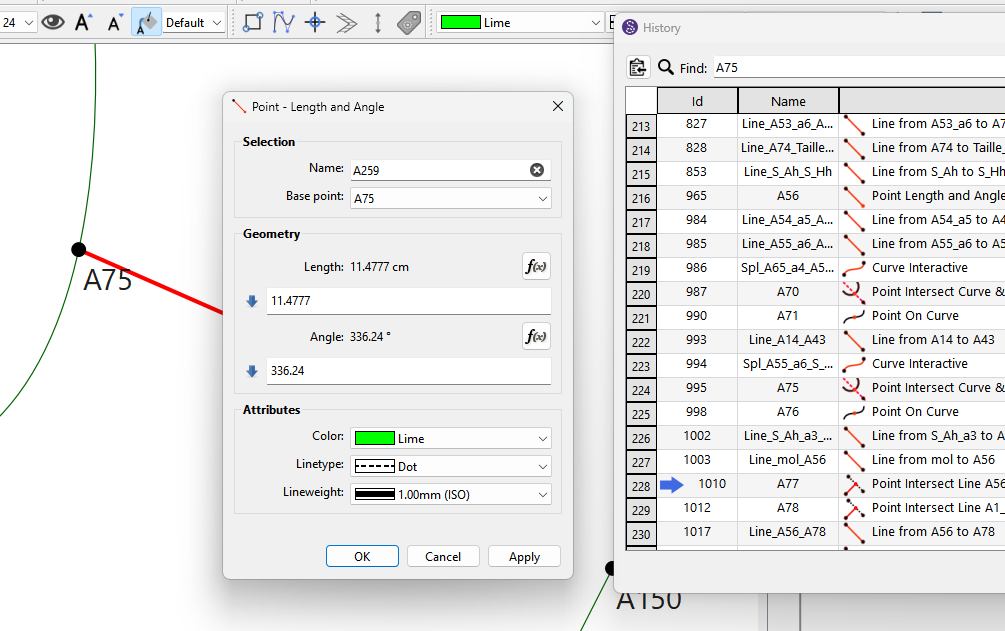
Draw your new tool… here I’m just adding a Point at Length and Angle:
-
New point tool A259 was inserted at row 229.
-
Move the pointer down if you want to add another tool.
-
Before you close the History make sure to move the pointer back to the bottom of the list so new tools are appended and not inserted.
-
Close or Minimize the History if you want.

Note: With the updated History it will not be necessary to increment the pointer… it will automatically move to the next row after adding a new tool. Also the pointer will automatically move to the end when the History is closed. You can read about the pending History updates here: