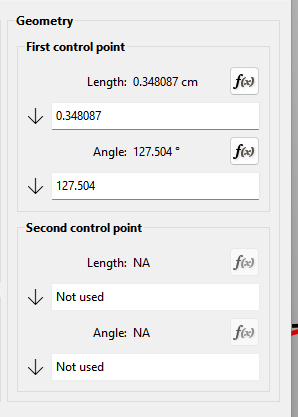
And while we are at that, are there plans to make this a part of regular properties?
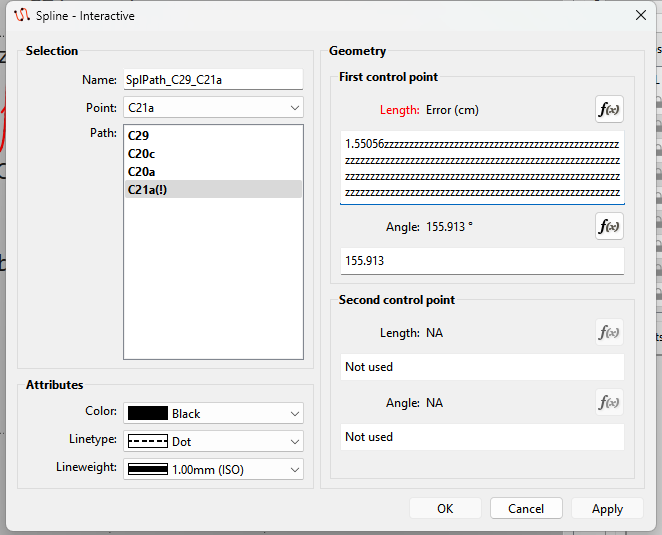
And if not, would it be possible to make those fields self expendable or maybe that we can make the whole window bigger (and that it stays bigger after reopening) or some other idea where I could better use all the existing screen place and do less mouse clicks around.
Hmmm… somehow the Expand button doesn’t work in the Spline Interactive.
I don’t think I can easily change the dialog to be resizable. The tool dialogs are handled differently than the History or Variables table which are sizable. It would require changing all the tool dialogs. Thing is we’re trying to keep the dialog size to a minum. I can look at making that dialog a bit wider and adjust the right frame to be wider… along with the autoexpand. Also the boxes can currently only expand into empty space in the dialog. The boxes can not exapand over other widgets. Although I may have experimented with opening the edit box past the layout widget the box is in. Hmmmm
Another option that would increase the space for the boxes would be put the 1st Point and 2 point in a Tab.
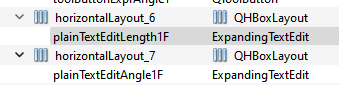
I got rid of the expand / contract buttons… so the text box is that much wider. I expanded the min height & width of the dialog window slightly, and rearranged the horizonal layout box to widen the right side a bit. I also promoted the QPlainTextEdit boxes to a subclassed ExpandingTextBox. So now the text boxes are bigger and automatically expand when they gain focus… and collapse when they loose focus. The effect is more room for the formula.
Note: The 2 spline tools are the only tools that you can’t edit Control Points in the Property Edittor. It will take some extra code to extract which CP points to edit based on the path point selected.
That said… now that I have the subclassed ExpandingTextBox in place I can work at updating the rest of the tool dialogs.
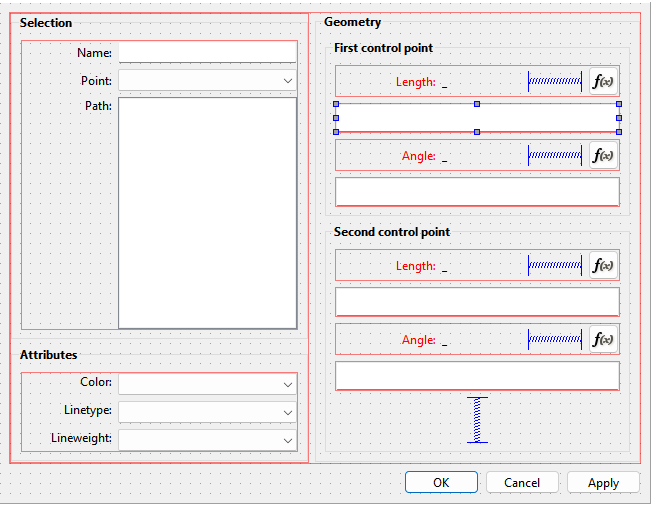
BTW… here’s what the UI form looks like… where the Vertical Spacer acts like a spring and allows the contents of the Geometry Group box to expand and collapse. Without that space there is no where for the text boxes to expand into.
And in case anyone is interested in how the auto expand / collapse works… here’s the very simple subclassed QPlainTextEdit. It just overrides the focusInEvent and focusOutEvent events which normally don’t do anything.
Ahhh… it finally hit me… I did not get what you meant by ‘regular properties’… I take it you mean in the Properties Editor?
As I mentioned above it will take some extra work to be able to handle a listwidget… i.e. the path points. The Property Editor is a 3rd party library that was done in the early days of Qt and it’s really quirky to work with. We are more or less hacking the library in a way because we have the source and can do so, but the library was meant as an API to create a form with various widgets on the fly with code rather than using a UI form.
One of the quirks is you can’t connect 2 widgets so that when one changes it updates anothetr.You have to use callbacks to the tool class to update the data and then rebuild the form based on the change in data in the tool class. It’s 1/2 a**ed and requires a lot of extra code. In other words instead of a change of a point in a dialog combobox telling the name textbox to update… with the property editor the combobox has to tell the tool to update the point which the tells the name textbox in the Property Editor to update. It would be like talking to someone through an interpreter. Not an efficient way to communicate.
Good to hear. Sometimes I like explaining what I’m doing so it helps others to understand why I’m doing something.
Thanks… I’ll check it out. I think what happened is when @odrnorn 1st added the Curve length option the curve dialogs got mixed. Not sure if we straightened them out totally.