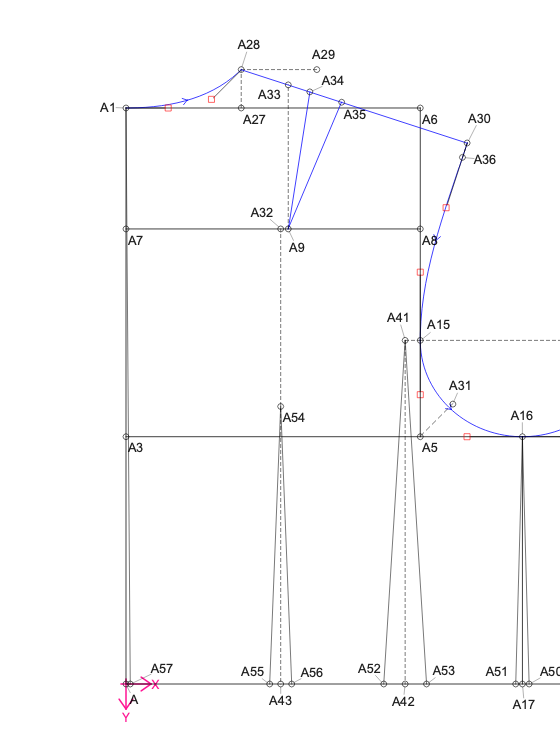
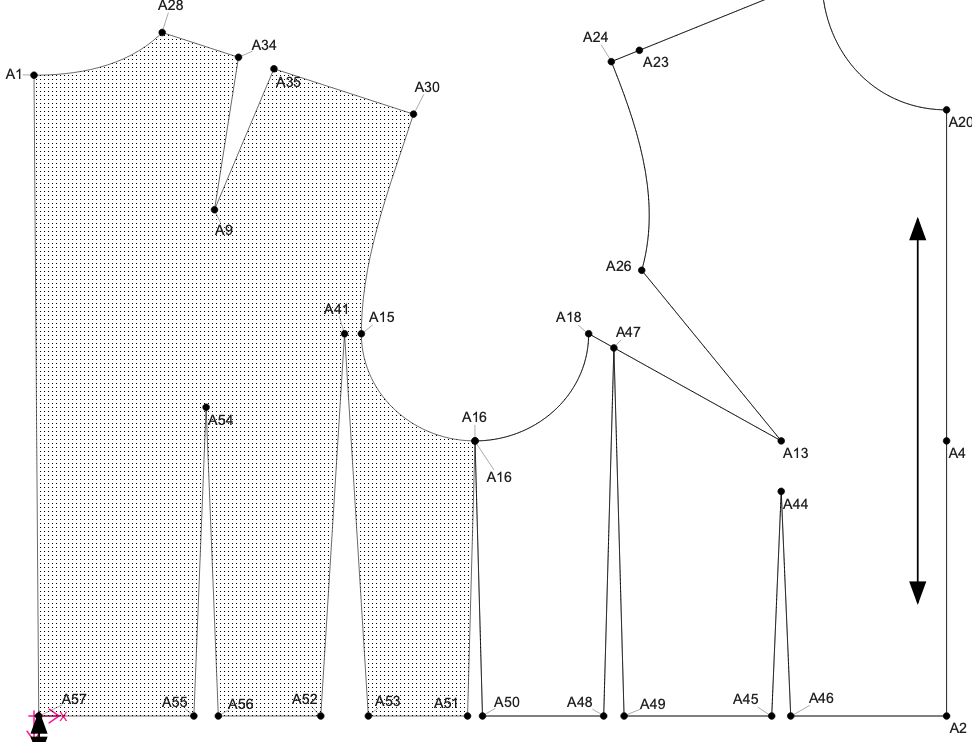
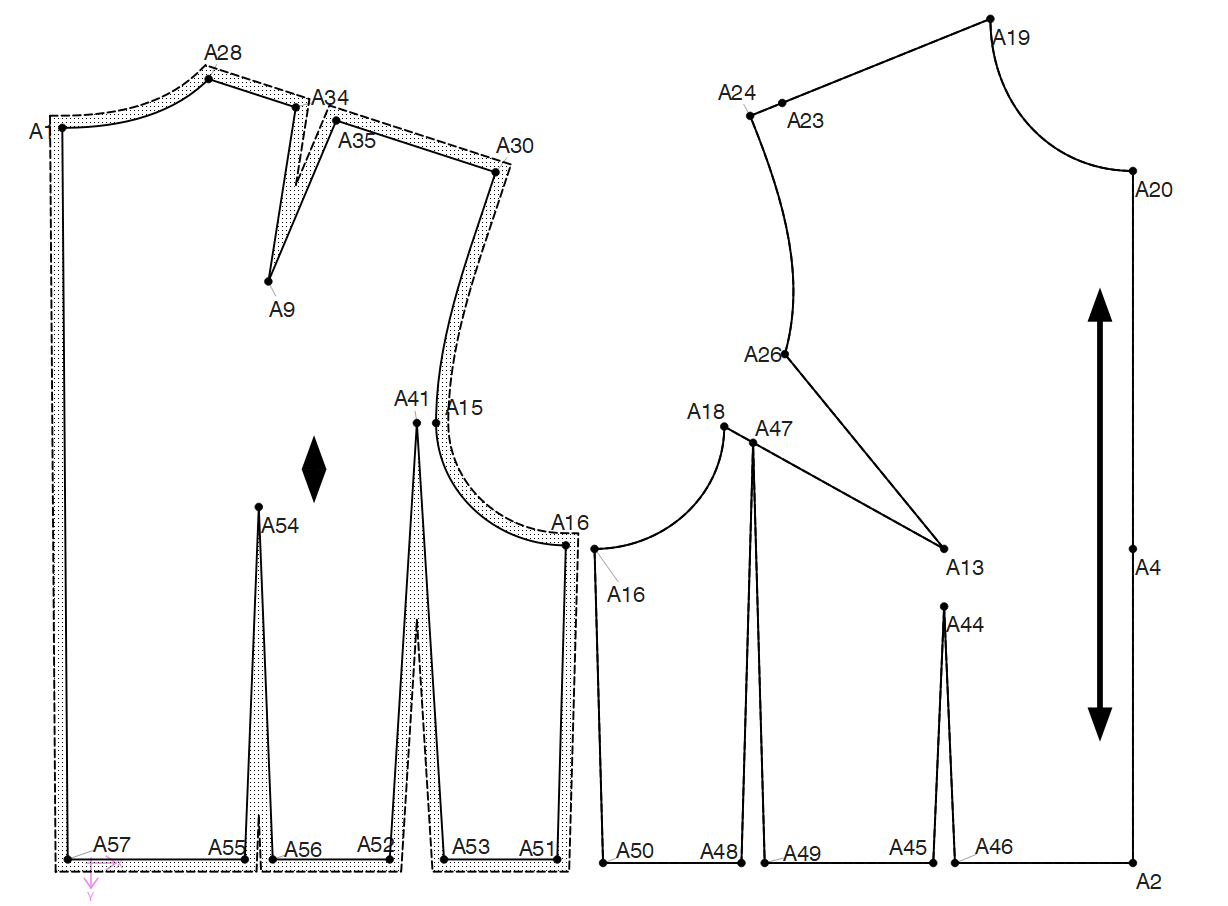
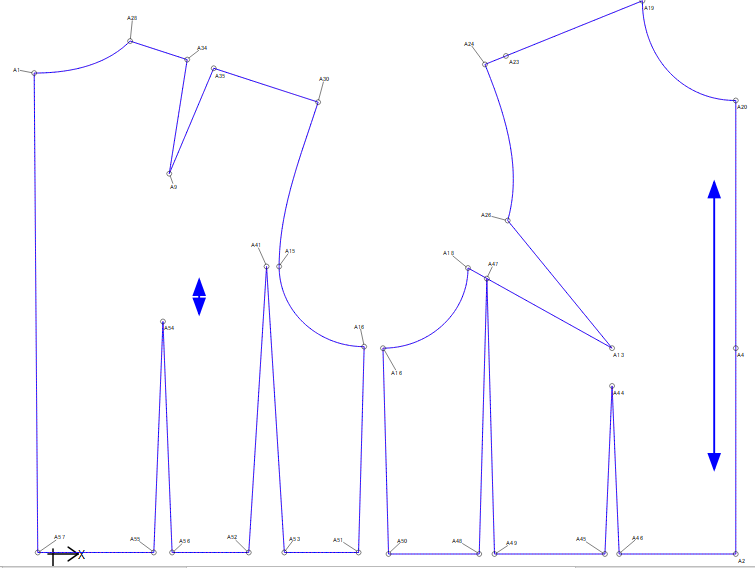
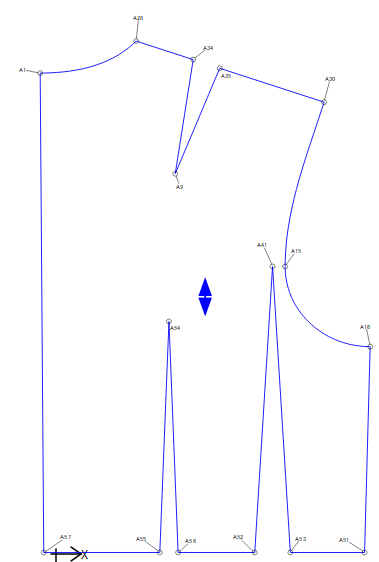
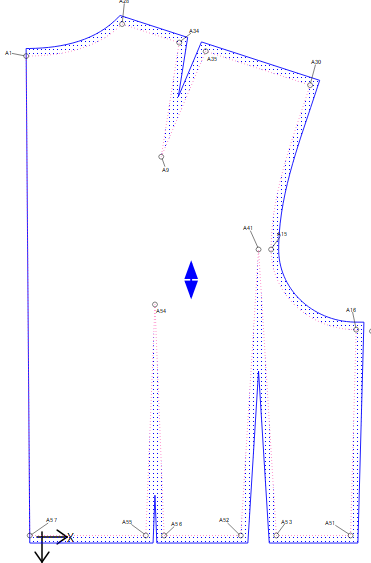
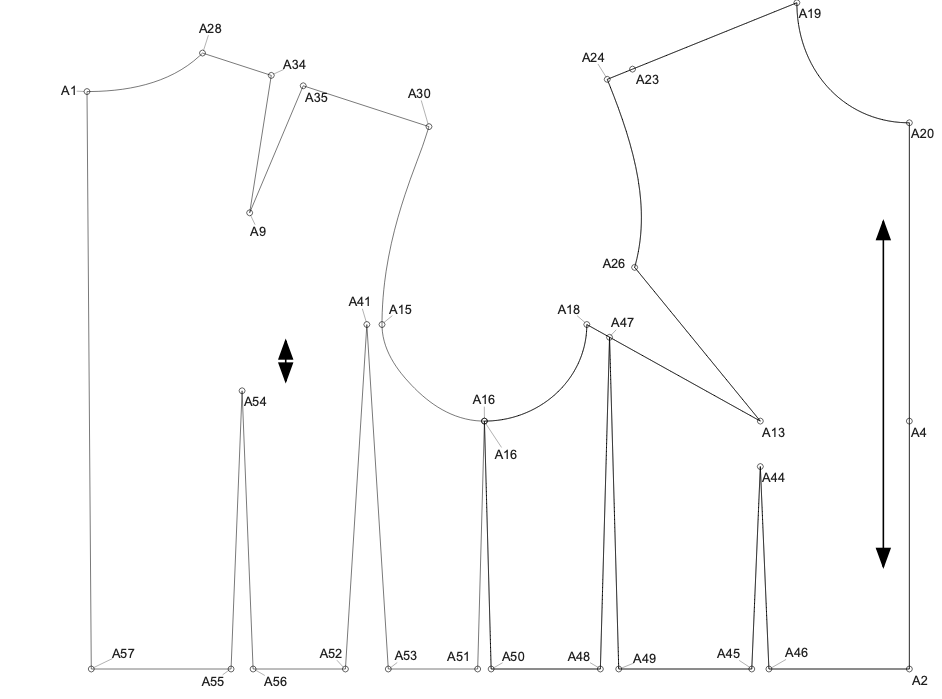
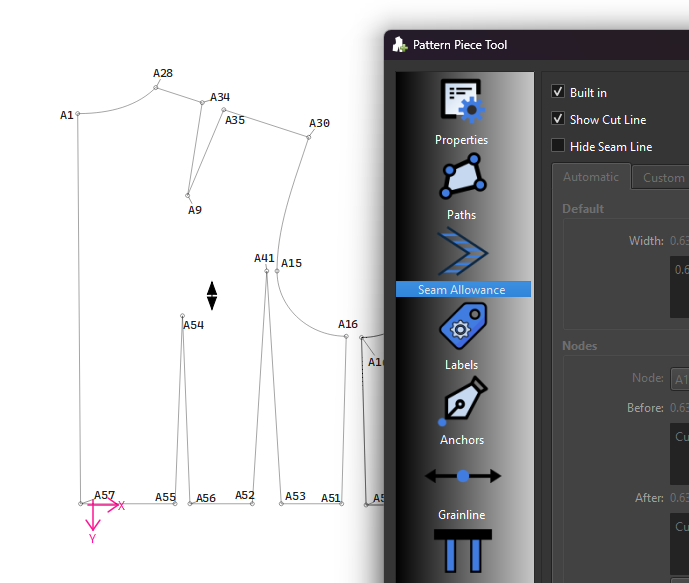
I am new to seamly2d and created a draft block pattern piece for the front without seam allowance and it worked out fine. I followed the same process for the back bodice and when I removed the seam allowance the entire block was filled with grey dots. I was unable to identify the issues since I followed all the steps like going clockwise, non-overlapping nodes etc. Will appreciate if you could guide me. I am attaching screenshots for reference.
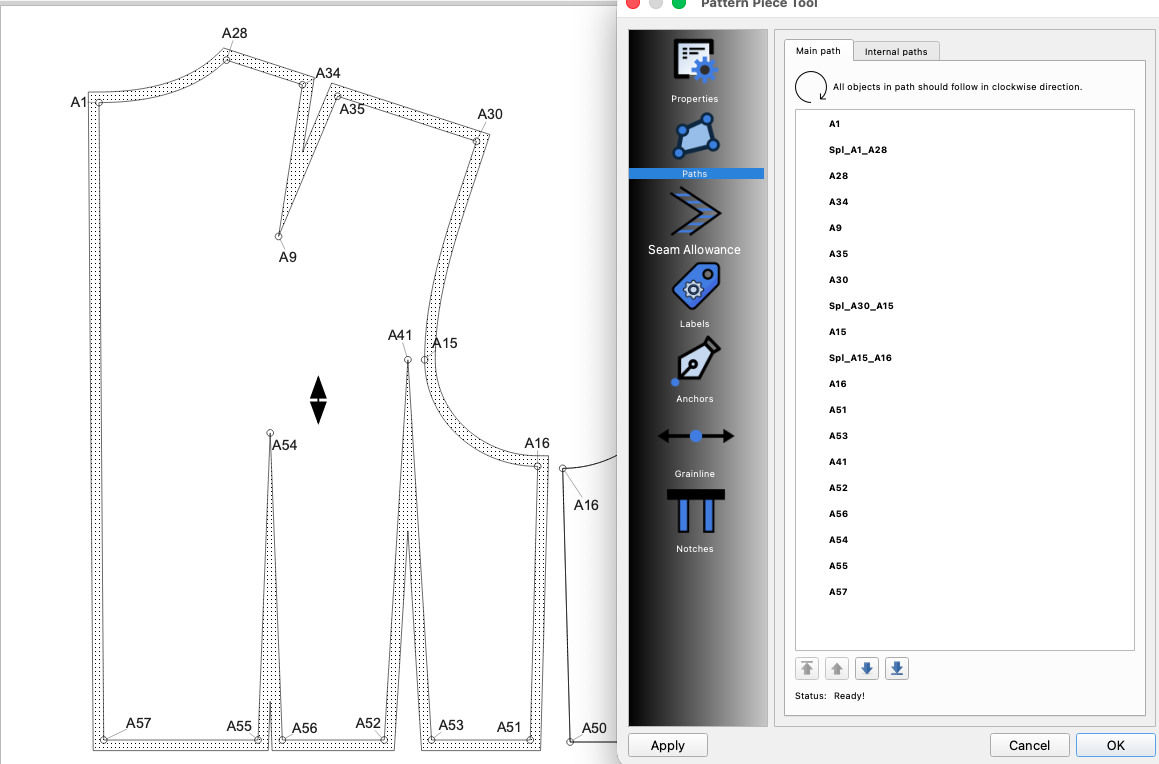
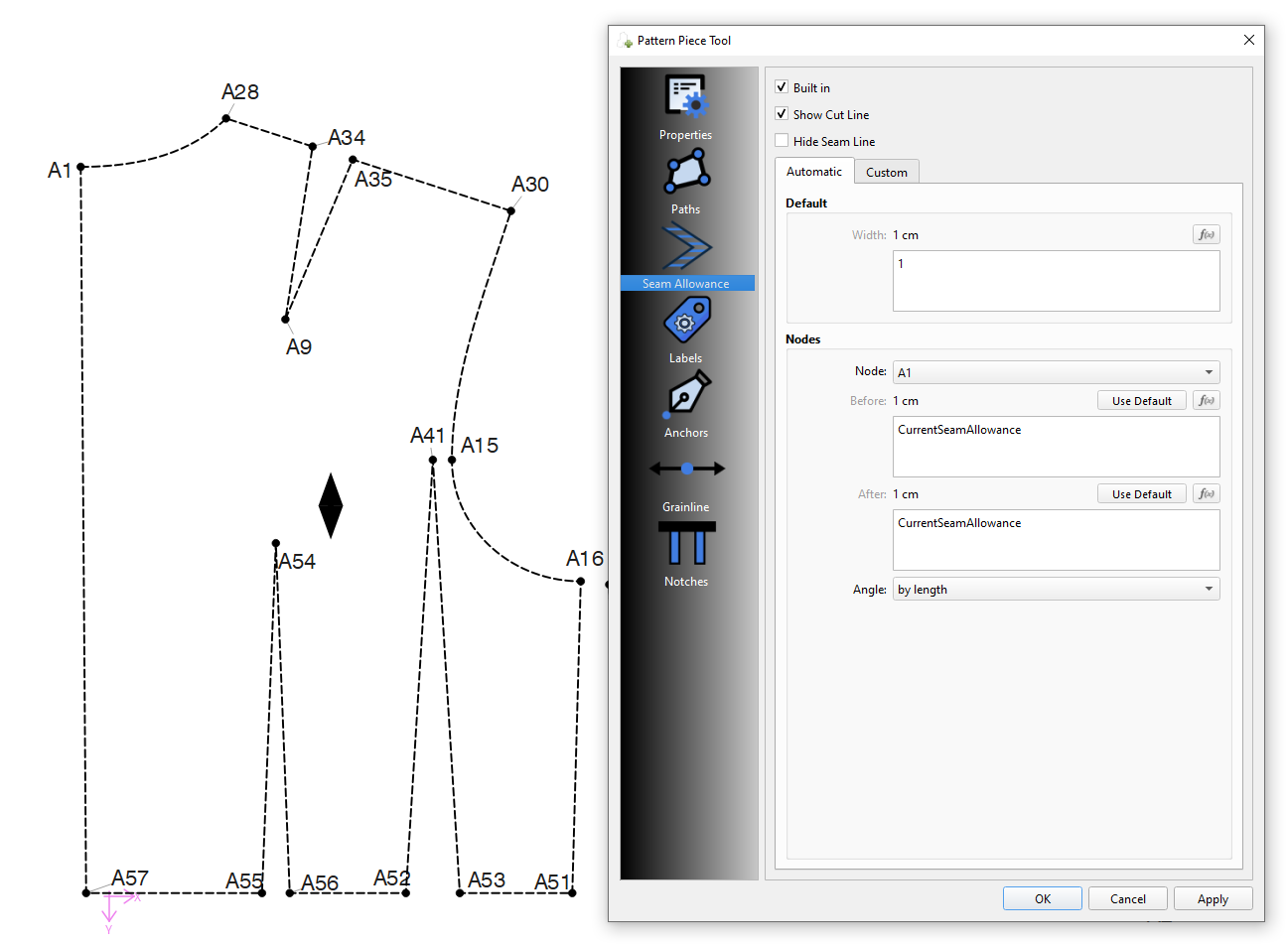
Thank you for sharing feedback! To the best of my understanding, I have gone through all of those steps and couldn’t pinpoint the issue. Including a screenshot of the main path tab in pattern piece with seam allowance included. One of the only thing I can think of is that I moved the location of the A9 and A32 node after the back bodice was drafted when I spotted an error. I then connected A9 to A34 and A35. I still followed the clockwise selection but not sure if that has an impact on my current issue?
Please post your pattern and any measurement file and we can fix the patttern.
There is either an issue with the main path, a curve in the wrong direction, or with incorrect control handles in a curve. The path has to be continuous in a clockwise direction or the SA get’s mixed up.
So the issue is that I do not want the seam allowance included. When I exclude the seam allowance, the back bodice is filled with grey dots. The same thing doesn’t happen with the front bodice piece.
Or remove the checkmark at “Show cut line”. This way, you can leave the seam allowances at their original settings and just toggle the cut line on & off depending whether you want to see the cut line or not:
Thank you so much Grace! The 0.00001 works for me but still the dart legs of A55 A54 and A56 gets covered in grey dots.
For the show cut lines, if I turn it off dart A55, A54, A56 doesn’t show the dart lines. Am I doing something wrong? It appears like those dart legs could be the issue.
I redid those dart legs from using Point-intersect line and perpendicular tool to Point on Perpendicular. It seems to have fixed the issue. Not sure if the intersect tool overlapping with other nodes was causing the issue.
Yeah… someone else reported a similar issue when using a “0” default SA. The fact that using something like .00001 fixes the issue leads me to believe it’s a floating point fuzzy math issue. It’s probably related to how the M chips handle the floating point math differently than the x86 chips. I also have a macBook with an M3 and it displayed the same issue the other user had. I will try your pattern later and see if I get the same result as you. I will also look into if there is something I can fix with the SA routines which I suspect are using some fizzy math routines.
Thank you for looking into this, Douglas! The issues come up in the Piece section for both SA and/or adding notches. It randomly throws off the nodes path. Atleast, appears random to me.
It’s random because of the geometry. Sometimes even changing the size in a multi-size pattern can throw the SA off. The SA and notches are all based on extending lines and finding intersections. Think of putting in golf… where if the hole was the size of the ball… you would have to dead on (equal to zero) to sink the ball, where as with a larger hole you don’t have to be as accurate (.00001 works). The issue with the mac is like I said probably related to the hardware. It could also be related to Qt changing how it handles floating point math with later versions of Qt 6. There’s been a bunch of issues that popped up when we switched to Qt 6.8 that were not there in Qt 6.5. Which is probably something else I could check on the mac.
Hmmm… Just remember that using 0.00001 still is a milli-fraction of a unit, so there is still a seam allowance. By using the Built-In option, it shouldn’t have any seam allowance or a negative seam allowance of the value. The grey dots between the dart legs could be that the dart legs are too close together, as well.
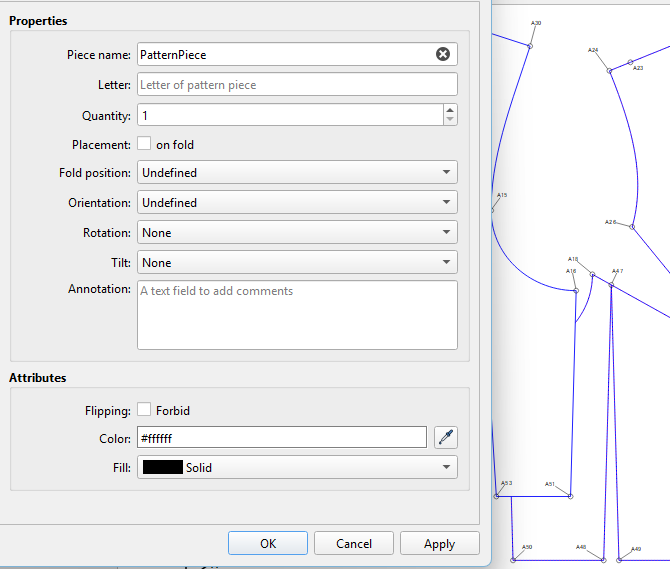
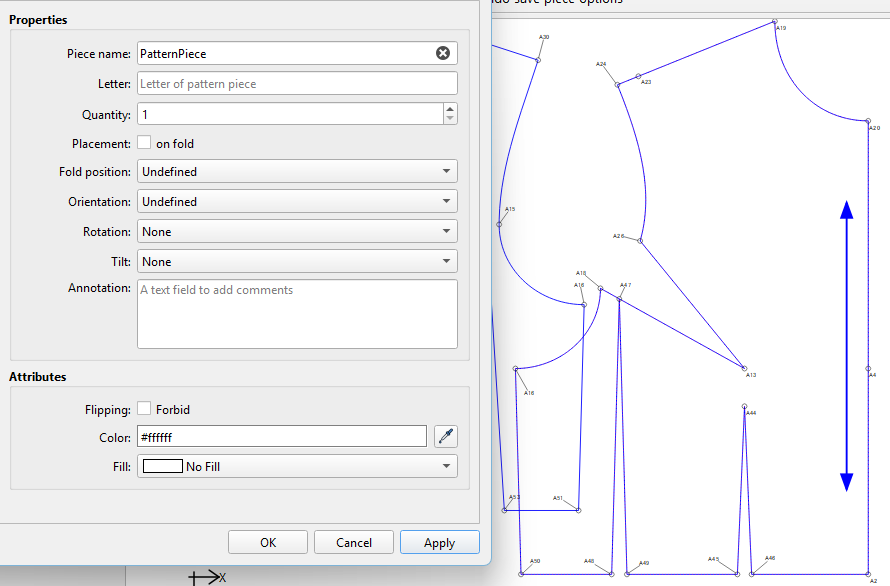
However, if you don’t want to see the ‘grey dots’, you can change the settings of the pattern piece to give it a Solid, White fill: