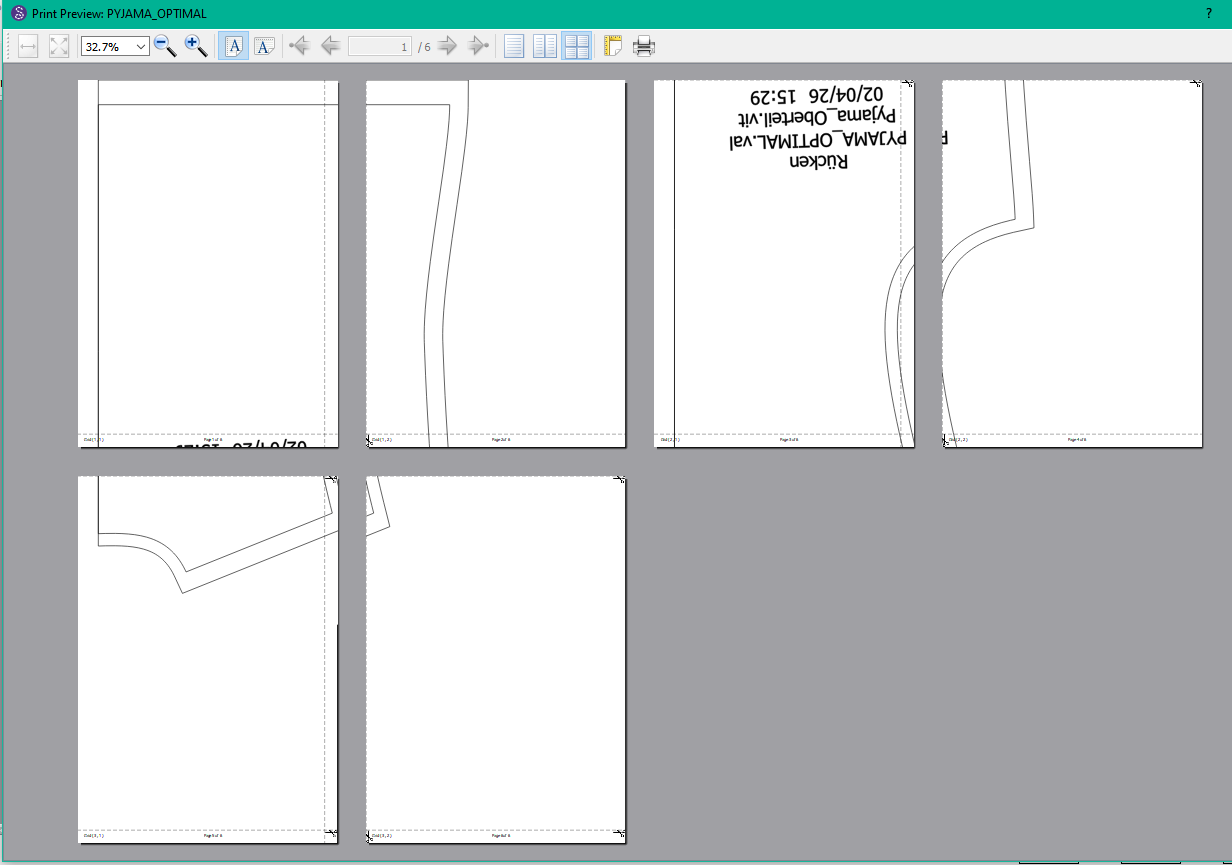
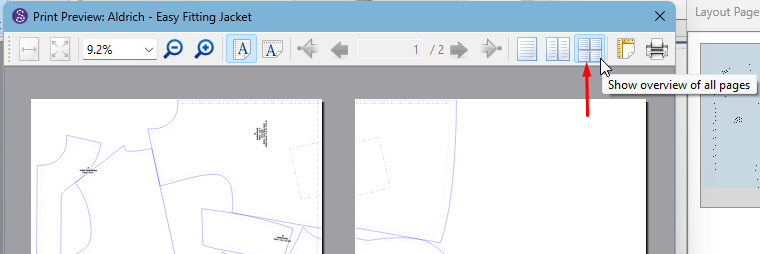
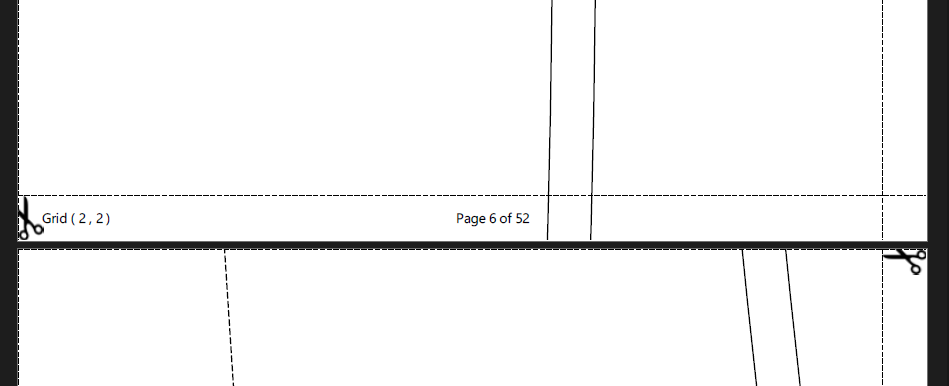
I am printing the drafted patterns on A4 paper. In the earlier version (2023.7.3.209) the overlapping edges of each sheet were 1 cm, now they are 1,2 cm. Beside this i have to cut away 2 cm from every sheet on the other side. So this takes more time and more paper to get the sewing pattern fixed.
With the earlier version i just had to overlap 1 cm of each sheet, and there was nothing to cut away before. It was not neccesary to set the printer on seamless!
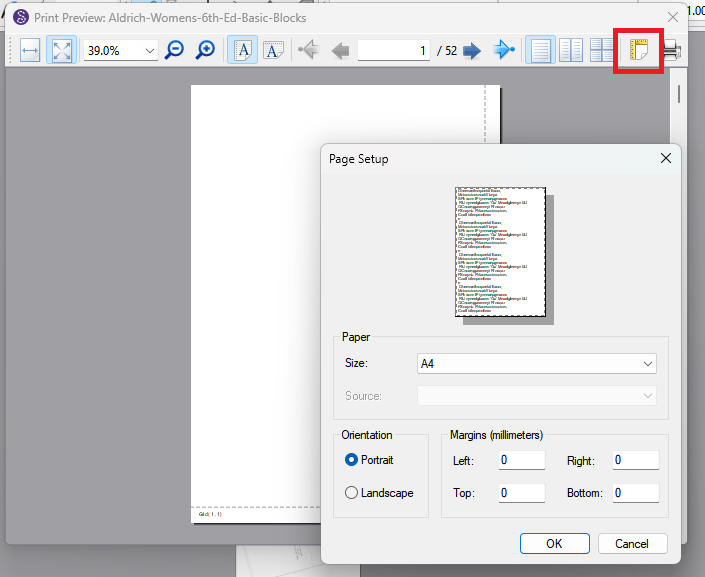
In the printing preview the edges were set on “0” -now they are on “10 mm” - so it was not necessary to set each of them to “0”. It is not as comfortable as it was before.
Is there a chance to fix this?
Thank You all very much for this so excellent programm. I’m loving it very much, and created allready a lot of patterns. Best wishes to all!
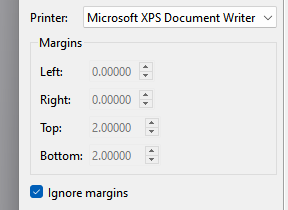
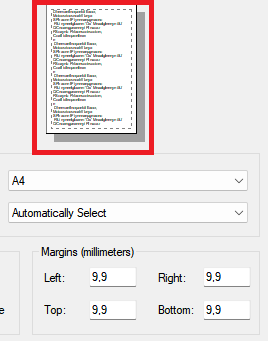
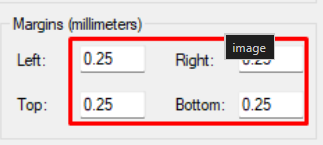
That being said… While nothing has changed in the code for the printer settings, what has changed is we migrated to Qt6, and that means you may have new pref settings. The margins pref settings default to 10mm:
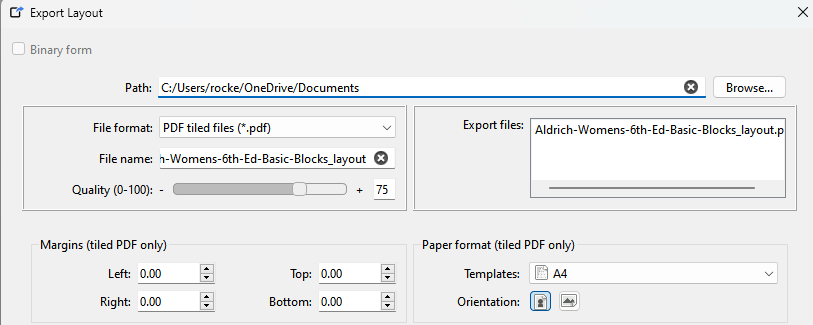
If you uncheck and set the margins to 0.0… click OK to create a layout… it should overwrite the settings with 0.0’s. But again… If “Ignore margins” is checked the margin settings are a moot point.
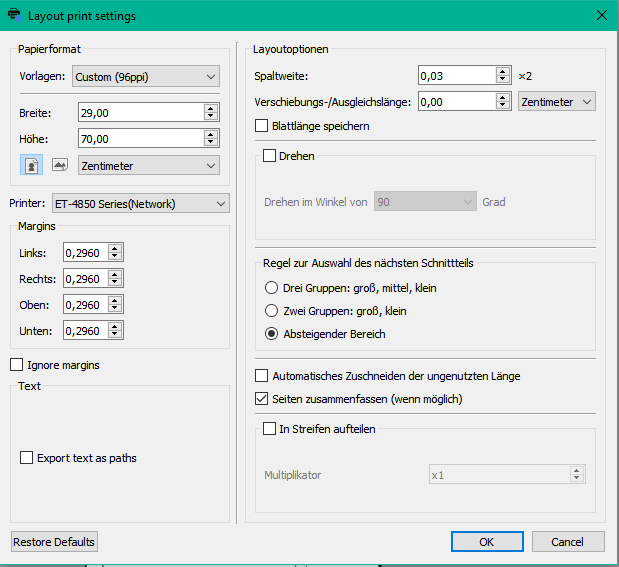
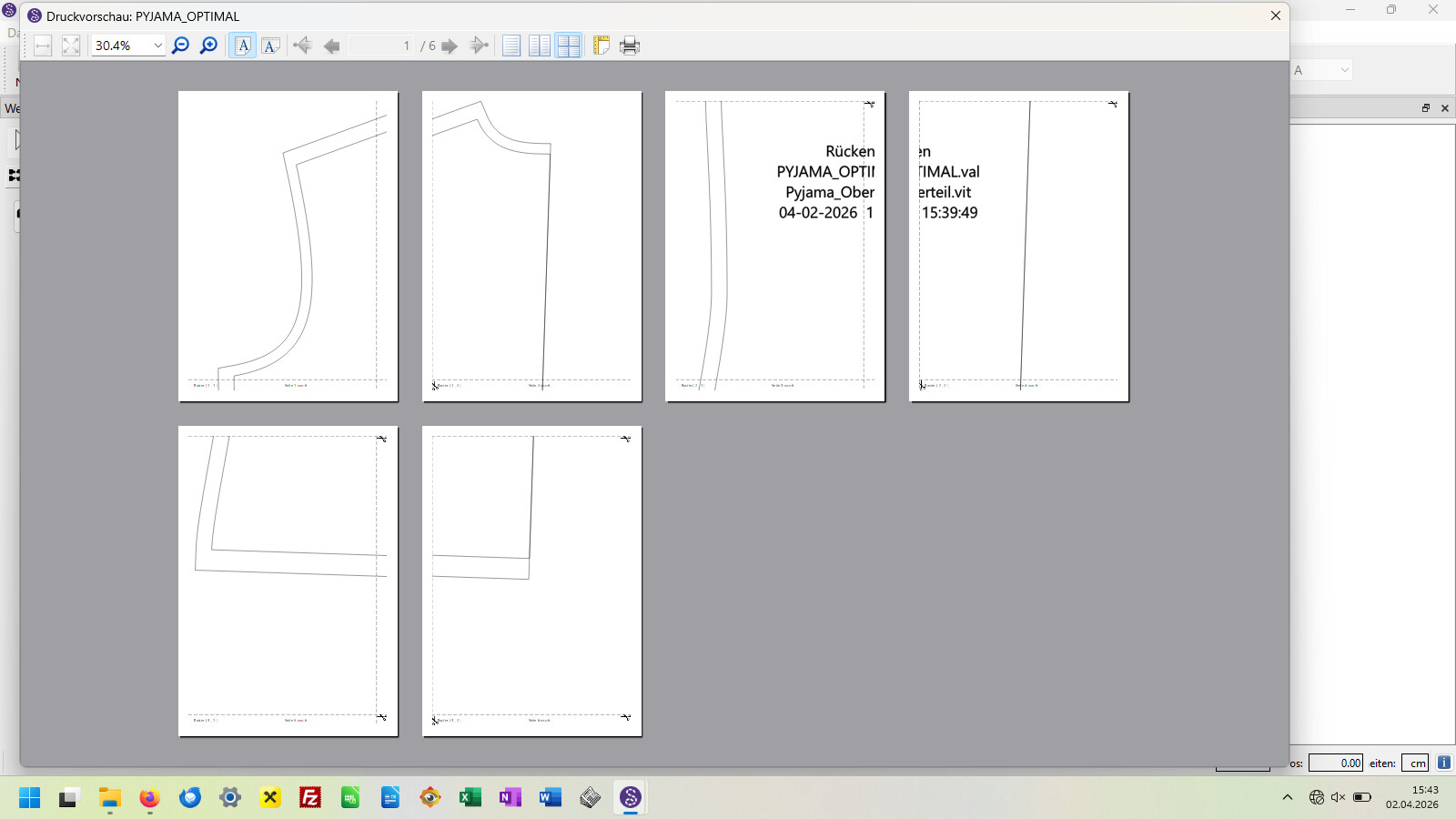
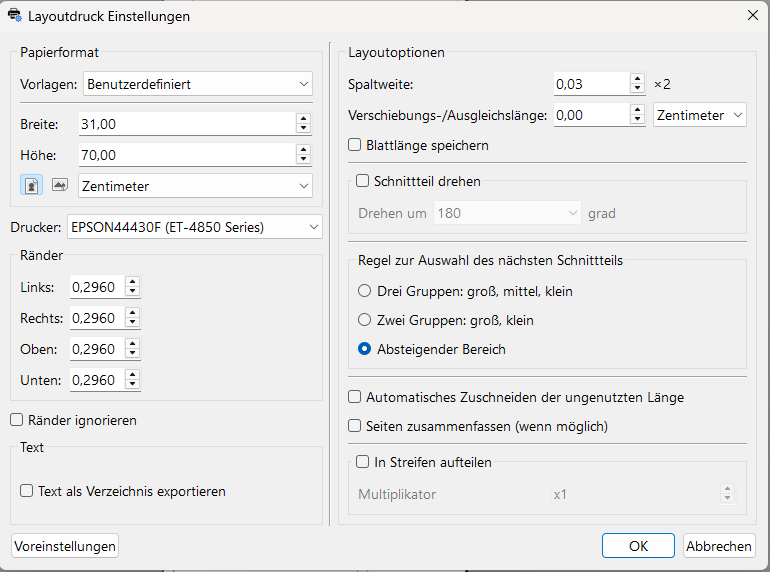
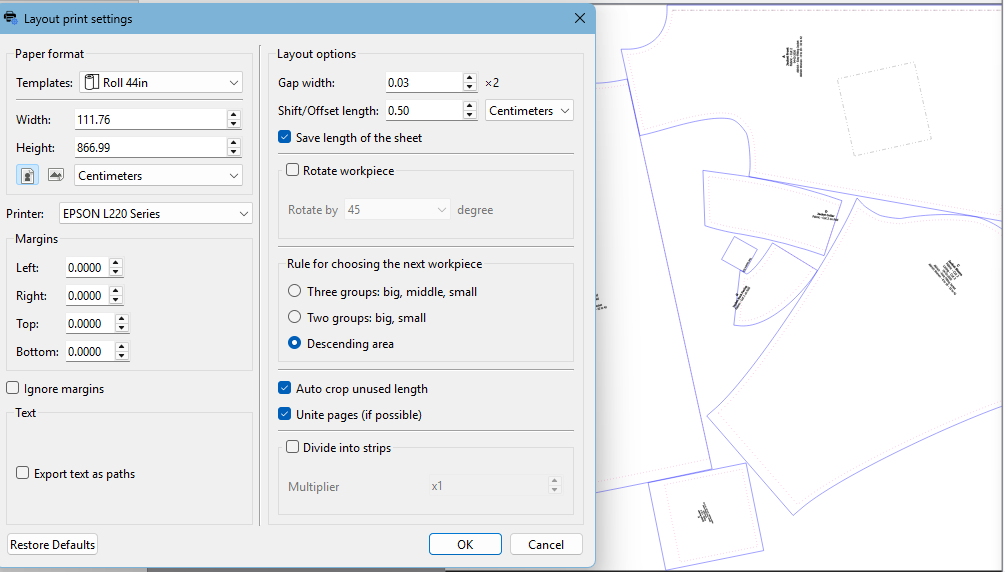
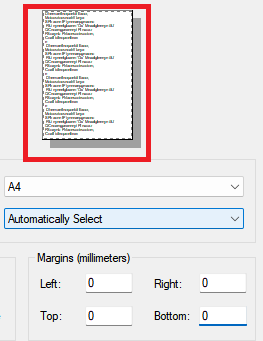
Dear Douglas, I have the older version (2025_04) installed under Windows 10 on the old laptop and the latest version under Windows 11 on the new laptop. Here are the printsettings of both versions:
I also installed the old version on Windows 11 and got the same result with the same file as with the latest version of Seamly2D.
For me the resume is, that the printsettings of the systems are different between Win 10 and Win 11.
As I do not have any knowledge about coding, I’m looking foreward if anyone has an idea to sove my problem. Thank You so much in advance, and best wishes from
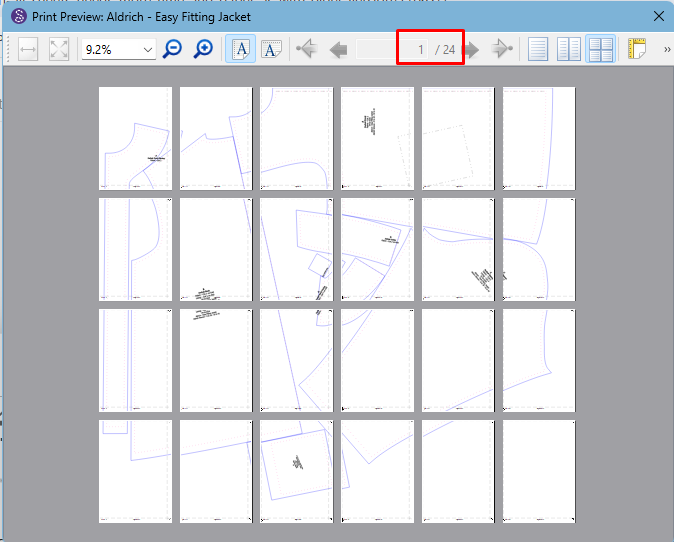
Once you click on OK, it will ask you something about the margins settings, just click on yes to keep the current Margin settings. Select different roll paper settings until you get the pattern pieces quite compact on the sheet. I normally start with the widest and work my way down depending on the size of the pattern.
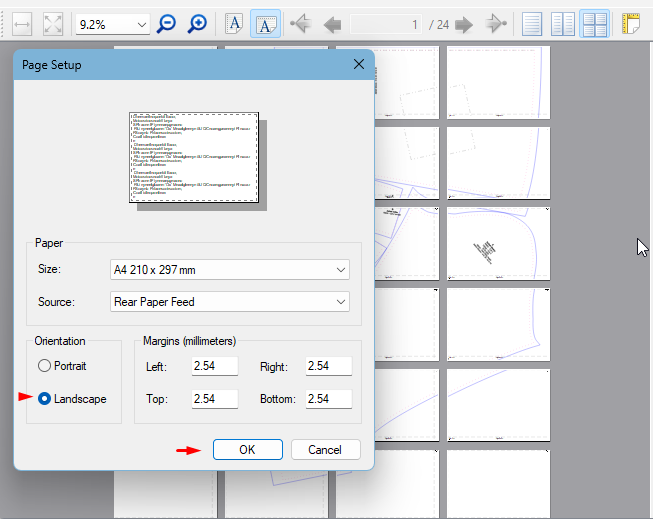
In my case, it remains at 24 pages, but you can choose between the portrate or landscape - whichever one is the least pages.
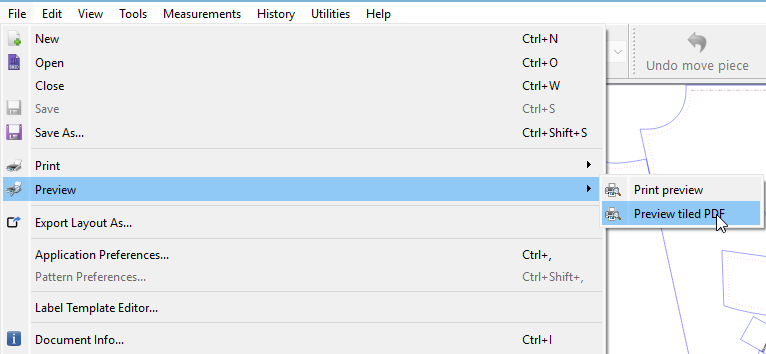
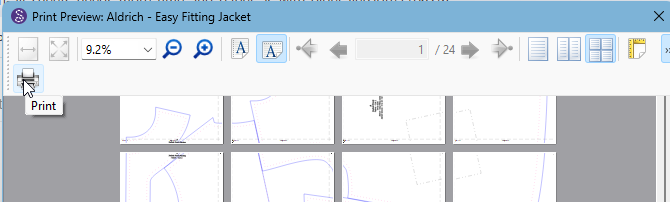
Once you’re happy with everything and it’s the least pages you can make it, you can go ahead and print it. I normally print it to PDF so that I can print it again another day:
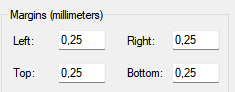
Again… the page margin settings are in mm not cm. Setting them to 0.25 mm does little to nothing. At 0.25 mm we’re talking 9/1000ths of an inch (9mil) or about two sheets of 20lb paper.
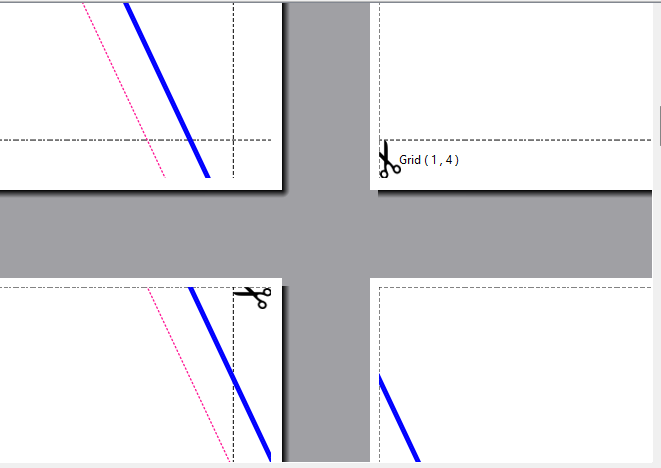
The idea of using 0.00 margins is you don’t have to cut the left or top edge as you are printing to the edge. Of course that assumes one’s printer can print to the edge. Most all modern printers do.
Yes, you can make them whatever you like or you can zero them. The choice is yours. Previously, if you made them 0, I think it moaned. I don’t use the Layout mode anymore, I prefer to work directly from the Piece mode and with Inkscape. Once again, personal choice.
Dear Grace and dear Douglas, thank You for your advices and efforts.
I tried everithing You told me, but it did not bring the desired result.
Today I istalled Seamly2D version 20230709 on Windows 11 and
Seamly2D version 20250421 also on Windows 11. With both versions the margins were
correct. In the printing preview it is possible to set and manifest the margins at 0.
Then i installed Seamly2D version 20260330 also on Windows 11. With this version it ist possible to set the margins at 0, but clicking on the OK-button the margins do not becom smaller because clicking the OK-button in this version has no effect.
This problem should be solved - as i see it.
Thanks again for Your great work!
I just downloaded 2026.3.30.214 and installed it on my Windows 11 laptop (vs using a current local build) and I have no issue with the entering 0.00 for the margins and Clicking OK… and Clicking Page Setp again… margins are still 000.
That with that being said… DUH (to myself) . When you do an “export” the last used margins are stored in the prefs and you won’t have to keep changing them every time you export or do a print / print preview. Again the reason why earlier versions are working for you is they are using your stored Qt5 preferences… where in late 2025 we switched to Qt6, and your prefs for the margins have not been updated yet. Also the way the “margins” are stored changed between Qt5 and Qt6 so they don’t copy over from your Qt5 settings on the 1st install of Qt6.
For What it’s worth I should probably make the export / print margins (as well as the export file type) editable in the Prefs, rather than having to do an actual export to change them.
It’s not my choice… it’s @Vollkorn choice… Using a layout they wanted to not have to cut the Top and Left side margins off. And the only way to acheive that is with 0.00 margins… at least on the top and left side.
The only reason for using any margins at all is old printers that can’t print to the edge. Adding margins also increases the possibilty of using more paper as you’ve effectively reduced the printabe area of each sheet.
Dear Douglas, this is the solution!! I allready thought before, that it has to do with the PDF-settings, but did not know where to change it.
I can’t say how happy I am about the solution! Thank You so much for Your efforts and time.
Best wishes to all of You!!