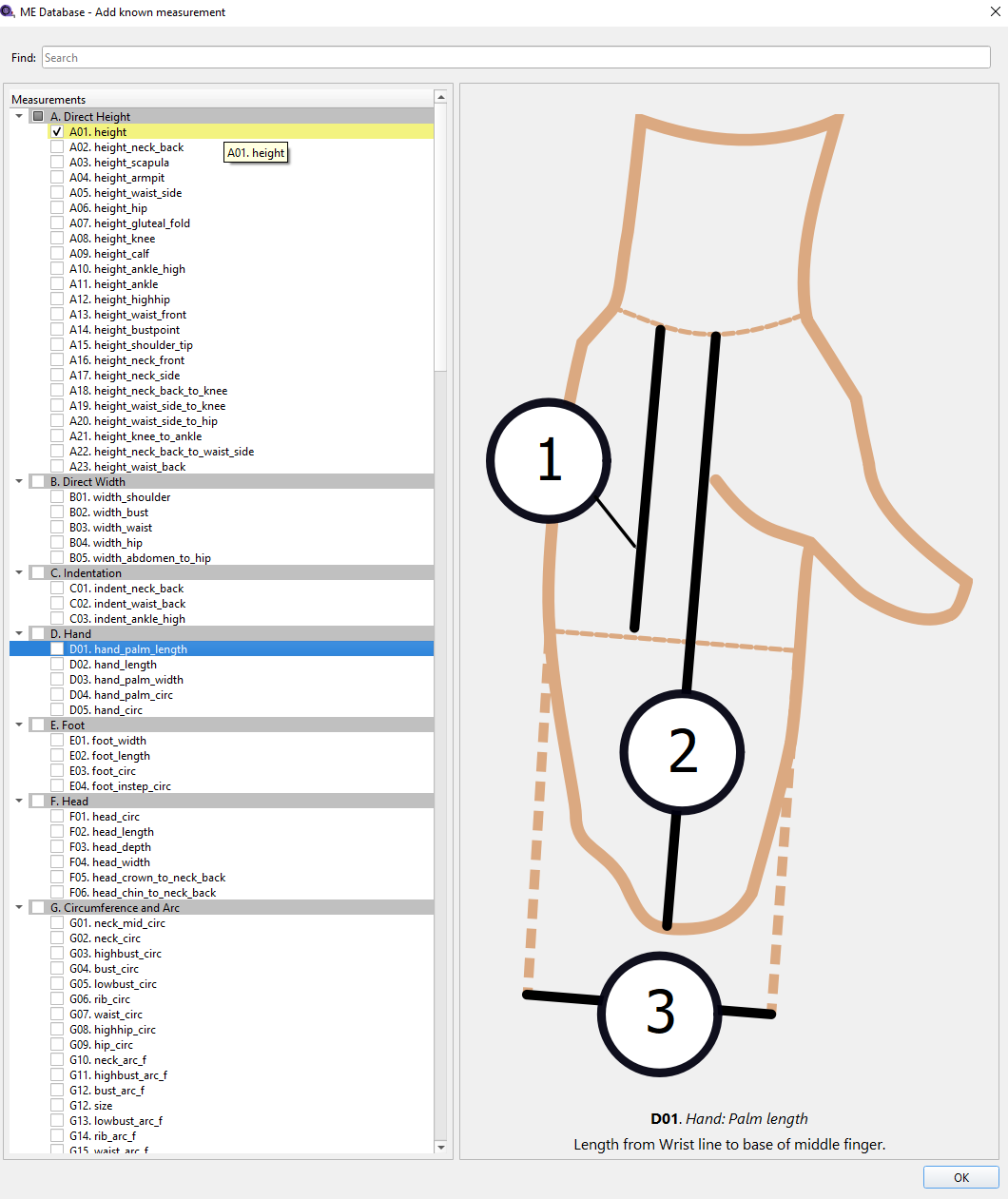
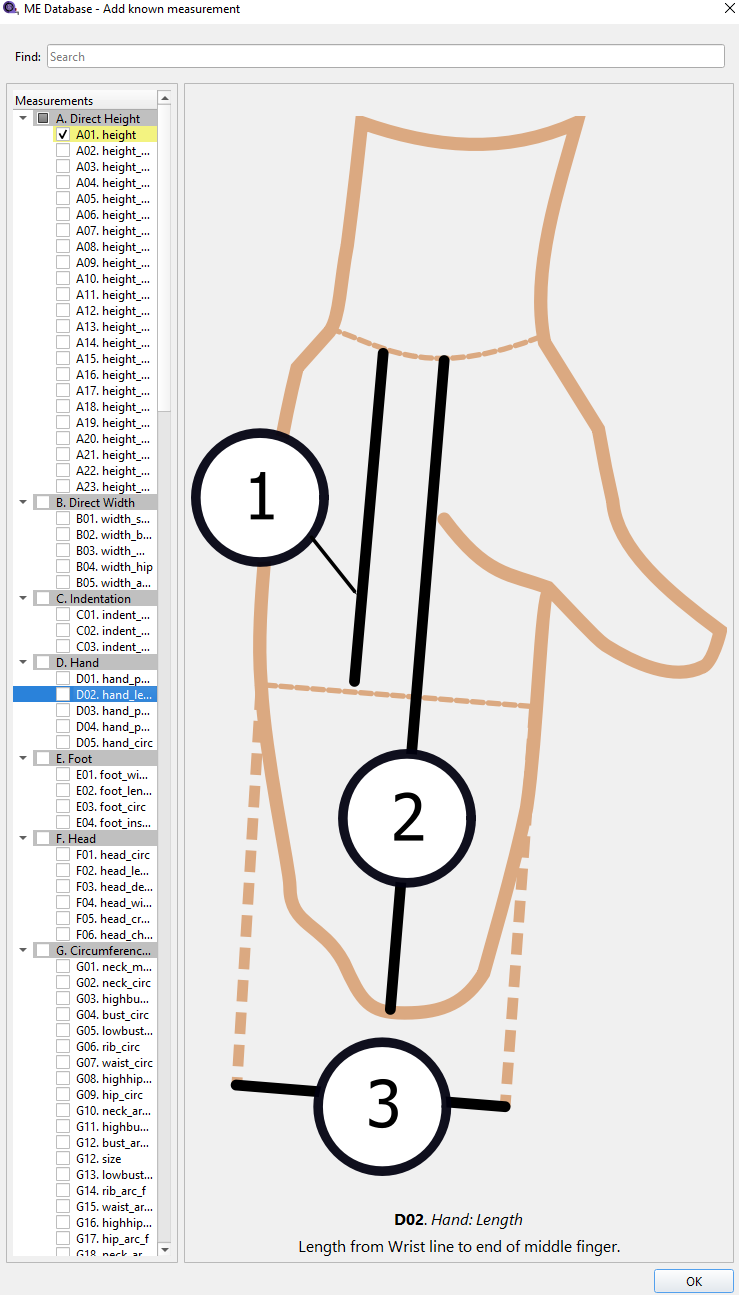
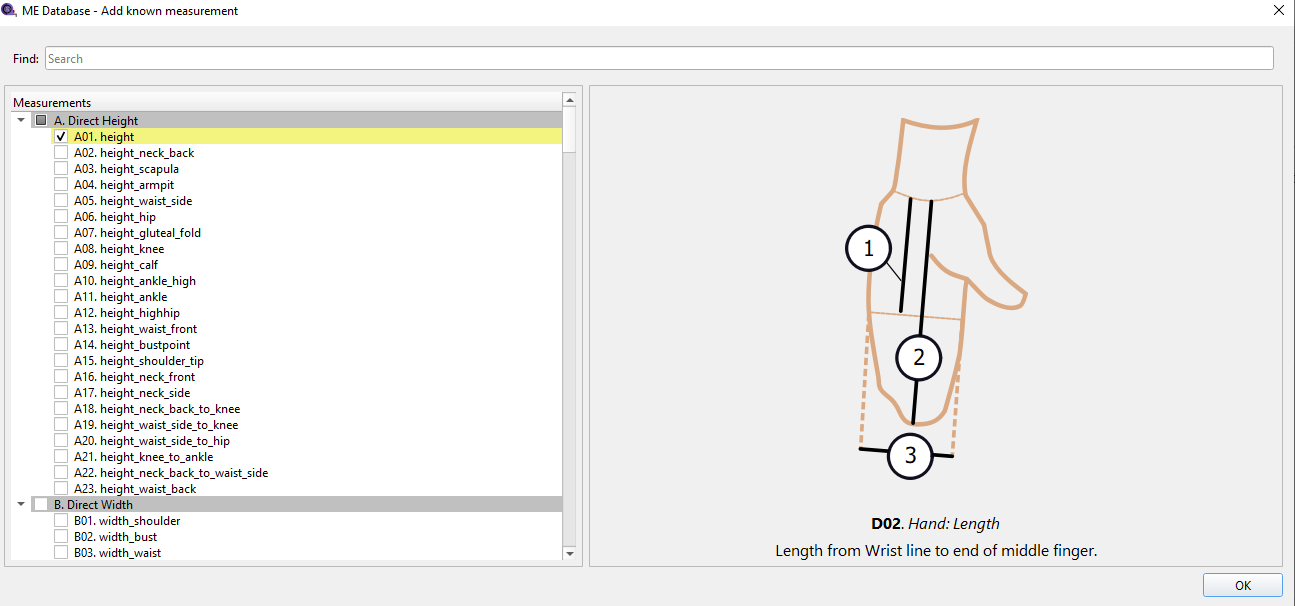
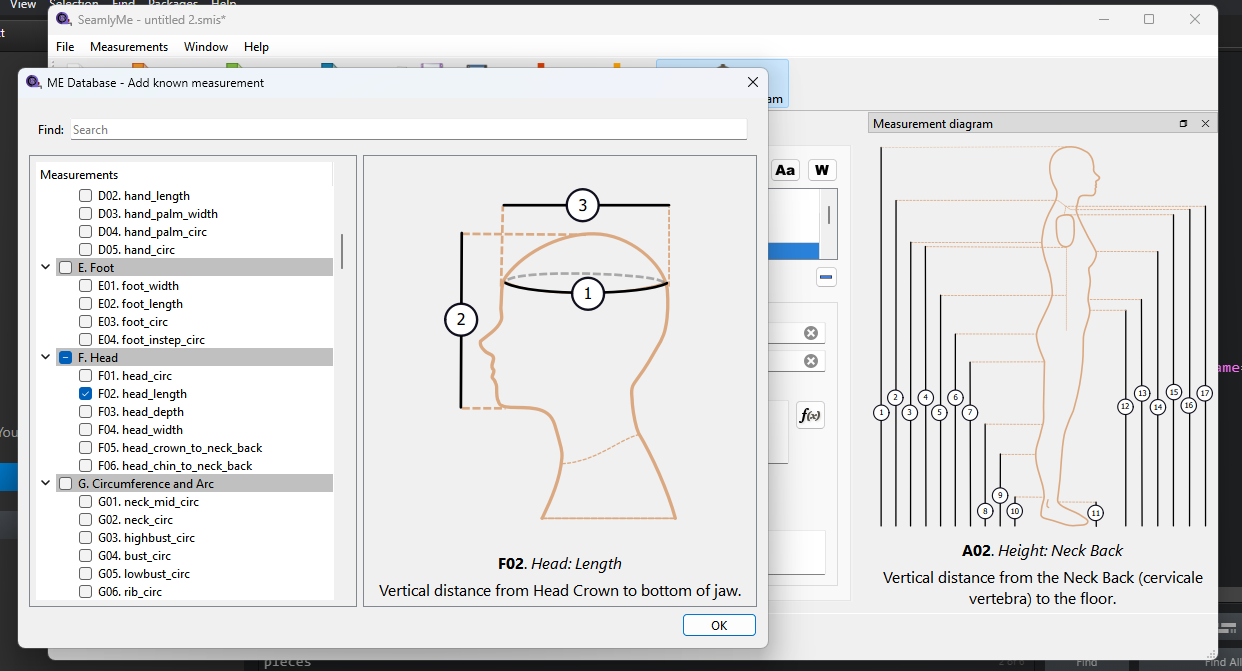
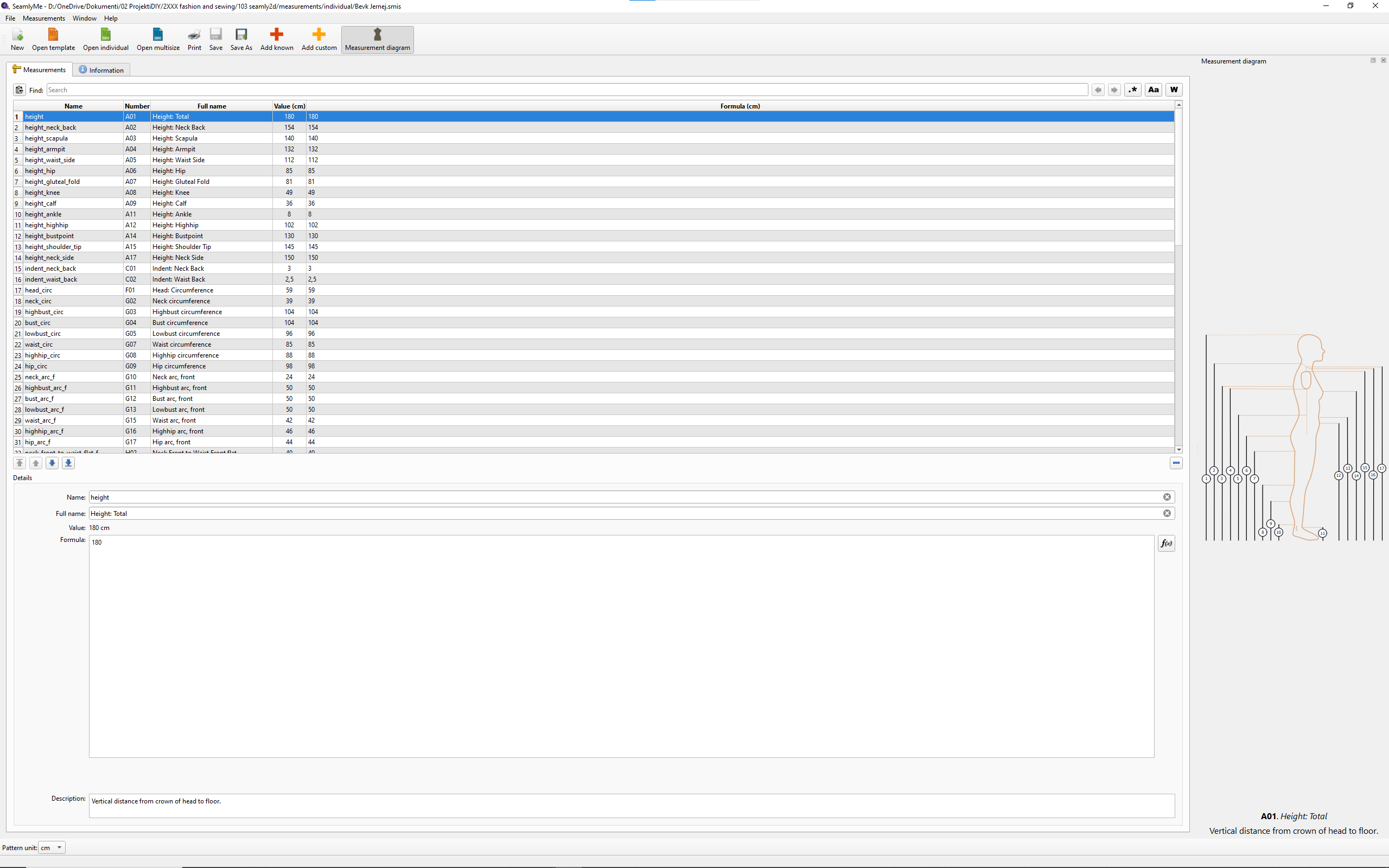
I tried to reply to another topic. I went to SeamlyMe, opened ‘Add known measurement’ and, at first, it took a few seconds. Then the Measurement Diagram automatically resized so that it covered most of the window and the text on the left. I cannot resize it manually. I guess that is not working as intended.

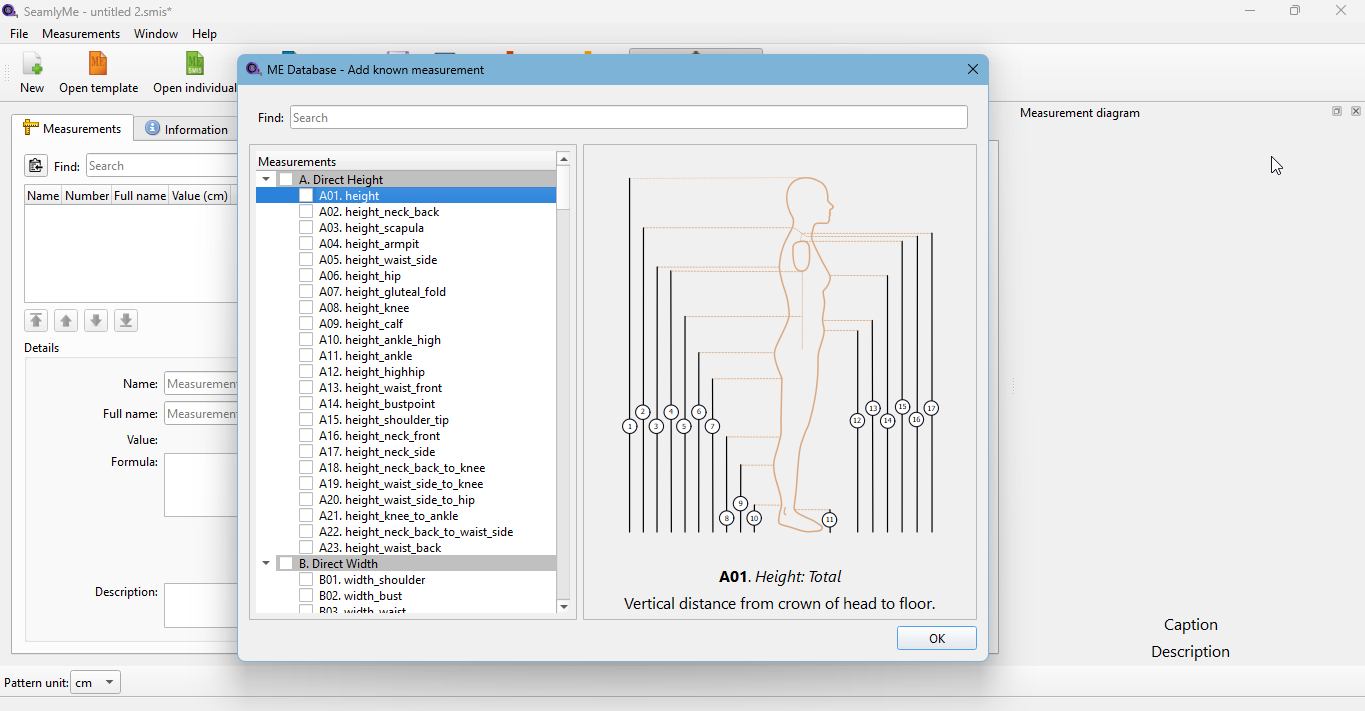
The diagaams are in a docker… and can float. You need to redock the window.
@Grace latest version
@Douglas sorry, can you explain more, I don’t understand what does it mean to “redock” the window?
This is only happening in the ‘ME Database - Add known measurements’ section. After some testing, it seems that the diagrams are being auto-scaled.
OK, resizing the window in different proportions gives different results. I found a way to get an usable option. It can be weird and confusing, but if you know where the problem lies, it can be easily solved — it’s not something crucial. I hope I will remember that.
Never mind… it looked like you had the dock undocked…
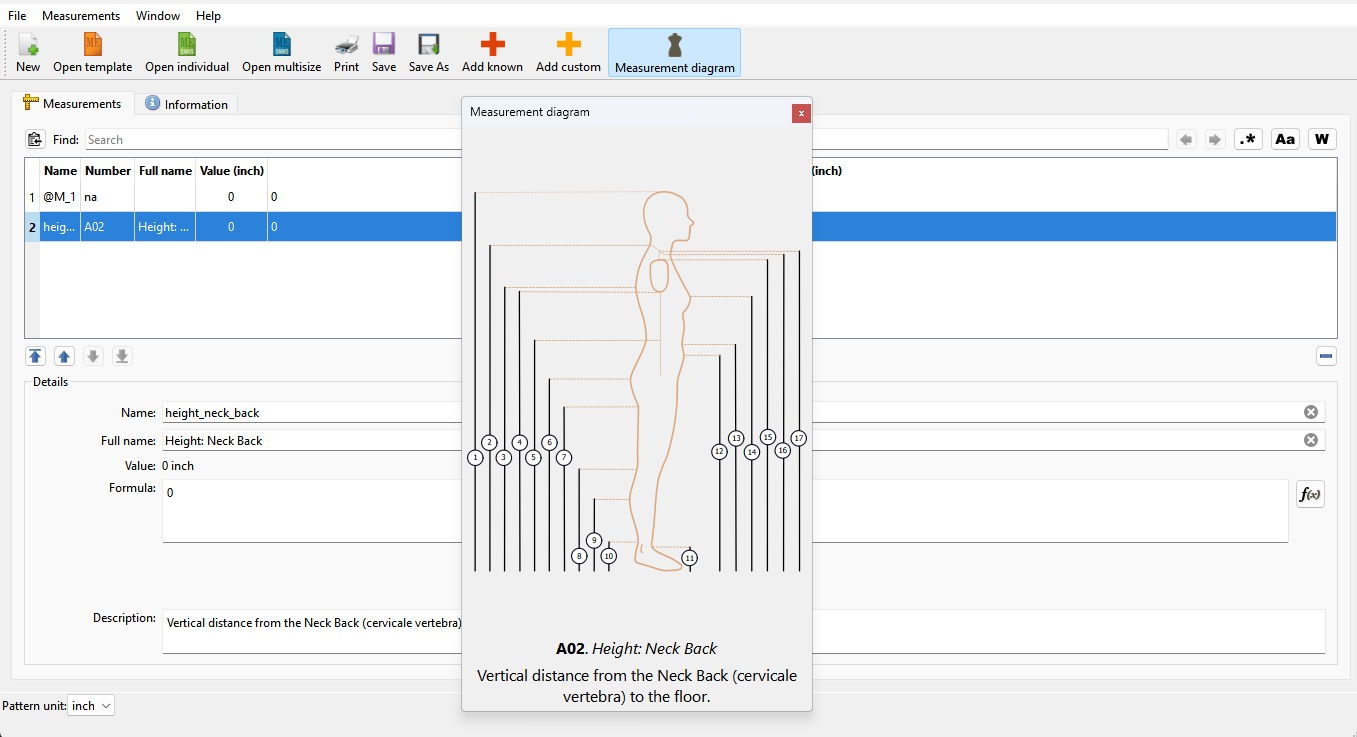
If it is undocked you can grab the window bar and drag it back to the right side: to dock it.
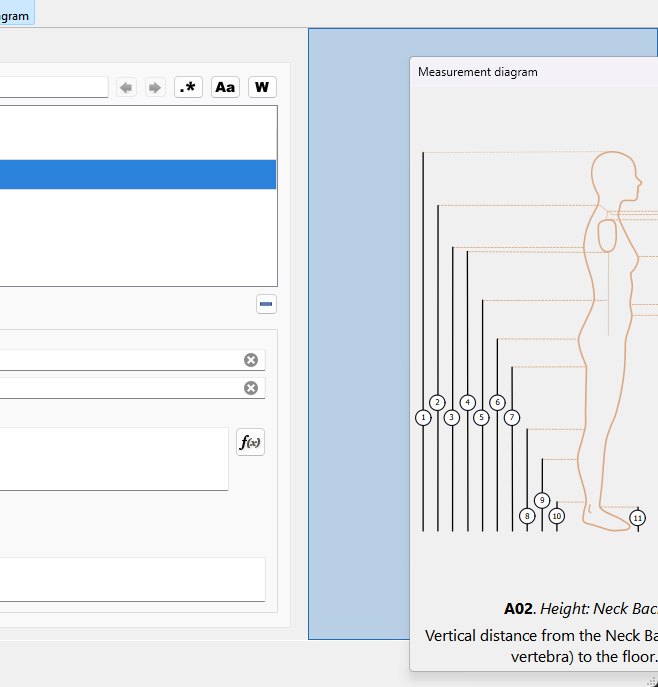
What looks like happened is your SeamlyMe window was resized… and opening the Known Measurements is overlapping the mainwindow/ The Known measuremeents dialog remembers it’s last used size and location. Do I need to force the dialog to fit withing the Seamlyme windoe is it’s not maximized?
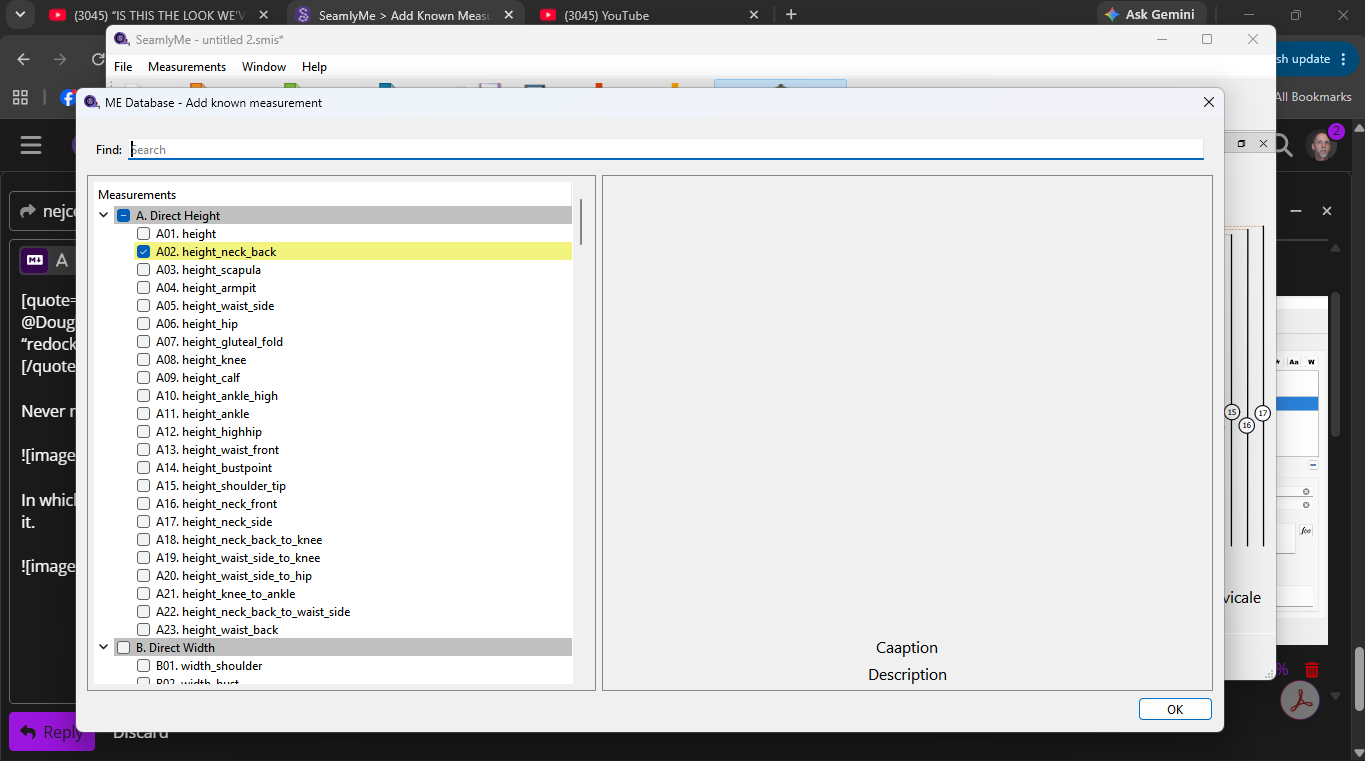
Close the Known dialog and then maximize your SeamlyMe window.
Yes… they resize to fit the frame… all the SVG’s are different sizes so the onlly sensible thing to do is scale to fit.
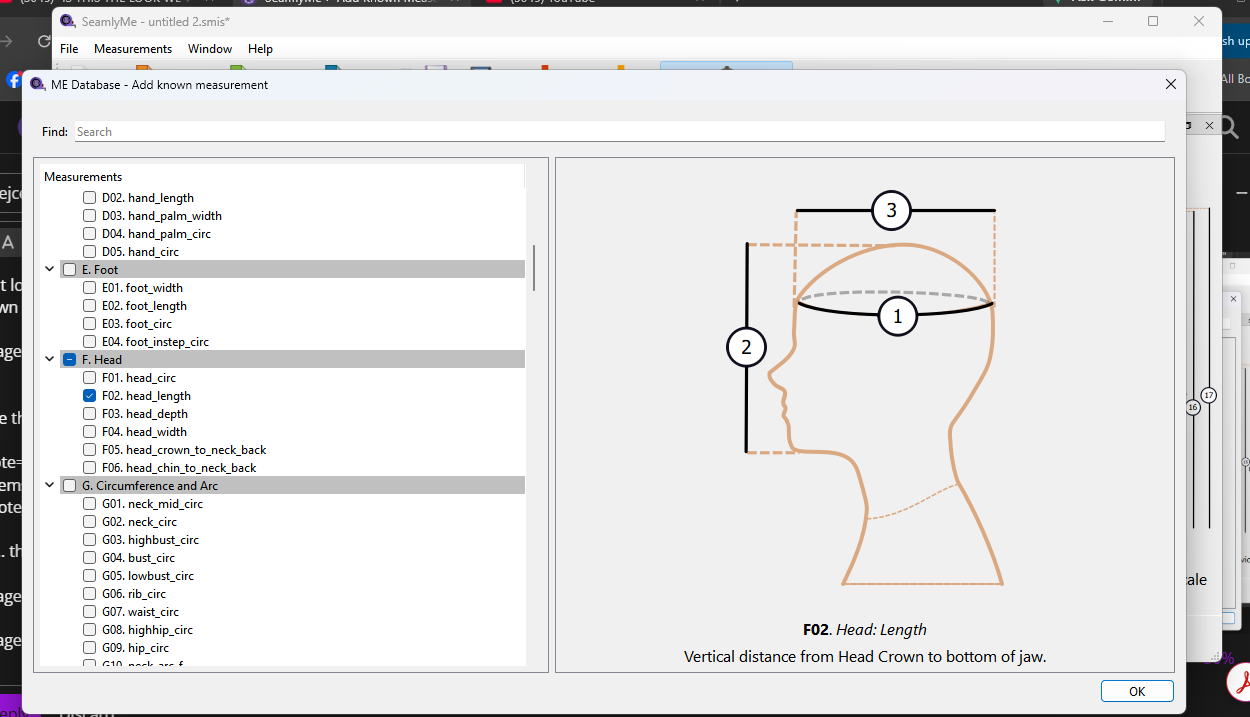
On the main window the diagram will scale to initially fit the frame… but only the text will re-format if the frame is resized:
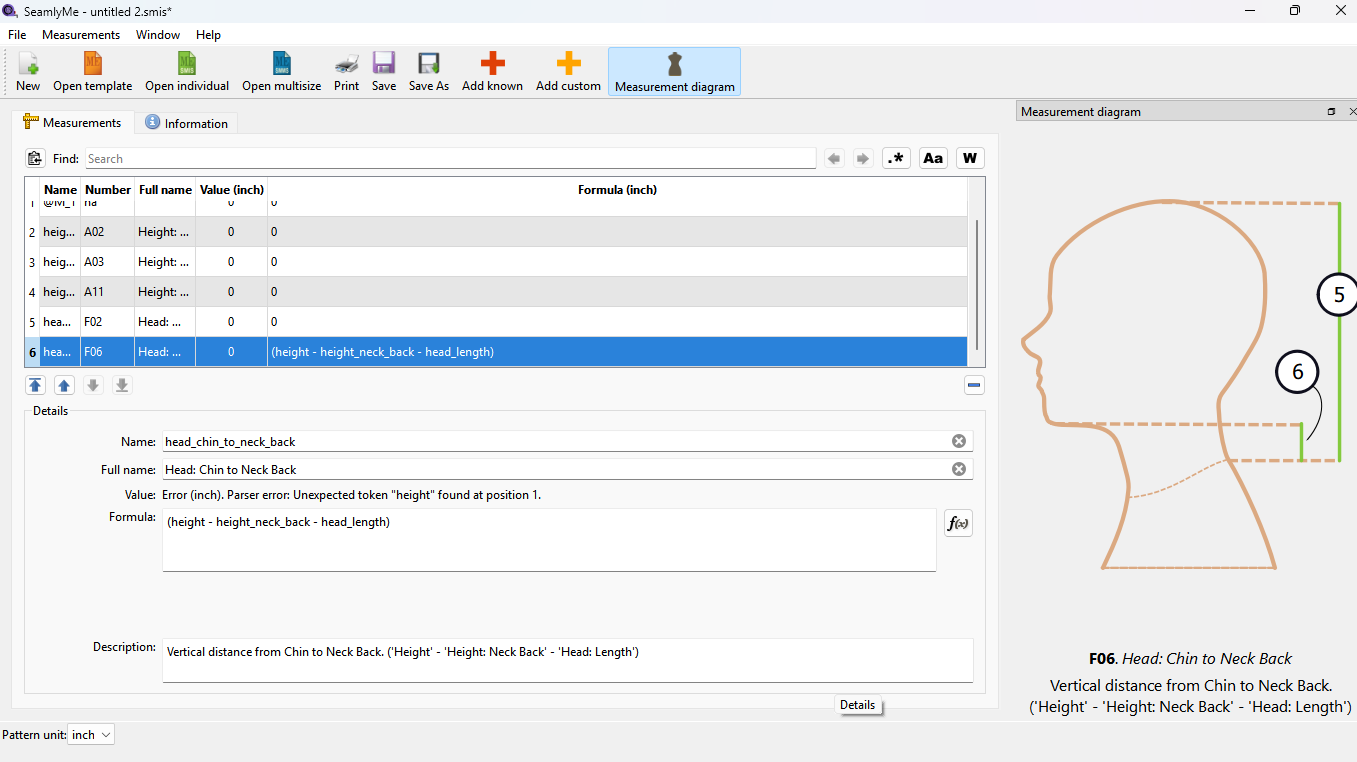
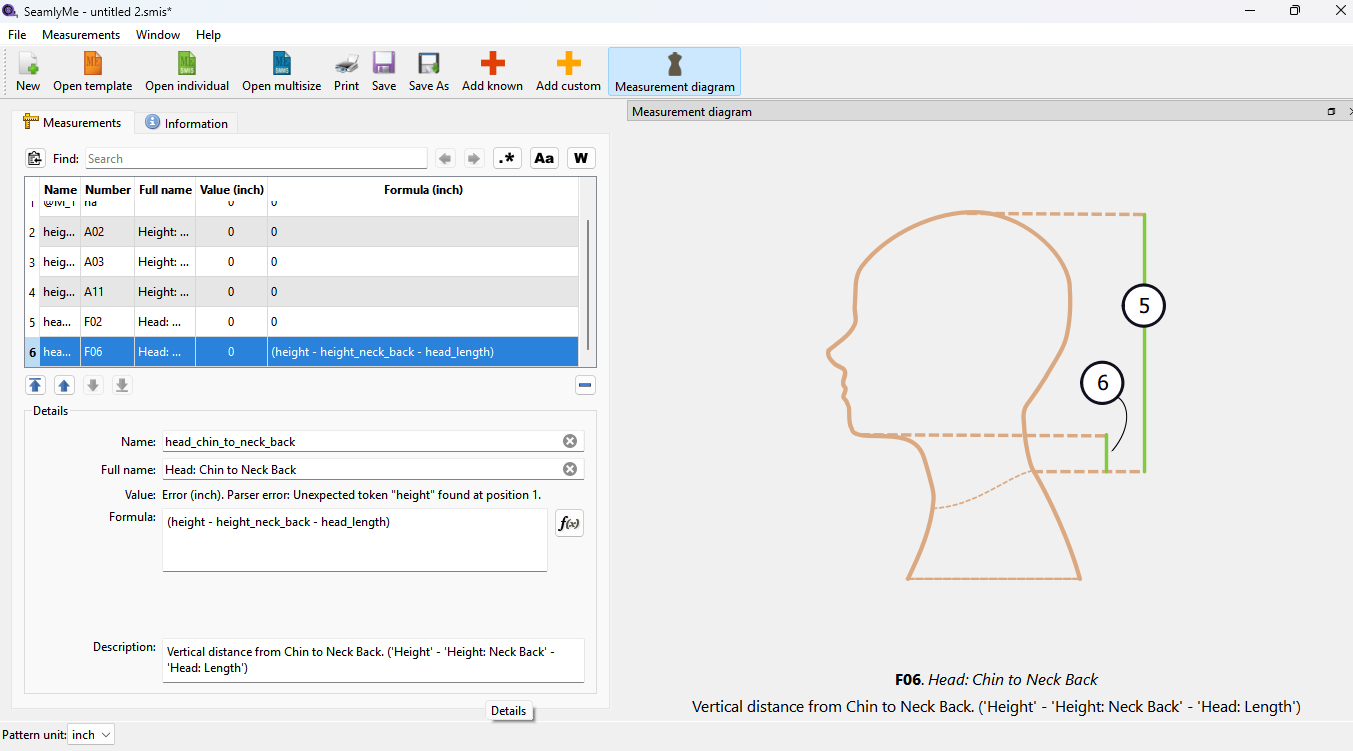
As I work on big area, I often shape my working windows in vertical format:
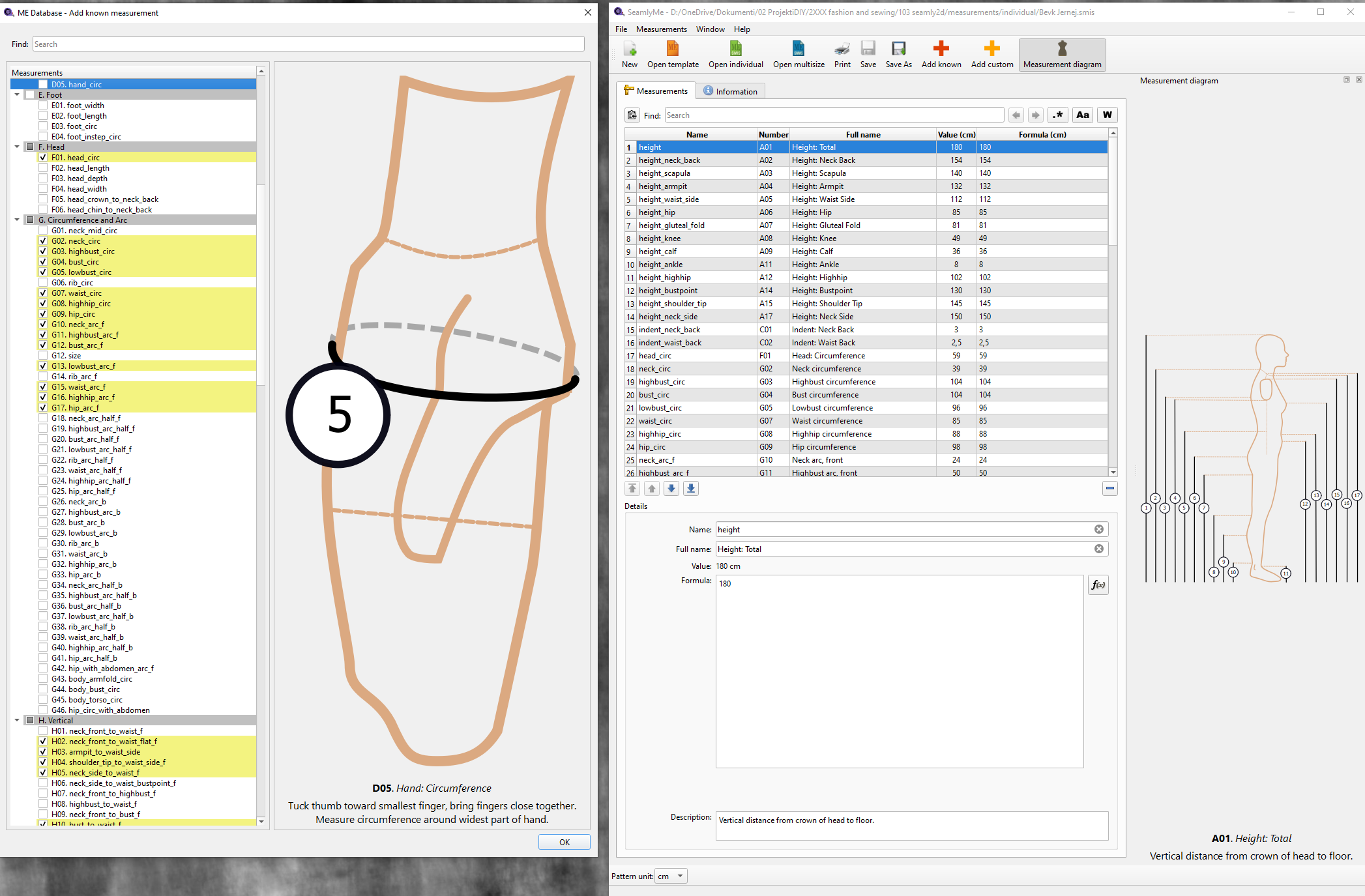
When I click on a different group of measurements, the diagram fills the window vertically. It fills it in such a way that maximises diagram B and minimises the part with measurement A on the left.
Filling only the part B is ok, problem is that it is minimising automatically window part A.
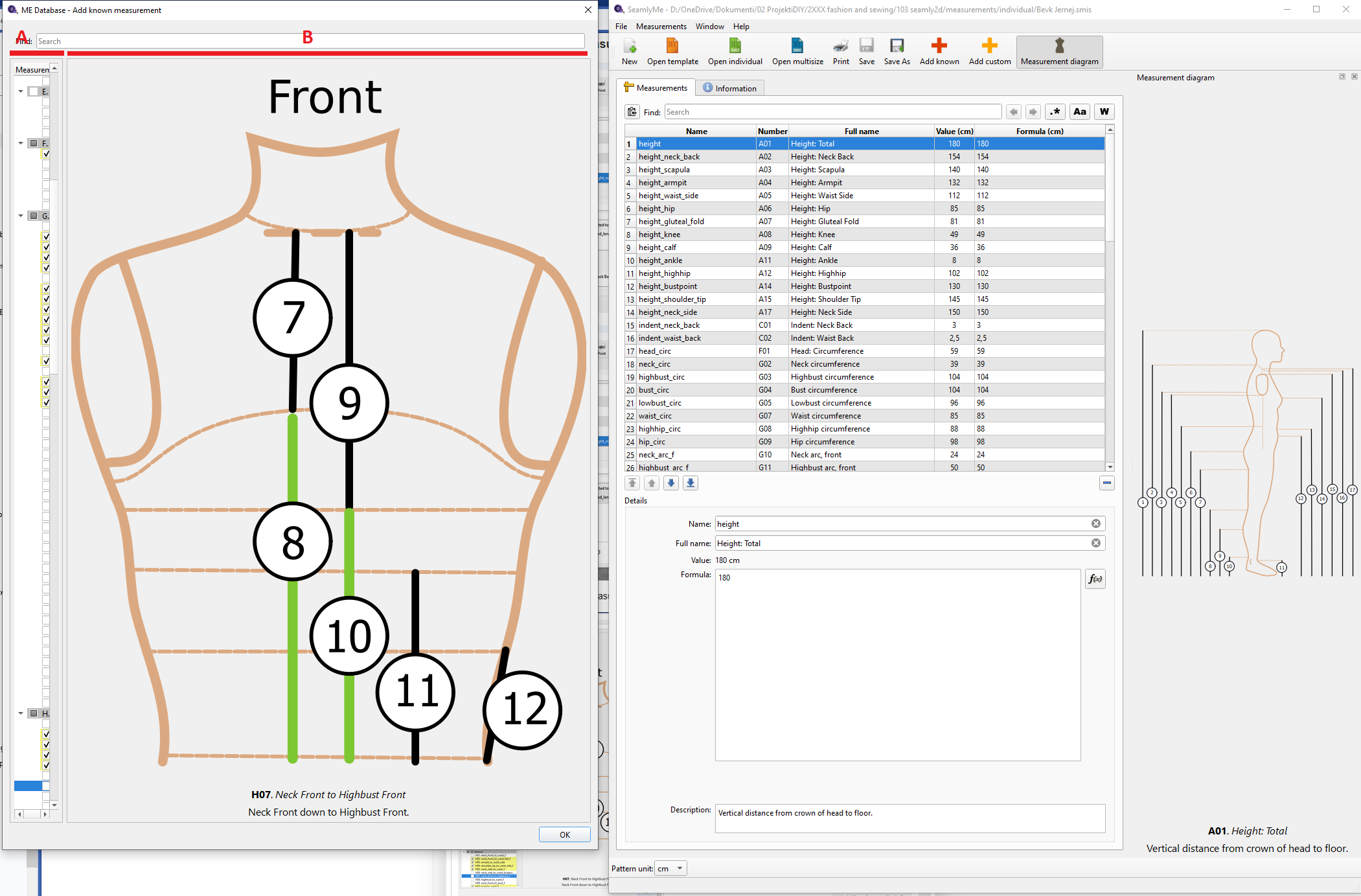
In my opinion, it would be better if the diagram only resized in the horizontal direction, as I have done in this quick sketch. However, this may affect the functionality of other features.
That means it doesn’t automatically change the width of A and B.
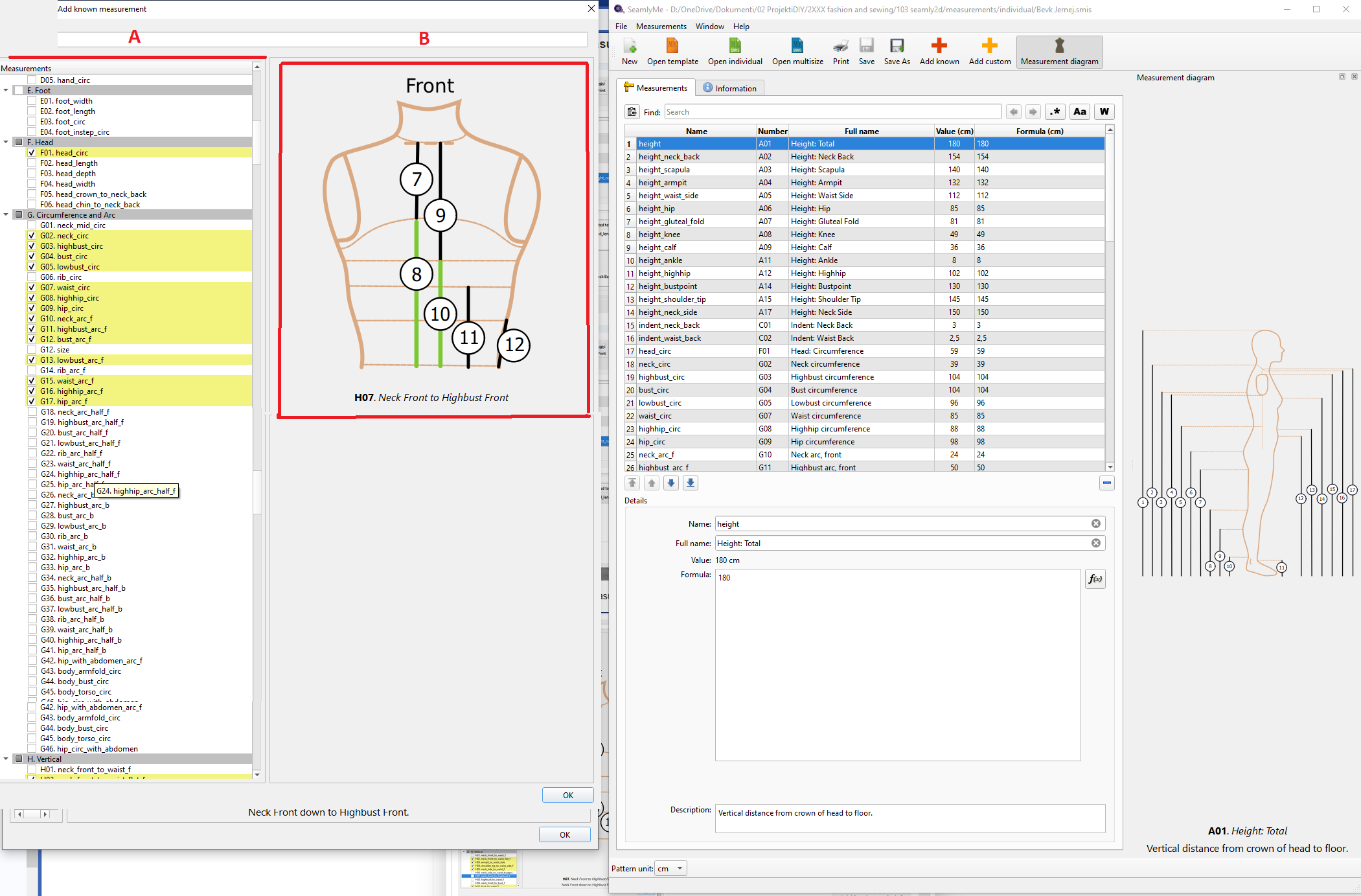
I’m not sure I understand why you need the Known Measurements open with the SeamlyMe mainwindow? The Dialog is a modal dialog meaning you can’t work on the SeamlyMe mainwindow until the dialog closes. The dialog is simply to add known measurements. That’s it. I see no need to see the dialog AND the measurement list? In fact… otther than programming the app I don’t ever use the dialog. I created a unisex measurement template file like 8 years a ago and have never opened the dialog to add a measurement since.
I resized the main window and dialog as small as they go on the screen and here’s what I get:
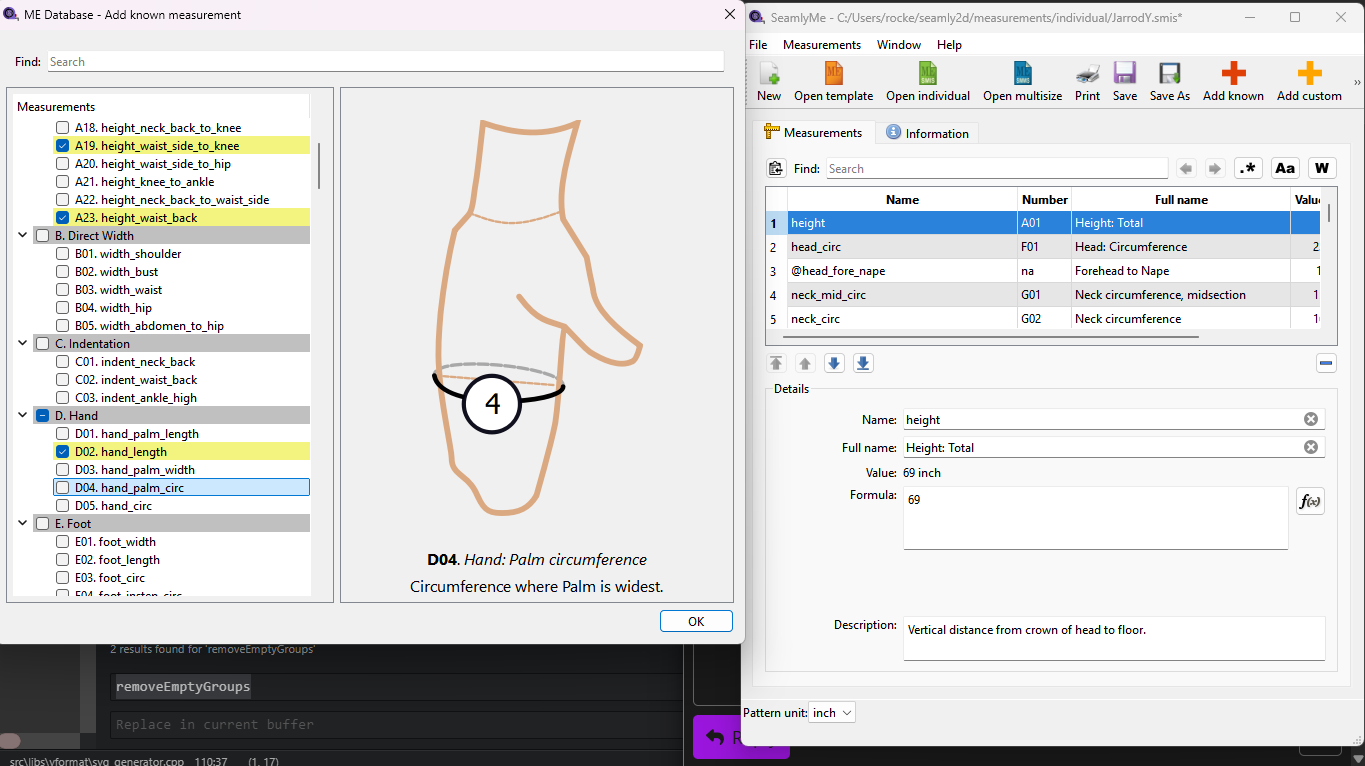
What OS are you using?
That I said… you just gave me an idea… there’s no need for the Known Measurements dialog… it can just be Tab in the main window.
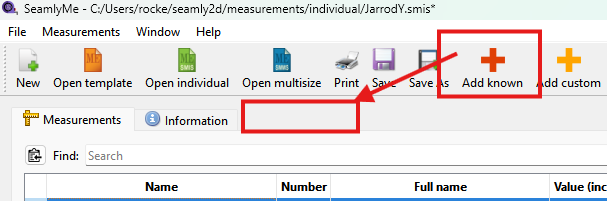
I am using Windows 10.
I’m not sure if my reasons are important, but generally, when I’m working, I need to be able to see what I’m doing. In my view, opening, closing, reshaping and scrolling are unnecessary tasks. Modal dialogues in Seamly are a fact of life, but they are also a nuisance that I need to learn to work around. That’s why I am repositioning dialogues so that they fit my screen. This is in a vertical format, which reduces the amount of scrolling required and allows more information to be displayed on the screen.
You are scaling your window in landscape format, which is why this works for you. Try do it more vertical (imagine portrait and landscape paper format) This problem would be solved if the diagrams scaled to the maximum height or width, whichever is reached first, rather than to the maximum height. Currently, they are not only scaling to the height of the window; they are also reclaiming space from the measurement dialogue. This is unique SeamlyMe behaviour that I have never seen anywhere else.
Again I dont’ get what the issue is? You create a measurment file, open the dialog, check off the known measurements you want and you shouldn’t have to open that dialog again unless you switch to using some esostric drafting system. If you never want to open the dialog again just use all the all_measurements template
all_measurements_template.smis (14.5 KB)
Since the Known Measurement Dialog is modal there’s no purpose in seeing the dialog open with the mainwindow. You can’t interact between the 2. When the dialog is open all you can do is check which measurements you want to use… and you can’t edit anything in the mainwindow. The dialog could just as easily be a drop down menu.
What missing tools?
Thank you for your efforts, Douglas, but it seems to me that we are going round in circles. Your last answer has nothing to do with anything I wrote. I completely understand that you don’t understand my workflow, and that’s OK.
Perhaps you could just look at the diagram to see how it is resizing and claiming working space over the other part of the window. In my view, that is an error. However, if you are happy with it, then let’s call it a day.
Specify which diagram. There are 2 places… the Dialog or the Dock?
If you are talking about the dock it’s in a splitter and you can resize the frames horizonatally:
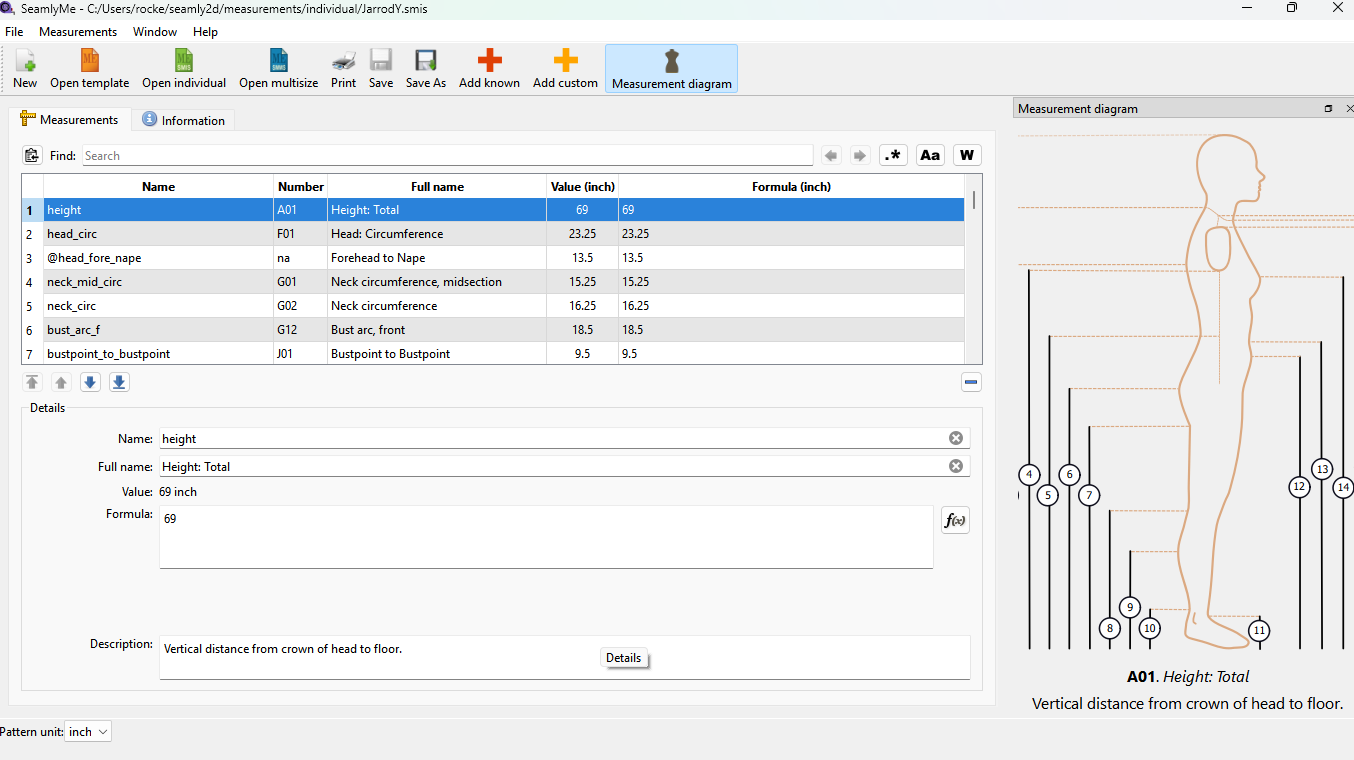
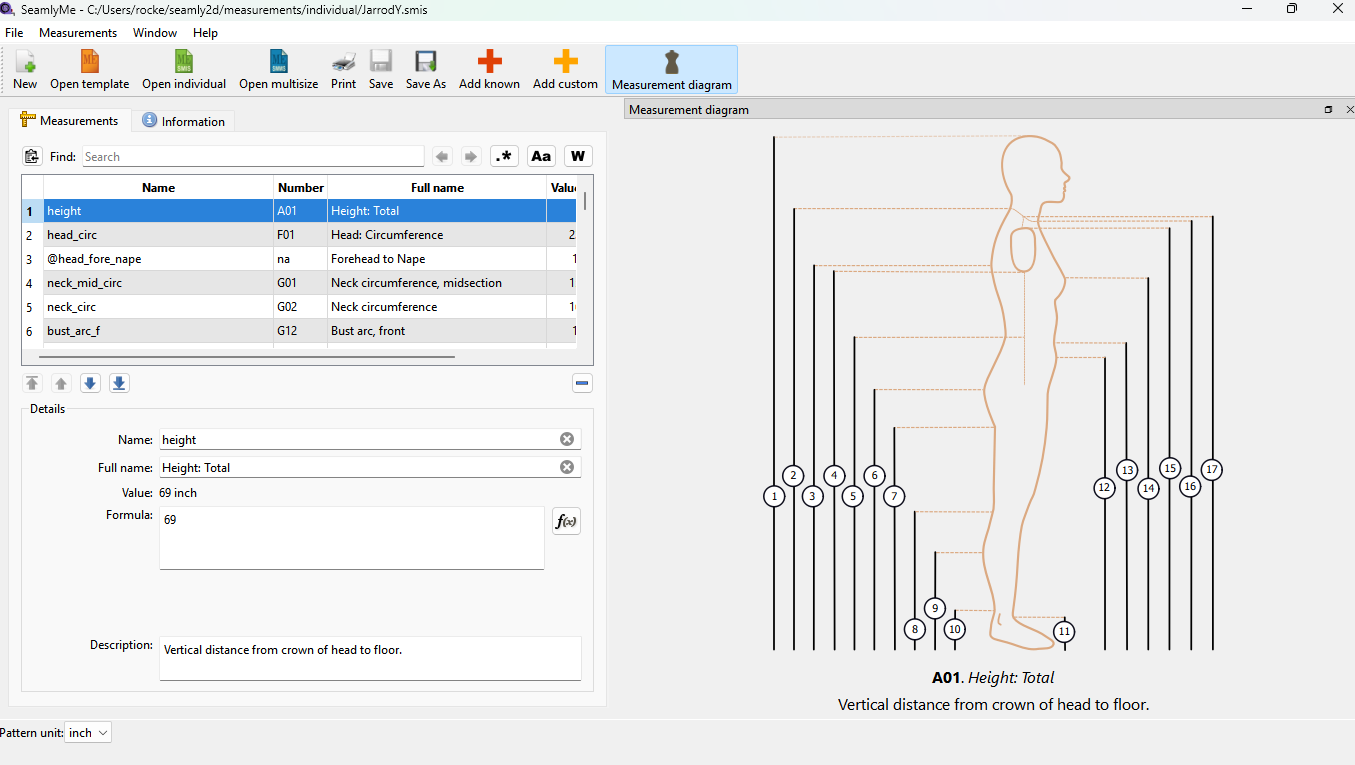
OR you can float the dock - either on the mainwindow or a second screen:
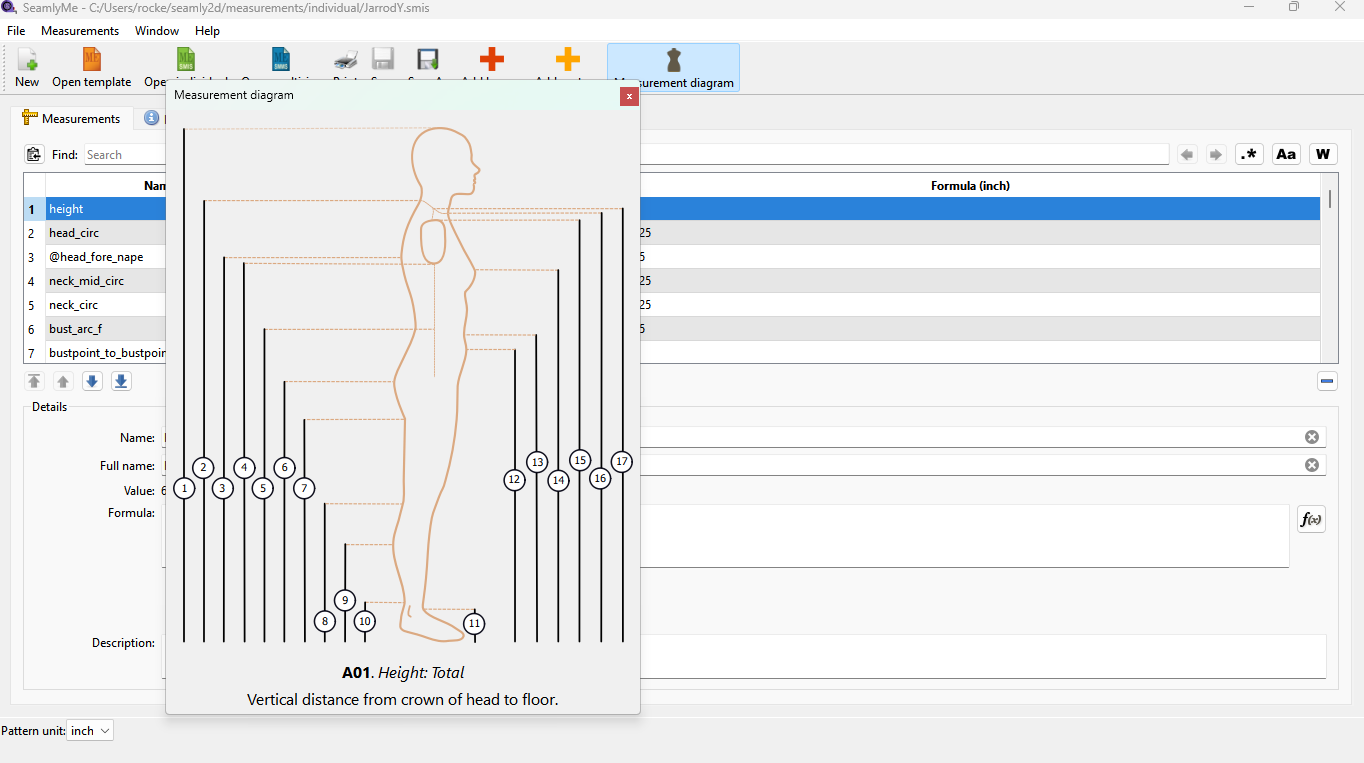
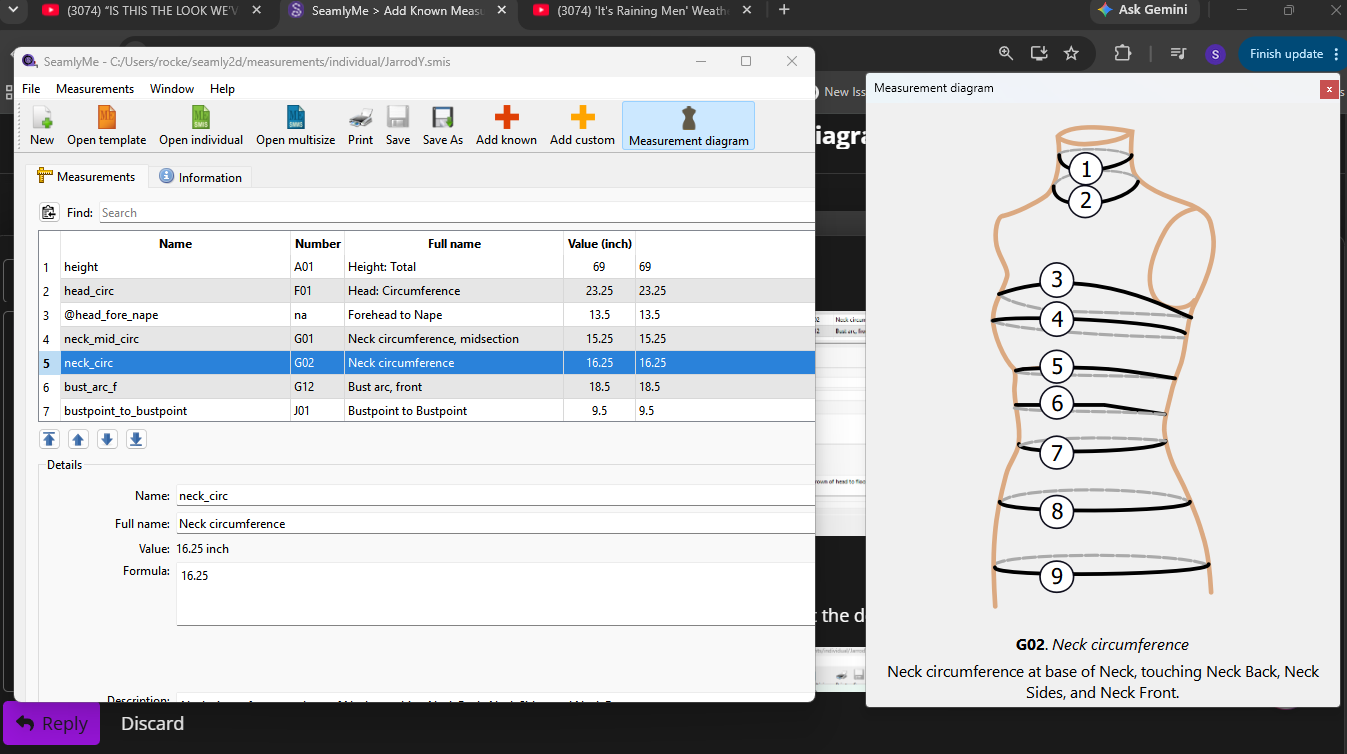
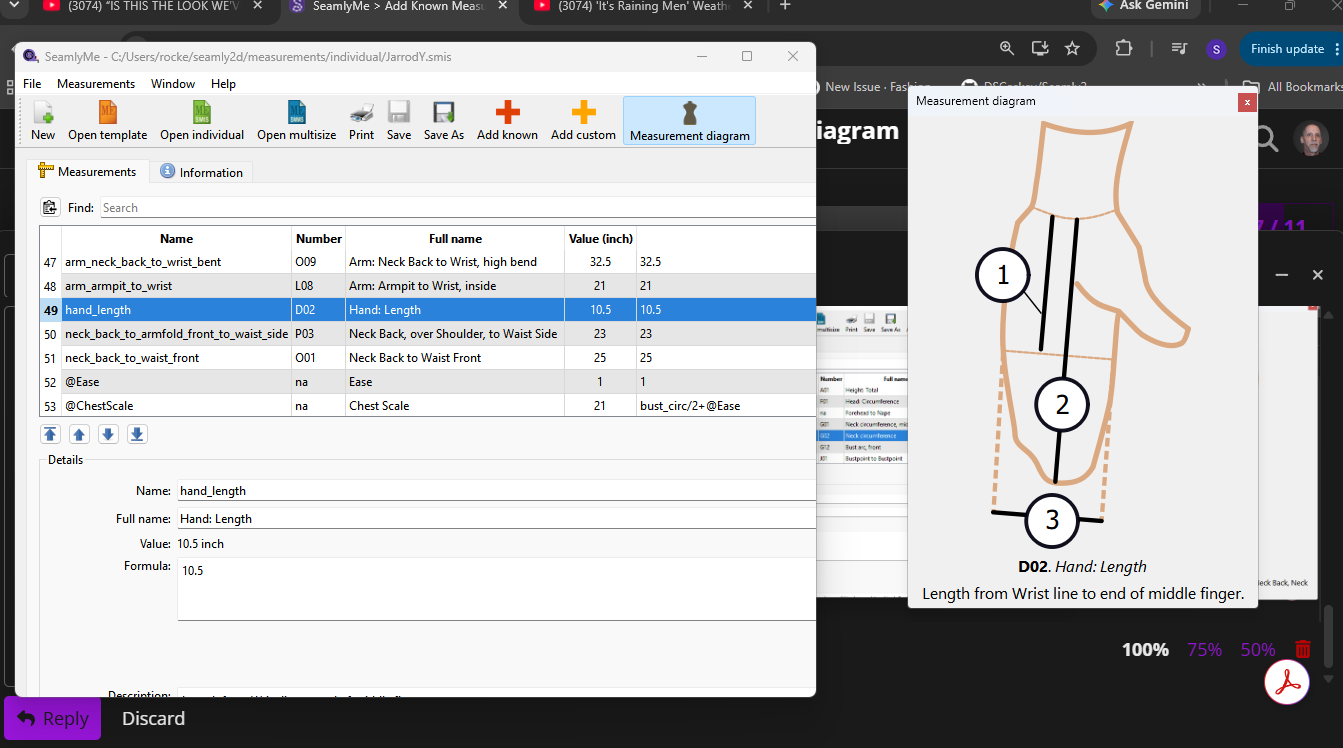
Otherwise I have no idea what you mean “claiming working space” ?
That said… My only issue with the “resizing” is that the SVG’s were not saved with the same page size / aspect ratio… so they all scale differently. Otherwise they scale as they should… which ever is larger - height or width will fit the size of the frame and the other scales to match. If the frame is wider (which is usually the case) it will fit to the height and there will be space on either side:
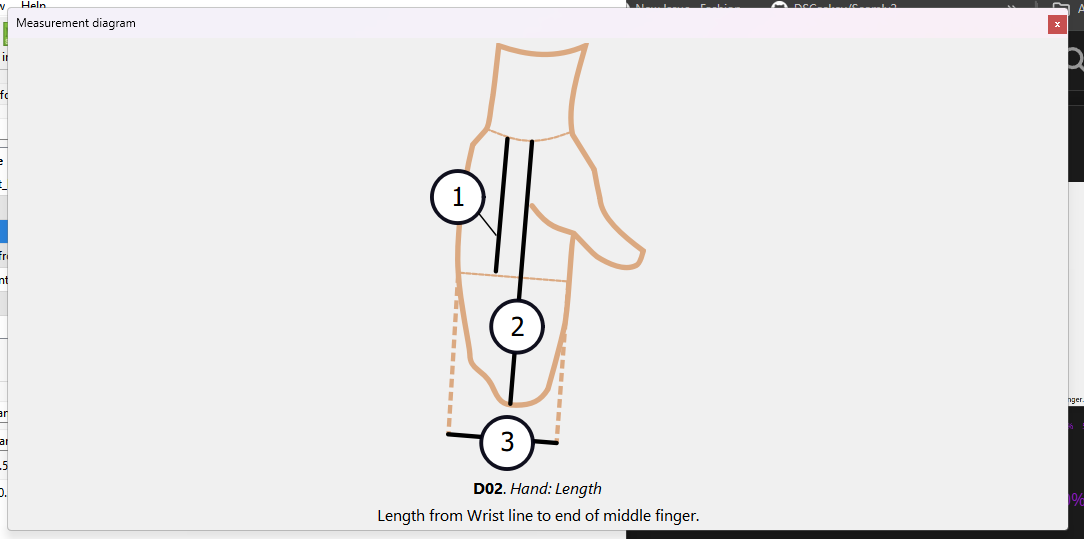
1 Like

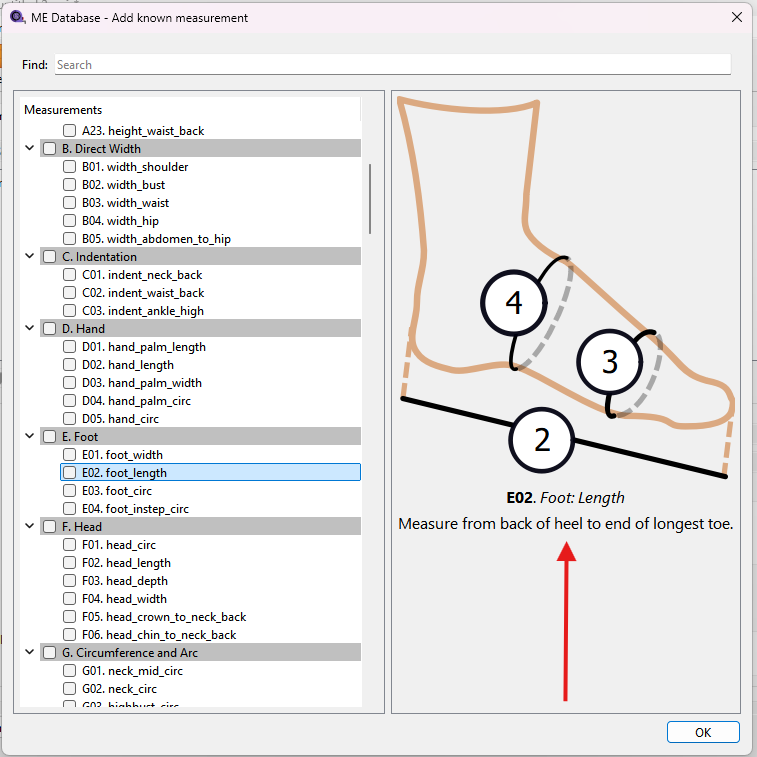
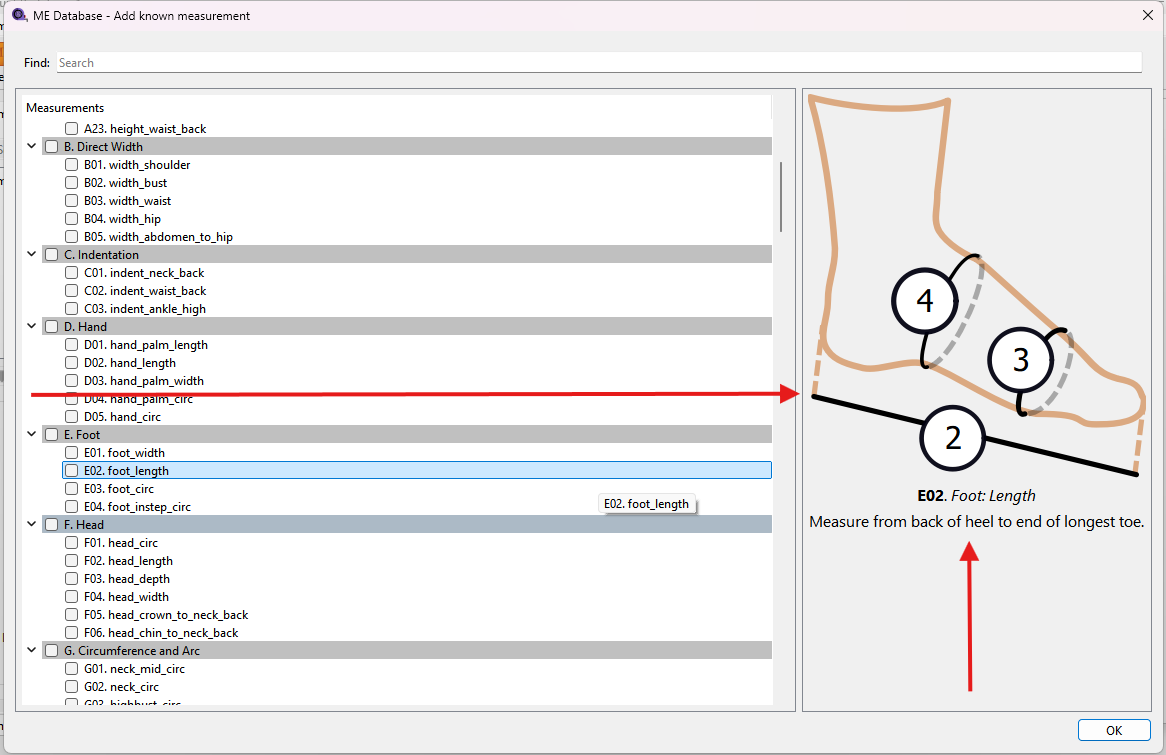
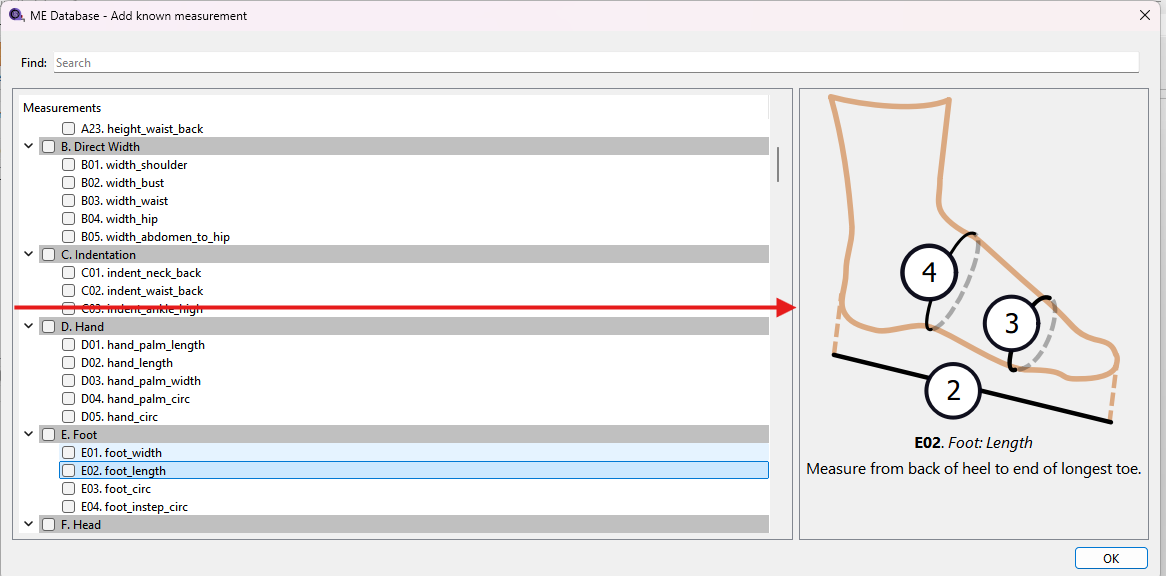
Thank you @Douglas for your continuos efforts and work.
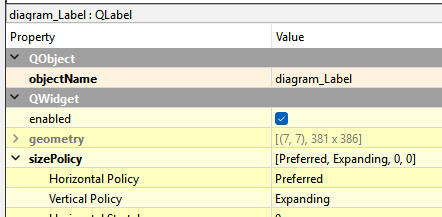
Thanks for your patience. I did not understand the problem as I’m not using a large hi-res monitor… my TV that I used as second monitor died, and I cant get the new one to sync up yet. During our meeting on tues Sue was able to show what was happening via a video. By fixing the width and using a vetical spacer it should keep the diagram contrained to the upper right corner of the right frame…regardless of how wide or tall the dialog is. The layouts in the ui forms can be finicky if you don’t get the right combination of size policies correct in conjunction with the min and max size hints.