Früher war es möglich im Schnittteil Werkzeug einen Knips mit “Strg-S” hinzuzufügen wenn man den entsprechenden Punkt angeklickt hat. Das funktioniert leider nicht mehr
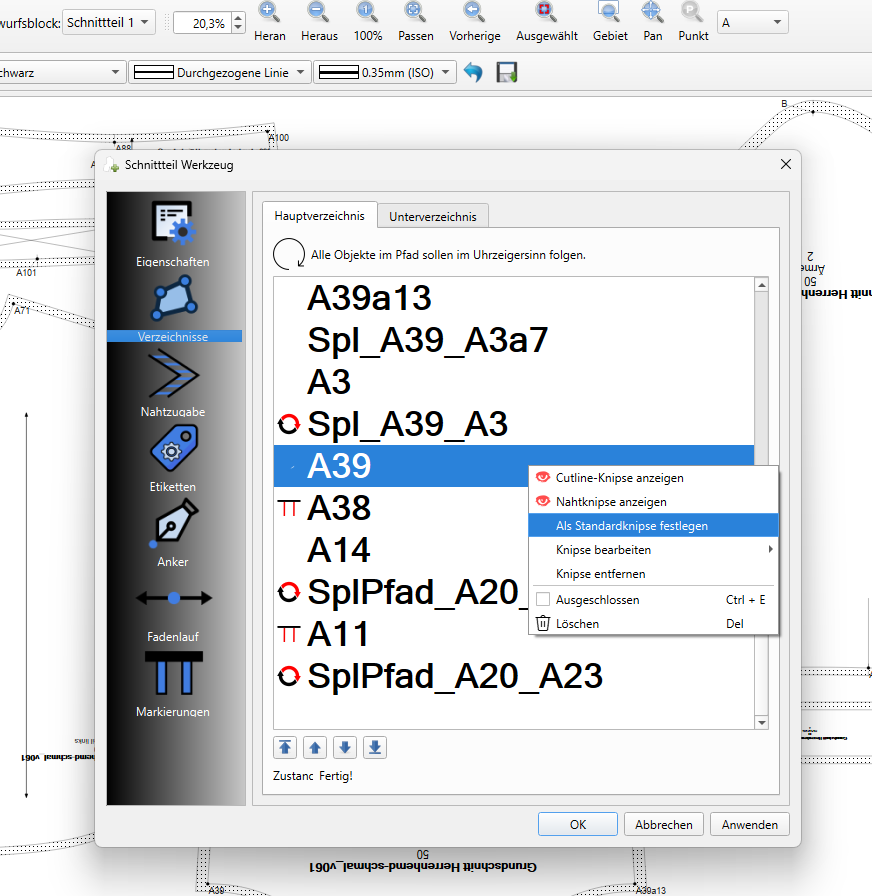
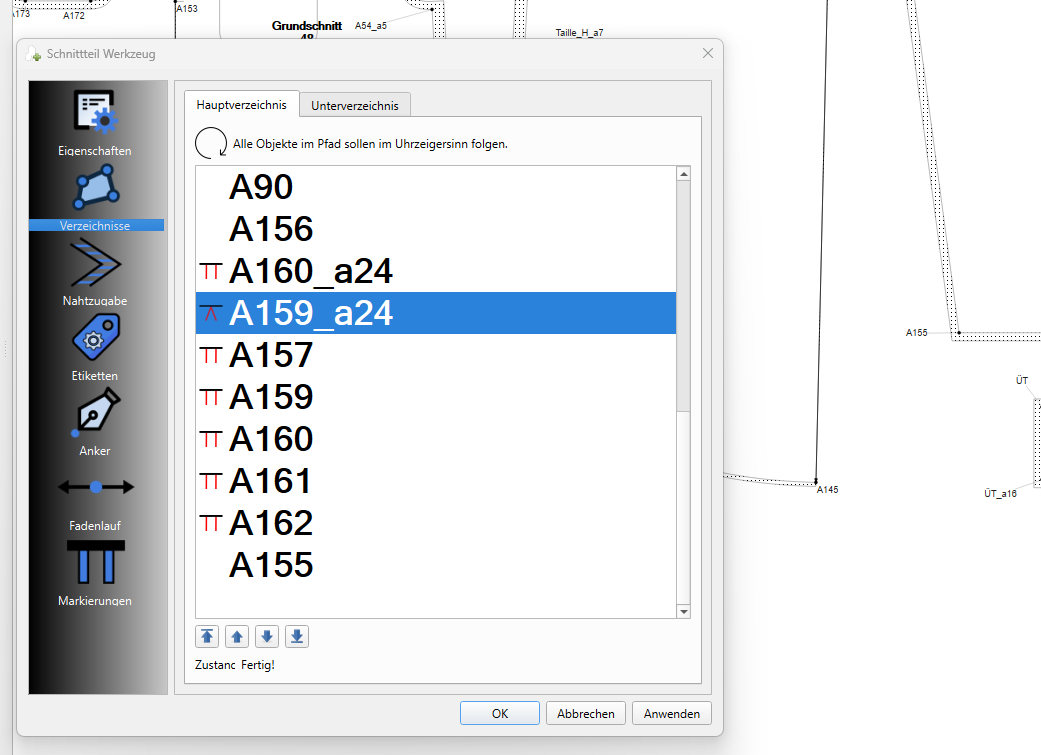
Jetzt muss ich mit rechter Maustaste ein Fenster öffnen - dann Standartknips festlegen - Dann erscheint der Knips oben wie bei Punkt A159 - noch mal rechte Maustaste und dann kann ich den Knips erst so darstellen, wie ich es möchte (siehe andere Punkte). Das ist eine Verschlechterung gegenüber früher:(
The German translation on here aren’t working too well. It took me a while to figure out that “Set default snapshot” is actually “Set default notch”.
Yes, I’ve also notice this today and I agree that it’s a step backwards. First you need to add the notch as the default notch and then you need top open the menu again and set it the way you want it.
Perhaps @Douglas will be by soon to fix it nicely.
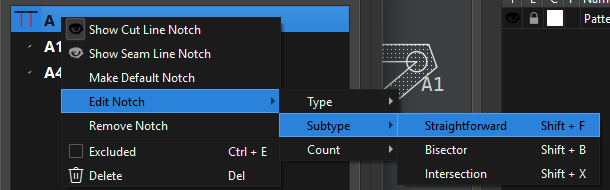
I don’t know why the Notches in the menu changed. At the moment, you need to open the menu, select default, then open the menu again and select the type, then open the menu again and select the number of notches.
I think the Ctrl S is a translation thing. Like the Snapshot for Notch. I don’t know what is most important… To repair the notches or to continue with the multisize. I’ll leave that decision up to you.
Because the “default” notch settings were not working as reported by @Pneumarian months ago. Previously you still had to edit the notch if you wanted to chnage the subtype or count.
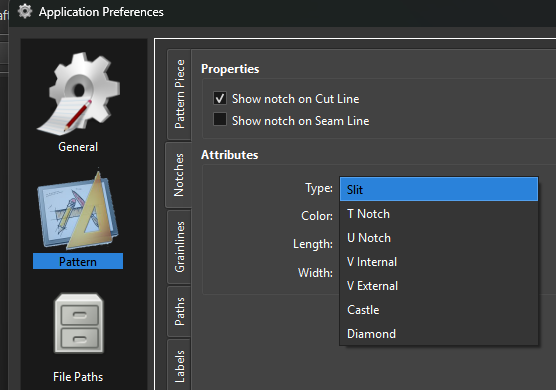
That said… There’s an easy solution here… just set the default notch type in your preferences. One generally uses only one Type of notch in their patterns.
Noch mal als Erklärung: Der Punkt A39 ist angeklickt. Mit der Tastenkombination Strg-S habe ich diesen Punkt mit einer Kerbe markieren können. Das geht jetzt nicht mehr.
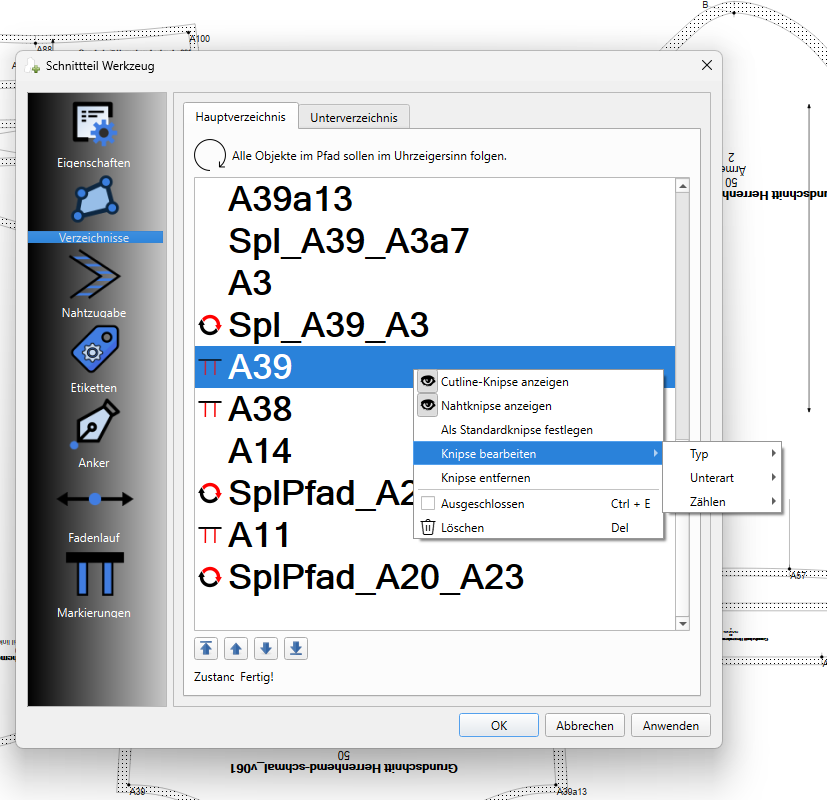
Ich muss rechte Maustaste drücken, dann erscheint dieses Fenster:
Danach erst kann ich einen anderen Typ Kerbe/Knips auswählen.
Darum geht es aber nicht. Zuvor war es möglich ohne in ein Untermenü zu gehen einen Punkt mit Hilfe einer Tastenkombination (Strg-S) unkompliziert eine Kerbe/Knips zu setzen.
possibly related, ctrl-E doesn’t seem to work for toggling whether an object is excluded, even though that shortcut still appears in the menu. 2026.10.05 Linux
I will take a look to see what may have caused regressions. If there’s an easy fix I will do that - otherwise I need to cooncenrate on new features I’ve been working on that keep getting put aside.
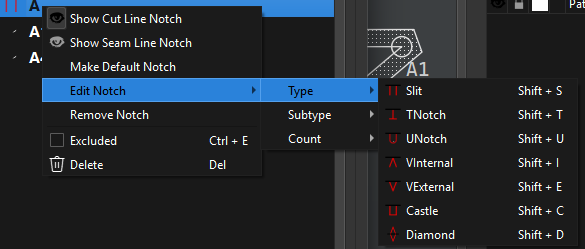
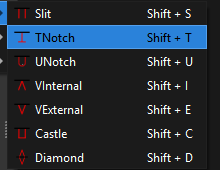
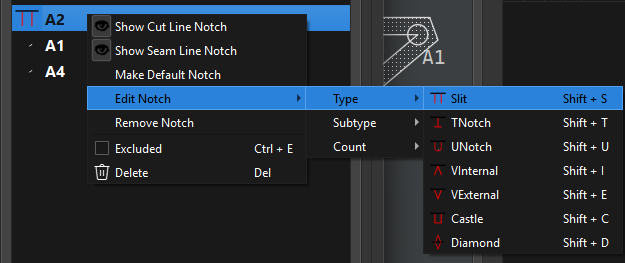
The shortcuts for the notch type we’re switched to use Shift to avoid collision with Ctrl shortcits such as Ctrl + S for “save”… or Ctrl + E for Exclude. The slit notch is now Shift + S.
Here’s the switch for the notch type and subtypes for the shift modifier:
                switch (keyEvent->key())
                {
                    case Qt::Key_S:
                        notchType = NotchType::Slit;
                        break;
                    case Qt::Key_T:
                        notchType = NotchType::TNotch;
                        break;
                    case Qt::Key_U:
                        notchType = NotchType::UNotch;
                        break;
                    case Qt::Key_I:
                        notchType = NotchType::VInternal;
                        break;
                    case Qt::Key_E:
                        notchType = NotchType::VExternal;
                        break;
                    case Qt::Key_C:
                        notchType = NotchType::Castle;
                        break;
                    case Qt::Key_D:
                        notchType = NotchType::Diamond;
                        break;
                    case Qt::Key_F:
                        notchSubType = NotchSubType::Straightforward;
                        break;
                    case Qt::Key_B:
                        notchSubType = NotchSubType::Bisector;
                        break;
                    case Qt::Key_X:
                        notchSubType = NotchSubType::Intersection;
                        break;
                    default:
                        continue; // not a notch shortcut
                }
I will add the shortcut text to the context menu items and the About->Shortcuts.
I just checked the Windows version and Ctrl + E seems to works fine. Will have to check a Linux build when I get a chance.
Exclude handler for “if (keyEvent->modifiers() & Qt::ControlModifier)”
case Qt::Key_E:
{
    const bool exclude = !rowNode.isExcluded();
    for (QListWidgetItem *item : items)
    {
         excludeNode(item, exclude);
    }
     break;
 }
Does anyone want a shortcut for Make deafult notch? Maybe Shift + N? It would basically be the same as Shift + F which will create a Default type, StraightForward subtype notch.
I thought of some other shortcuts I can add. Shift + 1, Shift + 2, Shift + 3 for the count… where you could simply press Shift + 2 and it will create a double default notch or Shift + 3 will create a triple default notch.
I should note that when a node is created it always creates a “default” type notch of subtype StraightForward with a count of 1. Selecting the “Make Deafult Notch” just flips the isNotch flag on. Selecting an Edit menu item flips the isNotch on AND edits the notch properties.
So the behavior would be if the default type is Slit, if you type Shift +2… you would get a double slit… but if you typed Shift + T you would 1st get a single T notch. Subsequently typing shift + 3 would the give a triple T notch… not a triple default notch.
Yes, the problem is that one 1st needs to open the menu & select “Make Default Notch” because, until you have clicked that, you can’t select the other option (this is fine if you want a default notch, but sometimes, you don’t). Once you click that, the menu closes, so then you need to open it again to change the default to something else if you wish. Then the menu closes again and you need to open is again to select the quantity, after which, it closes again.
You missd the whole point of how I described how the notches work.
Let me try again. When a point node is added to a pattern piece main path it is already a default notch it is just not turned on. When you select Make Default Notch all it’s doing is toggling the isNotch property of the node point ON… meaning it now displays the default notch. When you edit the notch you can change the type, subtype or count.. With the shortcuts… lile Shift + T you can bypass the “Make Default Notch” where the isNotch property is toggled ON AND the type is changed to a T-Notch. Now it displays a T-Notch.
Typing Shift + F will toggled on the defauly notch AND change the subtype to StraightForward. Basically the same as selecting Make Default Notch. If you type Shift + X on a corner point it will toggle onthe isotch AND set the subtype to Intersection and a Slit intersection notch will display.
I’m working on adding the “count” shortcuts… but what we can’t do - as it’s just unworkable - is to have a single short cut that creates say a triple T-Notch… unless the T-Notch is your default type.
That’s a bummer, but definitely not a stop everything to fix issue. Maybe someday Seamly will be in a position for a fresh re-write with a clear roadmap & future-ready design principles.
The ‘Edit Notch’ drop down menu does not open UNTIL you Make Default notch. The Edit Notch should be grayed out until you Make Default Notch. Qt changed things with Qt6.7 and the palette has to EXPLICITLY include the disabled colors. Fix is in a pending PR.
Not a Windows 11 problem… I’m running Windows 11.
Just be aware that you’re MORE likely to have issues with Seamly running on Linux as there are too any distros and setups to cover all the bases.
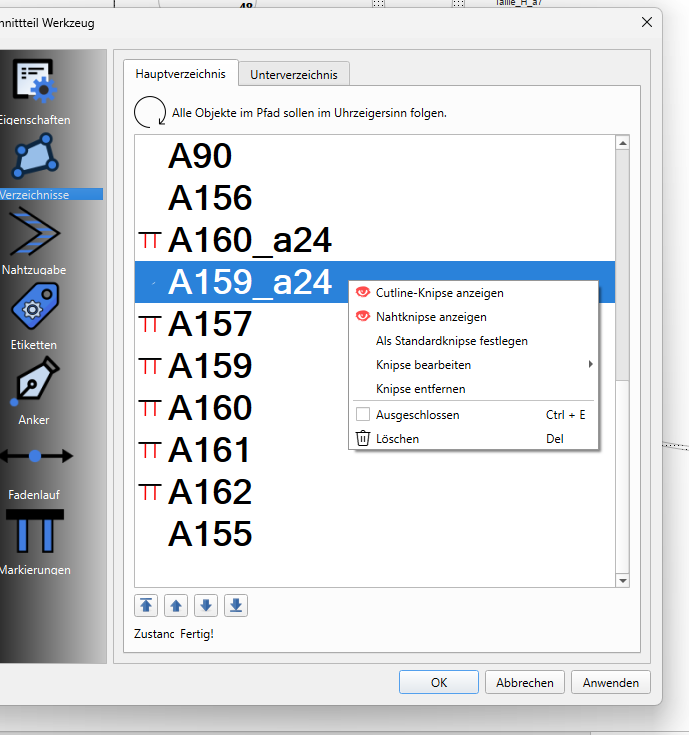

 I don’t know why the Notches in the menu changed. At the moment, you need to open the menu, select default, then open the menu again and select the type, then open the menu again and select the number of notches.