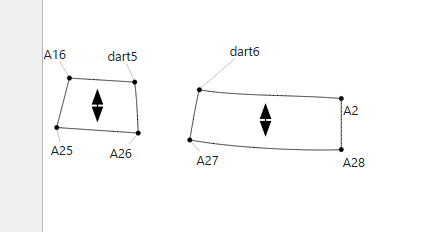
hello, I would like to draw a waistband from a skirt that I drafted.
I know how to do it with pen and paper, but it doesn’t seem to work this way in Seamly2d 
I marked points from the waist (4,5 cm) down, to create pieces that I later wanted to merge in ‘Pieces’. But Seamly 2d crashes when I do that.
What’s the best way to make a waistband with the measurements of the skirt? I want to create a multi size pattern
Hello @karen1983 , welcome to Seamly! We’ll try our best to get your Seamly drafting working for you!
I assume that you are saying that using the Union tool in ‘Pieces’ crashes Seamly, not that adding points crashes Seamly.
In the ‘Draft’ mode you will need to use the Rotate tool from the Operations toolbox.
- Select the objects you want to rotate. Using your example, & I’m making assumptions about your spline names, I think you’d choose
dart6, Spl_dart6_A2, A2, A28, & Spl_A28_A27
- Hit Enter
- Select
A18 as your rotation point.
- Enter
AngleLine_A18_dart5-AngleLine_A18_dart6 (or whatever formula actually matches your pattern) as your rotation formula.
- Click OK
If you didn’t change the suffix, you will now have point dart6_a1 overlapping dart5, A27_a1 on A26, & curves, A2_a1 & A28_a1 sticking out up from the draft.
Each new instance of the Rotate tool will add another layer of suffix. So, for instance, if you started on the left side & closed dart A13, & then dart A14, you’ll have a point A1_a1_a2 curved out away from your main draft with its friends.
I hope that helps! If my guesses are completely off & you aren’t seeing how to make them right, please feel free to post your pattern & measurement files, & one of us will help you get it working right!
Happy drafting!

thank you so much!!!
I gave it a go, but I’m not sure if it’s correct
I managed to rotate the curved lines, but now… how do I make a Piece of it? It doesn’t work when I click the points/lines to make a piece. Have I forgotten something?
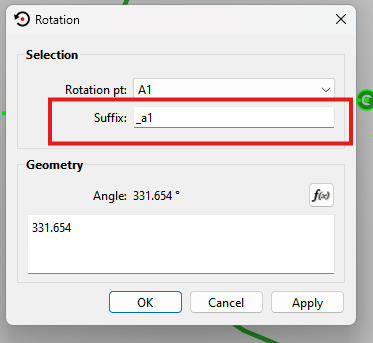
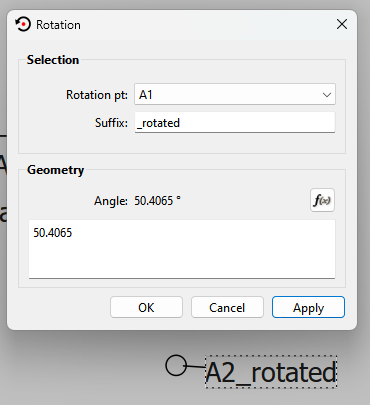
also: what is the suffix please? (I’m new to all this )
thank you so much for your advice!!!
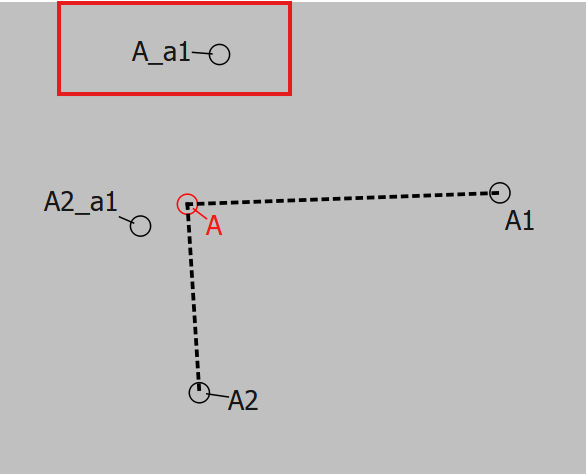
It’s the ‘_a1’ appended to the Point name. For example I rotated point A… so the new rotated point’s name is A + the suffix ‘_a1’.
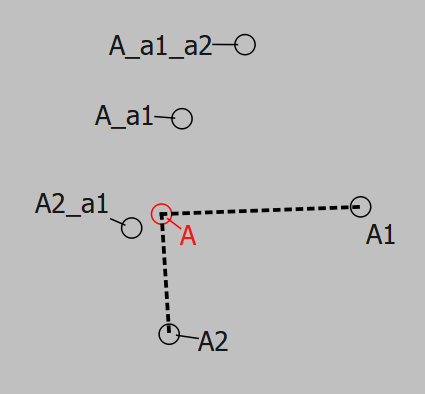
Rotating point A_a1 creates point A_a1_a2:
You can change the suffix to what ever you want:
The default suffixes will be _a1, _a2, _a3… _b1, _b2… etc.
If I rotate point A again it now uses _a3:
ok, thank you so much!! I drew new lines to create my piece, and now it’s ok!!
I was going to mention this before but I had to fix a bug I found… oops.
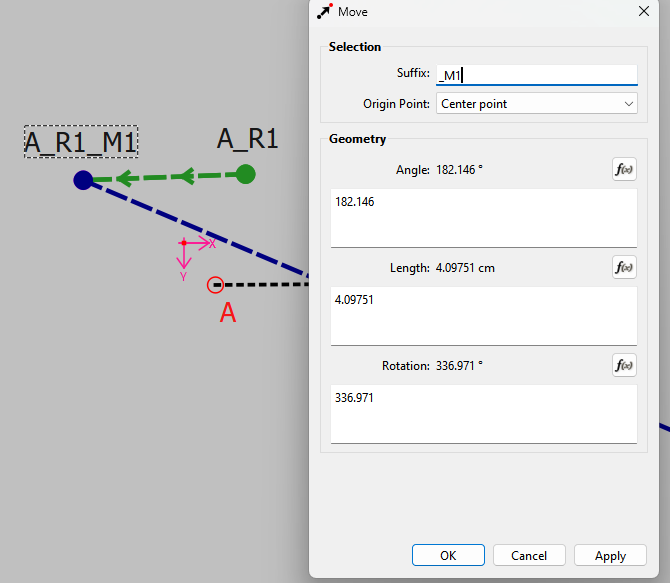
You can also set the default suffix for each Op tool in the prefs. For example I set Rotate to use _R and Move to use _M
Now when you look at the point names you know what type of tool was used. Here I rotated point A, then moved point A_R1 to create point A_R1_M1.
If I had used the default a1, a2… the rotated & moved Point would be named A_a1_a2 not knowing what tools were used or in which order… without looking them up in the history.